
Connect tables with connection fields
Link records in one table to records in another with a connection field: plan the relationship, add it, and edit or remove it later.
- Verified Nov 17, 2026
- Classic builder
On this page
A connection field links records in one table to records in another, such as each Job to the Customer it is for. Once two tables are connected, a job can show its customer's details, and a customer can list and total its jobs.
Plan the relationship #
Add the connection field to the table whose records belong to the other one. Each job belongs to a customer, so the connection goes on Jobs and points to Customers. You only add it on one side: the other table sees it as an incoming connection.
| Choose | When | Example |
|---|---|---|
| One-to-One | Each record connects to one record of the other table. | One Job belongs to one Customer. Each Customer still has one or many Jobs. |
| One-to-Many | Each record can connect to several records of the other table. Use it for many-to-many relationships too. | One Job has many Technicians, and each Technician has many Jobs. |
Add a connection #
- Open the table In Data Builder, click the table that will hold the connection (Jobs in the example) and open its Connections tab.
- Start the connection Click Add New Connection. You can also add it from the Fields tab with Add New Field and the Connection field type.
- Pick the other table In Jobs connects to (named for your table), choose the table to connect to.
- Pick the relationship Click One-to-One or One-to-Many. The card shows the relationship in words, such as "One Job belongs to one Customer".
- Choose the Display Field Pick the field of the other table that people see when they choose a record, such as the customer's name. It starts as that table's Default Display Field.
- Name and save Give the field a Name and, if you like, a Description, then click Save.
Connection field options #
| Option | What it does |
|---|---|
| connects to | The table on the other side of the connection. |
| One-to-One / One-to-Many | Whether a record connects to one or to several records of the other table. |
| Display Field | The other table's field shown for a connected record. It only changes what people see: you can change it at any time without changing which records are connected. |
| Name and Description | The field's name in this table, and a note for builders. |
| Auto assign to logged-in user | Only for connections to the Users table. When a record is created or edited and this connection has no value, it is set to the logged-in user. An existing value is never overwritten. |
See a table's connections #
The Connections tab of a table has three views:
- Visual: cards for each connection, under Outgoing (belongs) for the connections on this table and Incoming (has) for connections from other tables to it.
- List: the connection fields grouped by the table they link to.
- Diagram: a graph of this table and the tables linked to it.
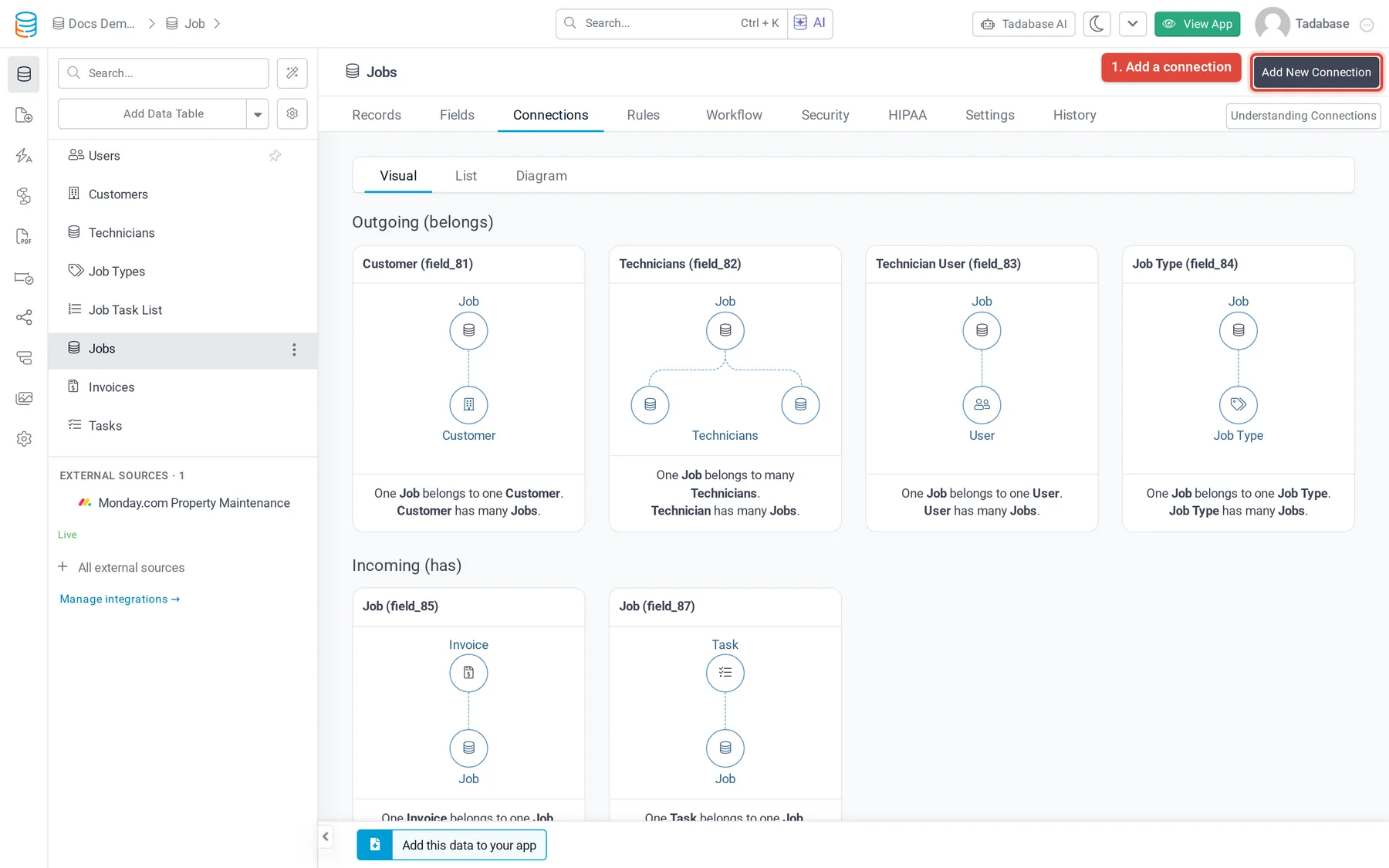
For a map of every table in your app and how they link, see See how your tables connect.
Connected and related records #
Records are connected when a connection field links them directly, such as a Job and its Customer. They are related when they link through another table: if Job Notes connect to Jobs and Jobs connect to Customers, a customer's job notes are related to the customer. A customer's details page can show both its connected jobs and those related notes.
To total or count connected records, such as the number of jobs per customer, add a rollup or equation field. See Rollup and Calculate values with an Equation field.
Edit or remove a connection #
- Edit: on the Connections tab, click the connection's card (or its pencil in the List view) to open the field. Change its options and click Save.
- Remove: open the field and click Delete. The field moves to Deleted Fields, where you can restore it. See Restore a deleted field.
Was this page helpful?
Something wrong or missing on this page? Tell us.