
Date, Time and Date & Time fields
Store a date, a time of day, or both. Set default values, fill a field automatically when a record is created or changed, and choose date and time formats.
- Verified Nov 17, 2026
- Classic builder
Date fields store a calendar date, a time of day, or both. Use them for due dates, appointment times, or a record's own created and modified timestamps.
Which type to use #
| Type in the field menu | What it stores | Example |
|---|---|---|
| Date | A day, month and year | Due date, birthday |
| Time | An hour and minute | Opening time, shift start |
| Date & Time | A date and a time together. The field settings call this type Date/ | Appointment, last contact |
For a start and an end in one field, use Date Range. To calculate a date from other fields, use a Date Formula.
Add a date field #
- Open the table In the Data Builder, open the table and go to its Fields tab.
- Pick the type Click Add New Field, then under Date click Date, Time or Date & Time.
- Configure it Click Add and Configure, enter a Name, set the options below, and click Save.
Field settings #
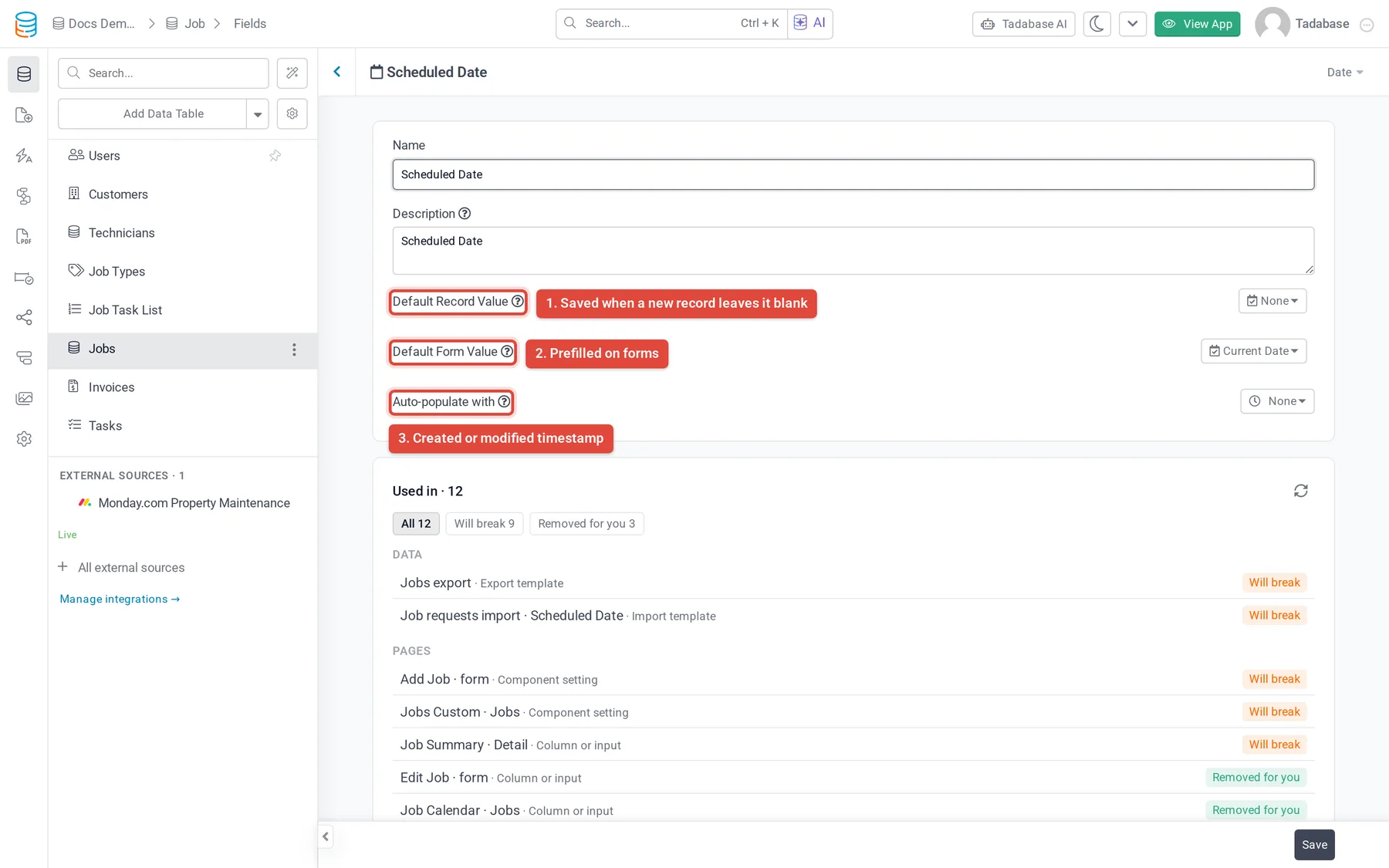
Date, Time and Date & Time fields have the same three settings. The menu items use the field's own word: Current Date, Current Time or Current Date/Time, and Specific Date, Specific Time or Specific Date/Time.
| Setting | Choices | What it does |
|---|---|---|
| Default Record Value | None, the current date or time, or a specific one | Saved when a new record is created with this field left blank. Existing records are not changed. |
| Default Form Value | None, the current date or time, or a specific one | Already filled in when a form with this field loads in the live app. The person can change it before submitting. |
| Auto-populate with | None, Record Created, Record Modified | Fills the field with the record's own timestamp. Record Created is set once, when the record is added. Record Modified is set on creation and refreshed every time the record is saved. Either one overrides any value entered on a form. |
Date and time formats #
The format is set for the whole app, not per field. Go to Settings > General Settings, Basic Settings tab:
- Date Format:
MM/dd/yyyy,MMM dd, yyyy,dd/MM/yyyyordd.MM.yyyy. - Time Format:
hh:mm a(12-hour, with AM or PM) orHH:mm(24-hour).
A table or details component can show one column differently. In the column's settings, Date Format and Time Format offer more formats, such as yyyy-MM-dd or HH:mm:ss, and Hide to show only the date or only the time of a Date & Time field.
The same column settings have an Output Format for Date and Date & Time fields: Date shows the value, Stop Watch shows the time counted from the value as a stop watch, and Age shows the time since the date in years, with Include Month and Include Days to add detail.
Time zone #
Tadabase uses the app's Timezone setting in Settings > General Settings for date and time values, including current-date defaults and Auto-populate with timestamps. Every user sees the same stored date and time. Set the time zone before you collect data, so timestamps match where your team works.
Was this page helpful?
Something wrong or missing on this page? Tell us.