
Find where a field is used with Field Usage
See every place in your app that uses a field, find unused fields and broken references, and check what would break before you delete a field.
- Verified Nov 17, 2026
- Classic builder
On this page
Field Usage lists every field in your app with each place that uses it: pages, workflows, formulas, imports, exports, security policies and more. Use it to clean up fields nobody uses, to fix references to deleted fields, and to check what a delete would break before you make it.
Field Usage replaced the Field Auditor. Old links to the Field Auditor open Field Usage. It is available on every plan.
Open Field Usage #
- Open Settings In the builder, open Settings from the left menu.
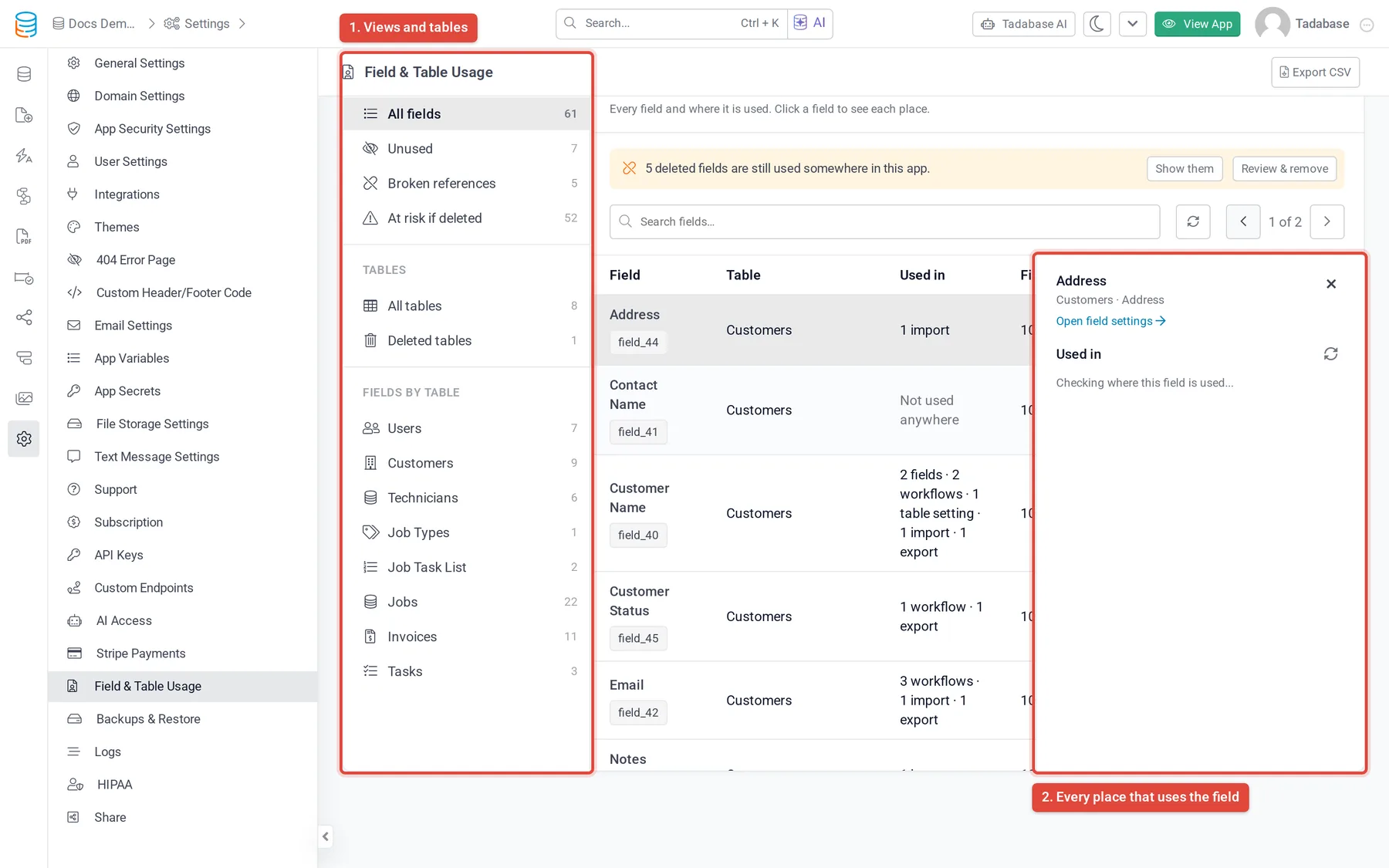
- Choose Field & Table Usage Click Field & Table Usage. The page checks every field in the app, which can take a few seconds on a large app.
You can also see usage from the Data Builder. On a table's Fields tab, open the gear menu next to Deleted Fields and turn on Show Used In. A Used in column then shows how many places use each field, how many of those are at risk, or Unused.
Choose what to list #
The left side of the page has four views of your fields, then the table views, then one entry per table.
| View | What it lists |
|---|---|
| All fields | Every field and where it is used. |
| Unused | Fields used nowhere in the app. These are safe to delete. |
| Broken references | Fields that were deleted but are still named somewhere. Filters on them show no records. |
| At risk if deleted | Fields whose delete would break a formula, workflow, rule, export or other place that you would have to fix by hand. |
| All tables and Deleted tables | Table usage and the table trash. See Check table size and usage with Table Usage and Restore a deleted table. |
| Fields by table | Click a table name to list only that table's fields. |
Use the search box to find a field by name, and the refresh button to check the app again instead of using the last saved result. Export CSV downloads the current list with each field's name, slug, table, type, where it is used, how full it is and its status.
Read the list #
Each row shows the field, its table and type, where it is used (for example 2 pages · 1 workflow), Filled (the share of records that have a value) and a status.
| Status | What it means |
|---|---|
| In use | Used, but deleting it only removes it from pages, which is done for you. |
| At risk | Deleting it breaks something that you have to fix by hand. |
| Unused | Safe to delete. |
| Can't delete | Something blocks the delete: a connection shows it as its display field, the field is locked, or it is the only field on its table. |
| System | A built-in field. It can't be deleted. |
Click a row to open the Used in panel. It groups every place under Data, Pages and Automation & security, and you can narrow it to what blocks the delete, what will break and what is removed for you. Each entry opens the place it names. Open field settings takes you to the field in the Data Builder.
If a note says some places couldn't be checked, the counts may be low. Click refresh to check again.
Places it checks #
- Data: other fields and formulas, table settings, connection settings, unique rules, import and export templates.
- Pages: page components (columns, inputs, filters, sorts, grouping, chart axes, display rules, form submit rules and emails), layouts and PDF pages.
- Automation and security: workflow triggers, conditions and steps, row-level security policies, scheduled tasks and older table rules, pipes, webhooks, custom endpoints, email templates, AI prompts, embeddable components and API configs.
- Custom code: a text match in your custom code is listed as a possible use, because it can't be confirmed.
Check a field before you delete it #
- Find the field Search for it on All fields, or open its table under Fields by table.
- Read its status Unused and In use fields can be deleted without fixing anything by hand. For At risk or Can't delete, click the row and fix the places listed first, or decide to fix them after.
- Delete it from the Data Builder When you delete a field, the delete dialog shows the same list of places. The field then moves to Deleted Fields, where you can restore it with its data. See Restore a deleted field.
Fix broken references #
When a deleted field is still named somewhere, an orange banner at the top of the page says so. Click Show them to open Broken references. The status of each one tells you what to do:
- In trash: the field is in Deleted Fields. Restore it to fix these references.
- Deleted: the field is gone for good. Remove the references or pick another field.
Click Review & remove in the banner to see each reference and remove the ones you no longer need.
Was this page helpful?
Something wrong or missing on this page? Tell us.