
Number, Currency, Rating and Slider fields
Store quantities, money, star ratings and slider values, and set decimal places, thousands separators, currency symbols, rating icons and slider ranges.
- Verified Nov 17, 2026
- Classic builder
On this page
Number fields hold values you count, compare or calculate with. The Number group of the field menu has four types: Number, Currency, Rating and Slider. This page covers when to use each one and every setting it has.
Which type to use #
| Type | What it stores | Use it for |
|---|---|---|
| Number | A number, with or without decimals | Quantities, scores, hours, measurements |
| Currency | A number shown with a currency symbol | Prices, costs, totals |
| Rating | A number shown as a row of icons, such as stars | Reviews, priorities, satisfaction scores |
| Slider | A number picked by dragging a slider between a minimum and a maximum | Progress, percentages, quick scores |
Numbers that are worked out for you are in other places: every table already has a built-in record number (see Auto Increment field), and calculated numbers such as Number Formula, Equation and Rollup are in the Equation group (see Equation fields).
Add a number field #
- Open the table In the Data Builder, open the table and go to its Fields tab.
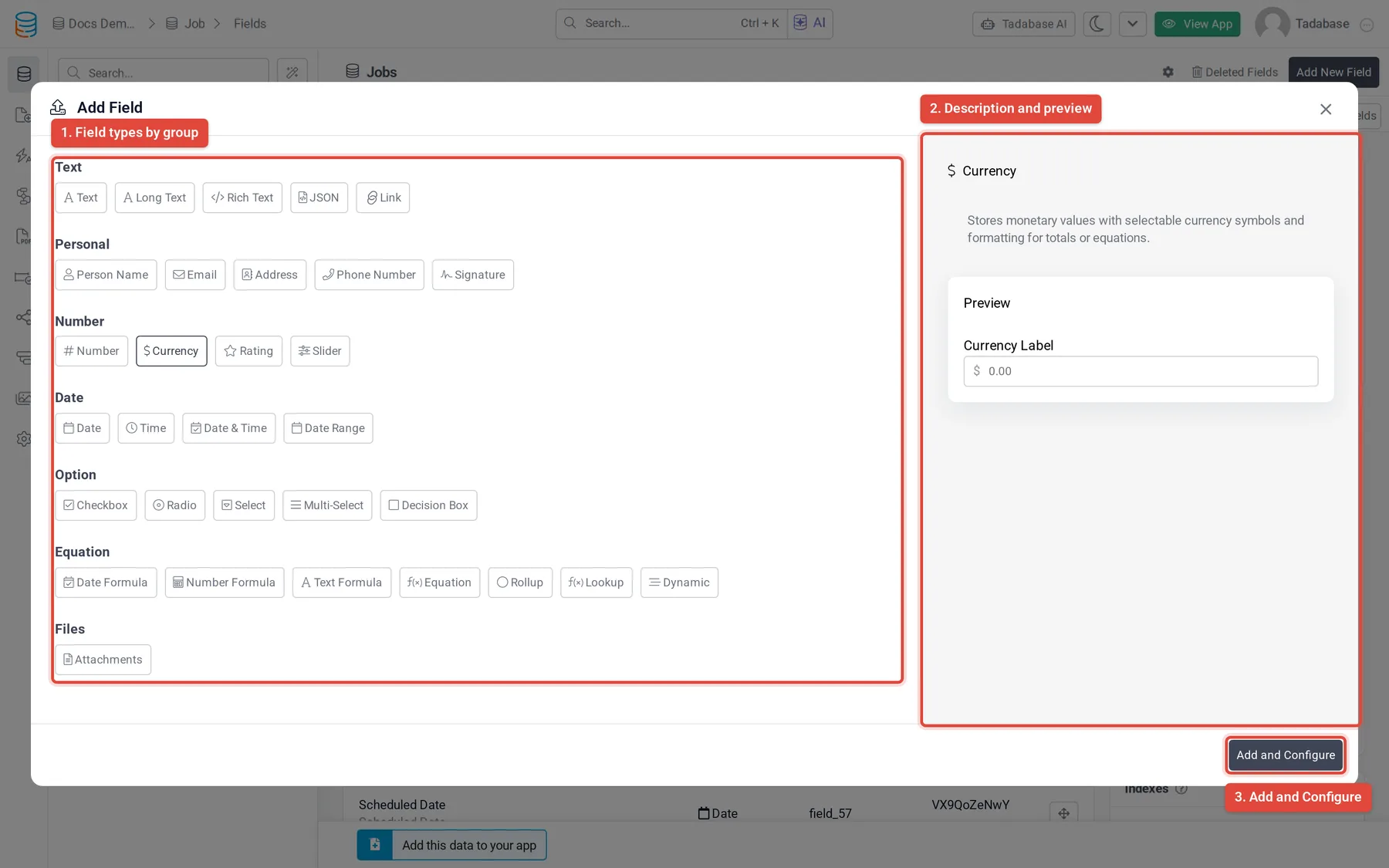
- Open the field menu Click Add New Field. The Add Field window lists every field type by group.
- Pick the type Under Number, click Number, Currency, Rating or Slider. The right side shows a short description and a preview of the field on a form.
- Configure it Click Add and Configure, enter a Name, set the options described below, and click Save.
Every field also has a Description. It is for your own notes and app users never see it.
Number #
| Setting | What it does |
|---|---|
| Decimal Places | How many digits are kept after the decimal point: None, 0 to 5, or 10. The default is None, which stores whole numbers. |
| Thousands Delimiter | The character that separates groups of thousands when a value is displayed: None (default), Comma, Period or Space. |
| Disable Rounding | Off by default, so values are rounded to the number of decimal places. Turn it on to keep the full value for storage and calculations; the display is then cut to Decimal Places instead of rounded. |
| Must be Unique | When on, two records in the table cannot hold the same value. |
| Default Record Value | Saved when a new record is created with this field left blank. Tick Update existing blank values? to also fill records that are blank today. |
| Default Form Value | The value already filled in when a form with this field loads in the live app. |
Currency #
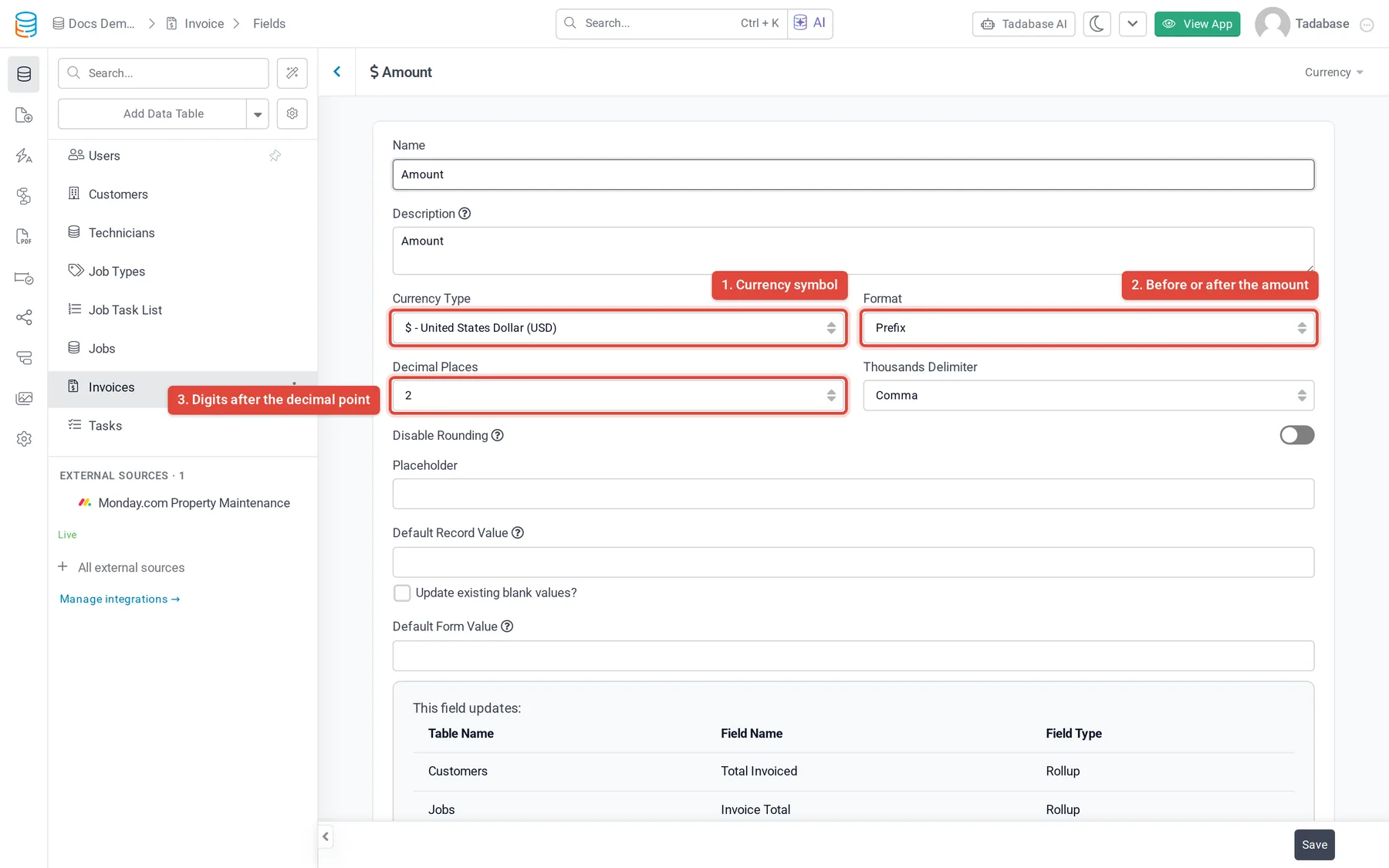
A Currency field has the same Decimal Places, Thousands Delimiter, Disable Rounding, Default Record Value and Default Form Value settings as a Number field, plus two of its own. Must be Unique is not offered on Currency fields.
| Setting | What it does |
|---|---|
| Currency Type | The currency symbol. New fields start with US dollars. Pick another currency from the list, or choose Custom and type your own symbol. |
| Format | Where the symbol goes: Prefix (before the amount, the default), Suffix (after it) or None (no symbol). |
| Decimal Places | Starts at 2 for Currency fields. |
Rating #
A Rating field lets people click icons to give a score, for example 4 out of 5 stars. The value is saved as a number.
| Setting | What it does |
|---|---|
| Number of Star | How many icons the scale has: 3, 4, 5 (default) or 10. |
| Enable Reset | On by default. Shows a control on forms that clears the rating. |
| Default Icon | A filled or outlined star, heart, thumbs-up or flag. Choose Custom to pick any icon in Custom Icon. |
| Default Icon Color | The color of the selected icons. Black unless you pick another color. |
| Conditional Icon Color | Click Add New to change the color and icon when the rating is equal to, not equal to, higher than or lower than a number. For example, show red icons when the rating is lower than 3. |
Rating fields have no default value settings.
Slider #
A Slider field shows a slider on forms. People drag it to pick a number between the two ends.
| Setting | What it does |
|---|---|
| Minimum Value | The number at the left end of the slider. New fields start at 0. |
| Maximum Value | The number at the right end of the slider. New fields start at 100. |
| Default Form Value | Where the slider sits when a form loads. Leave it empty to start with no value. |
Was this page helpful?
Something wrong or missing on this page? Tell us.