
Update or delete many records at once
Set field values on many records at once, or delete them, from the Data Builder: pick records in the grid or match them with conditions.
- Verified Nov 17, 2026
- Classic builder
On this page
On a table's Records tab you can set field values on many records in one go, or delete many records. Work on the records you tick in the grid, or on every record that matches conditions you set.
Choose which records #
| Start from | Which records it changes |
|---|---|
| Tick records in the grid, then click Update or Delete next to N Selected | Only the records you ticked. |
| Batch Operations at the top of the Records tab, then Update or Delete | Every record that matches the Conditions you add in the dialog. |
Update many records #
- Open Update Records Tick the records and click Update, or click Batch Operations and then Update.
- Set the conditions If you started from Batch Operations, click Add New Condition and choose the field, condition and value that pick the records. If you ticked records, the dialog says how many it is updating instead.
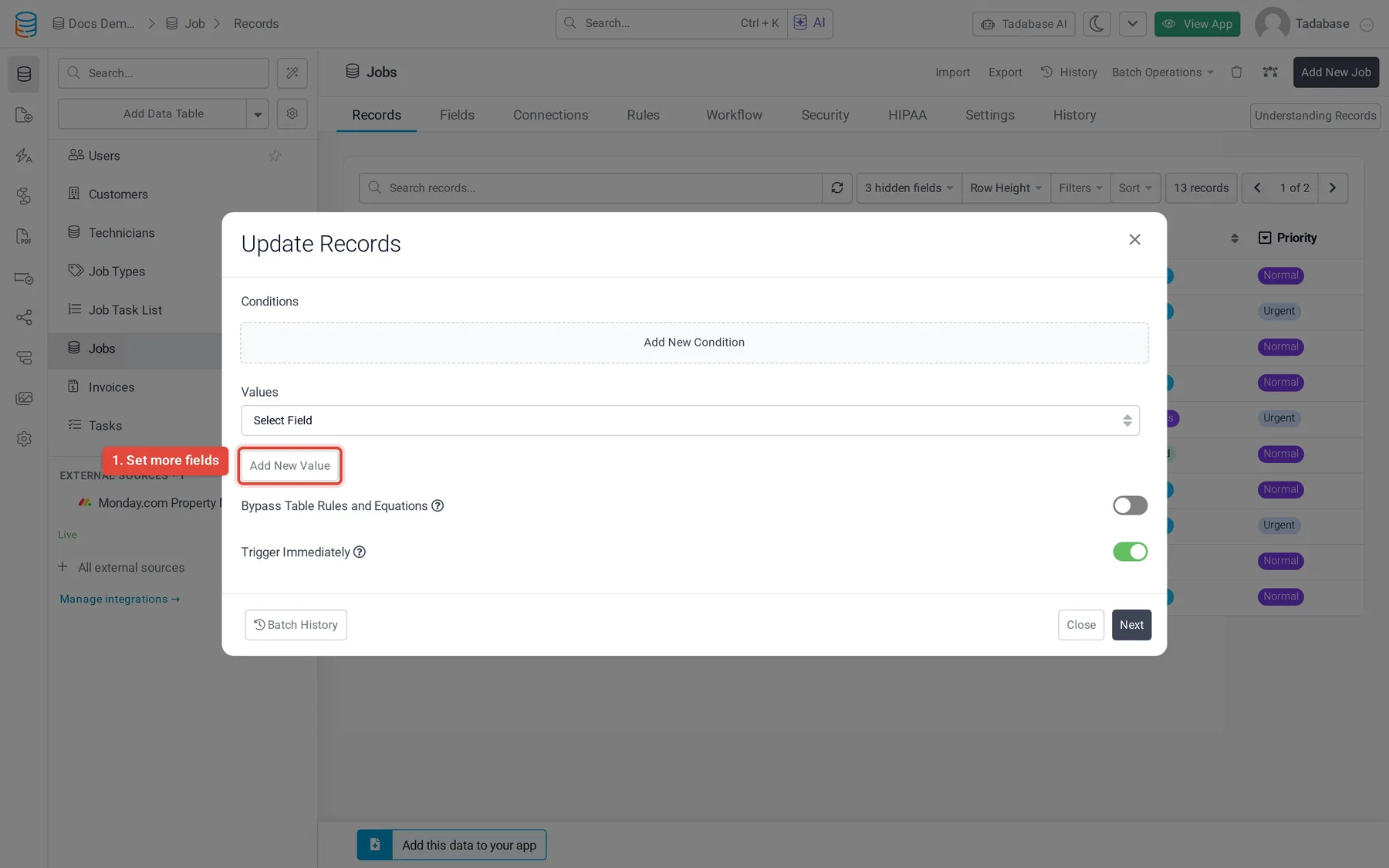
- Choose the new values Under Values, choose a field in Select Field. Keep Custom Value and enter the new value, or choose Set Blank Value to empty the field. Click Add New Value to change more fields; each field can be picked once.
- Check the count Click Next. The confirm step says how many records will be updated.
- Update Click Update. When it finishes, the dialog shows how many records were updated.
Which fields you can set #
You can set text, number, currency, email, phone, choice (select, multi-select, checkbox, radio), decision box, rating, slider, date and time, name, address, link and connection fields. For a connection field, choose the connected records to set.
You can't set fields whose values are calculated or uploaded: formula, equation, rollup, auto increment, date range, file, image and signature fields, or system fields such as the record ID.
Update options #
| Option | What it does | Default |
|---|---|---|
| Bypass Table Rules and Equations | Skips recalculating the table's equations after the update, which makes large updates faster. Turn it on only if you don't need calculated values to change. (Table rules are the older automation that workflows replace.) | Off |
| Trigger Immediately | On: the update runs while you wait. Off: it is queued and runs in the background, which suits large tables; its progress shows on the Records tab. Not shown when you ticked records, which always update right away. | On |
Delete many records #
- Open Delete Records Tick the records and click Delete, or click Batch Operations and then Delete.
- Set the conditions From Batch Operations, click Add New Condition to choose which records to delete, then click Next. If you ticked records, the dialog goes straight to the confirm step.
- Confirm Check how many records will be deleted and click Delete.
See past batch runs #
Click Batch History at the bottom of the Update Records or Delete Records dialog. It lists the batch runs on the table with their status, number of records, who ran them and when. Click Download backup on a run to download the data as it was before that run.
In your live app #
Table components on your pages can let users update or delete many records too, when you turn it on in the component. See Table component.
Was this page helpful?
Something wrong or missing on this page? Tell us.