
Attachments field
Upload one or more files to a record with the Attachments field. Choose folders, file names and link text, secure the files, and set upload limits on forms.
- Verified Nov 17, 2026
- Classic builder
On this page
The Attachments field stores files on a record: photos, PDFs, contracts, or any other upload. One field can hold several files, which people add on forms by dropping them in or browsing for them.
Add an Attachments field #
- Open the table In the Data Builder, open the table and go to its Fields tab.
- Pick the type Click Add New Field, then under Files click Attachments.
- Decide on security now Click Add and Configure and enter a Name. If the files must stay private, turn on Secured before you save: it cannot be changed later (see below).
- Save Set the other options described below and click Save.
Field settings #
| Setting | What it does |
|---|---|
| Secured | Off by default. When on, the files can only be opened inside your app where the field is shown, not through a direct link. You set it when you create the field; afterwards the settings only show whether it is on. |
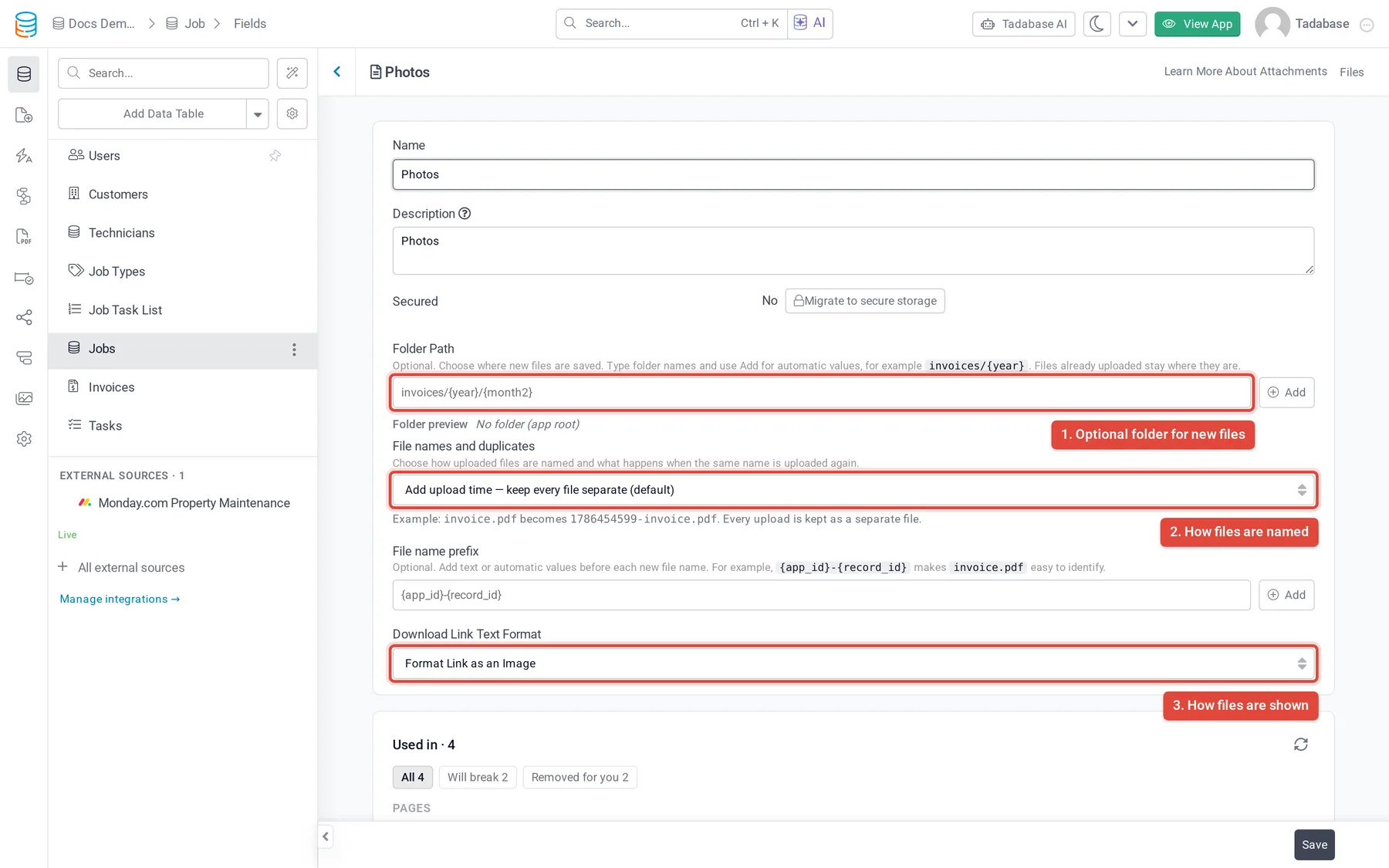
| Folder Path | Optional. The folder new files are saved in, such as invoices/{year}. Click Add to insert automatic values such as the year, the record or the table. The Folder preview shows an example. Files already uploaded stay where they are. |
| File names and duplicates | Add upload time — keep every file separate (default) adds a timestamp, so invoice.pdf becomes 1786454599-invoice.pdf. Keep readable name — number duplicates keeps invoice.pdf and names the next one 1-invoice.pdf. Replace matching file for this record overwrites a record's file with the same name; it needs a folder path that gives every record its own folder, and a replaced file cannot be recovered. |
| File name prefix | Optional text or automatic values put before each new file name, such as {app_id}-{record_id}. |
| Download Link Text Format | How files are shown where the field is displayed: Use File Name, Use Custom Value (the same Custom Text for every file), Use Field Value (the value of a Text field on the record, chosen in Field Value Text) or Format Link as an Image. |
If your app stores files in Dropbox, the field shows a Dropbox Folder Path and an Open In Dropbox switch instead of the folder and naming settings, and Secured is not available.
Restrict who can open secured files #
On a secured Attachments field, Restrict App Side File Access by adds a second check for people using the live app:
| Choice | Who can open the files |
|---|---|
| -- No Added Permissions Applied -- | Anyone who can see the field in your app. |
| Logged in User Role | Users with one of the roles you add with Select Roles. With no roles added, all users. |
| Logged in User Field | Users linked to the record through a connection field to the Users table that you pick, such as an "Uploaded By" field. |
| Logged User field or Role | Users who match either of the two checks above. |
Set upload limits on a form #
File size, number of files and file types are set on each form, not on the field. In the Page Builder, open the form component, edit the Attachments field, and use these settings:
| Setting | What it does |
|---|---|
| Maximum File Size(MB) | The largest file the form accepts. When it is empty, the limit is 10 MB. |
| Maximum Number of Files | How many files the field can hold in total, counting files already on the record. |
| Accepted Files | Allowed extensions or file types, separated by commas, such as image/*,application/. Leave it empty to accept any file. |
| Capture | On phones and tablets, what opens first: All (default), Image, Microphone, Camcorder or None. |
| Default Text | The text in the drop area. The default is "Drop files here to upload". |
| Resize | Shrinks images before upload to the Width and Height you enter, at the Quality you choose (0 to 100). With only a width or a height, the proportions are kept. |
| Direct S3 Upload | Only when your app saves files to your own Amazon S3 bucket. Uploads go straight to the bucket; this needs a CORS policy on the bucket. |
Very large uploads can still be refused by the server, with the message "The uploaded file exceeds …", whatever the form allows.
Where files are stored #
Files are stored by Tadabase unless you connect your own storage. On plans that include it, you can save files to your own Amazon S3 bucket or to Dropbox. See File Storage Settings, Saving files to your own S3 bucket and Saving files to Dropbox.
Older File and Image fields #
Before Attachments, Tadabase had two other file fields. Neither is offered in the Add Field window any more; use Attachments for new fields.
- File holds one file per record. Apps that already have File fields keep them, and they work as before. They have the same settings as Attachments, except Restrict App Side File Access by.
- Image has been retired: "This field is no longer available, please use the File or Attachments fields instead."
Was this page helpful?
Something wrong or missing on this page? Tell us.