
Import records from a CSV file
Bring rows from a CSV, Excel or JSON file into a table with the import wizard: map columns, update matching records, and check or undo the run.
- Verified Nov 17, 2026
- Classic builder
On this page
The Import button on a table's records opens the import wizard. It reads a CSV, Excel or JSON file (or another app, see import connectors), lets you match each column to a field, and adds or updates records in the background. Use it for a one-off load or a clean-up; for an import you repeat, save it as an import template.
Start an import #
- Open the table In the Data Builder, open the table you want to fill and stay on its records.
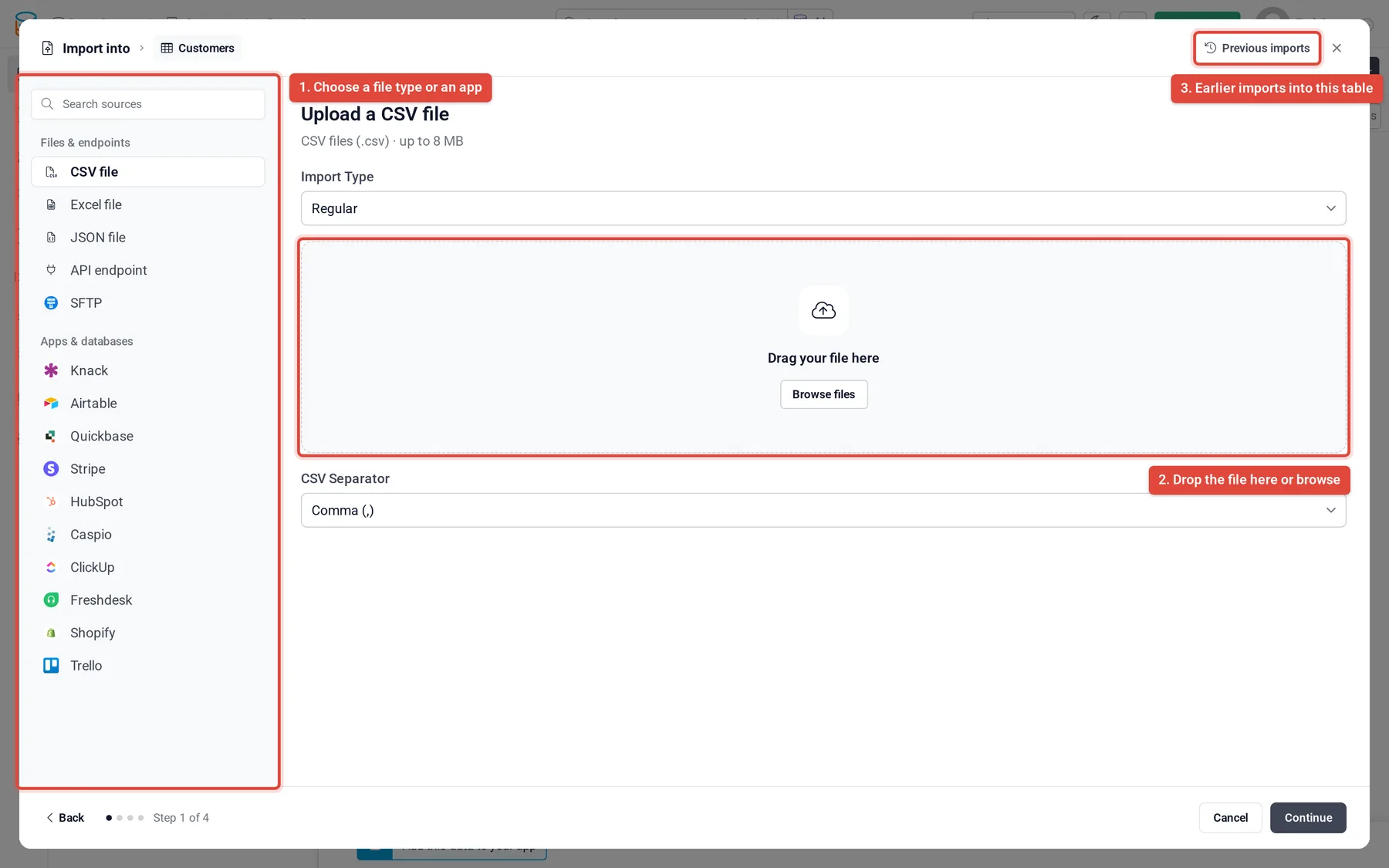
- Click Import Click Import above the records. The wizard opens on its first step with Import into and the table's name at the top.
- Choose the source On the left, under Files & endpoints, pick CSV file, Excel file or JSON file. Apps such as Airtable or Stripe are under Apps & databases.
- Add the file Drag the file onto the drop area or click Browse files. The line under the heading shows the largest file the wizard accepts.
- Check how the file was read For a CSV file, check CSV Separator: Comma (,), Pipe (|), Ampersand (&), Semicolon (;), Tab, or Custom to type one character. For an Excel file with several sheets, pick the sheet in Select Sheet to Import. Then click Continue.
Map columns to fields #
Step 2 lists every column of the file under Column, with the field it goes to under Tadabase field, and a Preview of the rows as they will land in the table.
- Tick the columns to import. All fields ticks or clears every column; at least one column must be ticked.
- For each column, choose Map to existing field, or Create new field and pick its type. A column you do not map shows Not imported.
- Turn Use first row as header off if the file has no header row; the columns are then numbered.
- When a ticked column goes to a Multi-Select, Checkbox or connection field, choose how several values in one cell are separated under Several values in one cell are separated by.
- Name and Address fields are split into parts (first name, city and so on) so each part can take its own column.
Formula, Image, File and Signature fields, and real-time Equation fields, are not offered: the table works those values out itself or they cannot come from a file.
Add new records or update existing ones #
Step 3, Advanced Import Options, decides what happens to rows that match records already in the table.
| Option | What it does |
|---|---|
| Insert each row as a new record | Every row becomes a new record. Nothing is matched. |
| Update records that already exist | Rows that match a record update it. Under What if no matching record is found? choose Insert the row as a new record or Skip the row and do nothing. |
| Skip records that already exist | Rows that match a record are left out; the rest are added. |
For update and skip, set the matching rule under Update records where the following fields match: (or Skip records where...): pick an Imported Column and the Tadabase Field it must equal. Click Add Rule to require more than one pair. Match on a field whose values are unique, such as an email or an ID.
Confirm and run the import #
Step 4, Confirm your import, checks a sample of rows from across the file against your mapping before anything is written.
- Findings are listed with What we found and What to do. Blocks means that column will be skipped; Check is a warning. You can still go ahead: the button then says Import anyway.
- Under Error Handling, choose Leave fields blank for records with errors or Exclude records with errors from the import.
- Turn on Save as Import Template and enter a Template name to reuse this setup later.
- Under Optional, click Add Default Value to fill a field when the file leaves it empty.
Click Import. The import runs in the background and you can close the wizard. When it finishes, a notice on the table's records shows the result, and you get an email.
Check, repeat or undo an import #
The notice on the records page has these actions, depending on the result:
| Action | What it does |
|---|---|
| Download the failed rows | A file of the rows that could not be saved. |
| Why did these rows fail? | Shows the reasons, row by row. |
| Import the N row(s) that failed | Runs only the failed rows again. |
| Import this file again | Runs the same file and mapping again. |
| Change the mapping and import again | Reopens the wizard on the stored file so you can fix the mapping. |
| Undo this import | Removes the records the import added. Records it updated keep their new values. |
To see earlier runs, open the wizard and click Previous imports at the top. It lists the last imports into the table, newest first, with Started, Source, Template, By, Status and the Added, Updated, Skipped and Failed counts.
Create a new table from a file #
In the Data Builder's left panel, open the menu on Add Data Table:
- Add table from Import opens the same wizard without a table. Each column you keep becomes a new field, and the new table opens when the import starts.
- Add table from CSV creates the table from a CSV file with the older importer.
If your plan uses the classic importer #
There is only one Import button on a table. Plans that include the import wizard get the wizard; other plans that include importing get the classic importer, a single form instead of steps:
- Import Type: Regular (choose a file), Template (use an import template) or API Connection (run a saved import connector).
- Select CSV File, the Delimiter and whether the file has a header row.
- Map each Imported Column to a Tadabase Field, then choose under Record Handling whether to add every row or update or skip rows that match.
- Click Check before importing to review problems before the run.
If you see Upgrade to Import instead of Import, your plan does not include importing.
Common problems #
| What you see | What to do |
|---|---|
| Every value lands in one column | The file uses another separator. Pick it in CSV Separator on step 1. |
| Accented letters look wrong | The file was not UTF-8. Save it as UTF-8 CSV and import again. |
| Several values end up in one option | Set Several values in one cell are separated by to the character your file uses. |
| Rows were added twice | Use Update records that already exist or Skip records that already exist with a matching rule on a unique field. |
Was this page helpful?
Something wrong or missing on this page? Tell us.