
Set a default value for a field
Fill fields automatically: a value saved on new records left blank, a value shown when a form opens, and static or conditional defaults on one form.
- Verified Nov 17, 2026
- Classic builder
On this page
A default value fills a field for you, so people don't have to type the same value every time. Tadabase has three kinds of default: one saved on new records, one shown when a form opens, and one you set on a single form, either fixed or based on conditions.
Which default to use #
| Setting | Where you set it | What it does |
|---|---|---|
| Default Record Value | The field's settings in the Data Builder | Saved when a new record is created with this field blank. Existing records are not changed when they are edited. |
| Default Form Value | The field's settings in the Data Builder | Fills the field when a form for a new record opens in the live app. The user can change or clear it. |
| Default Value tab: Static or Conditional | The field's settings in one form component | Sets the value on that form only, and replaces the field's Default Form Value there. |
Save a default on new records #
- Open the field In Data Builder, open the table, then the field's settings from the Fields tab.
- Enter the value Under Default Record Value, enter or pick the value.
- Save Click Save.
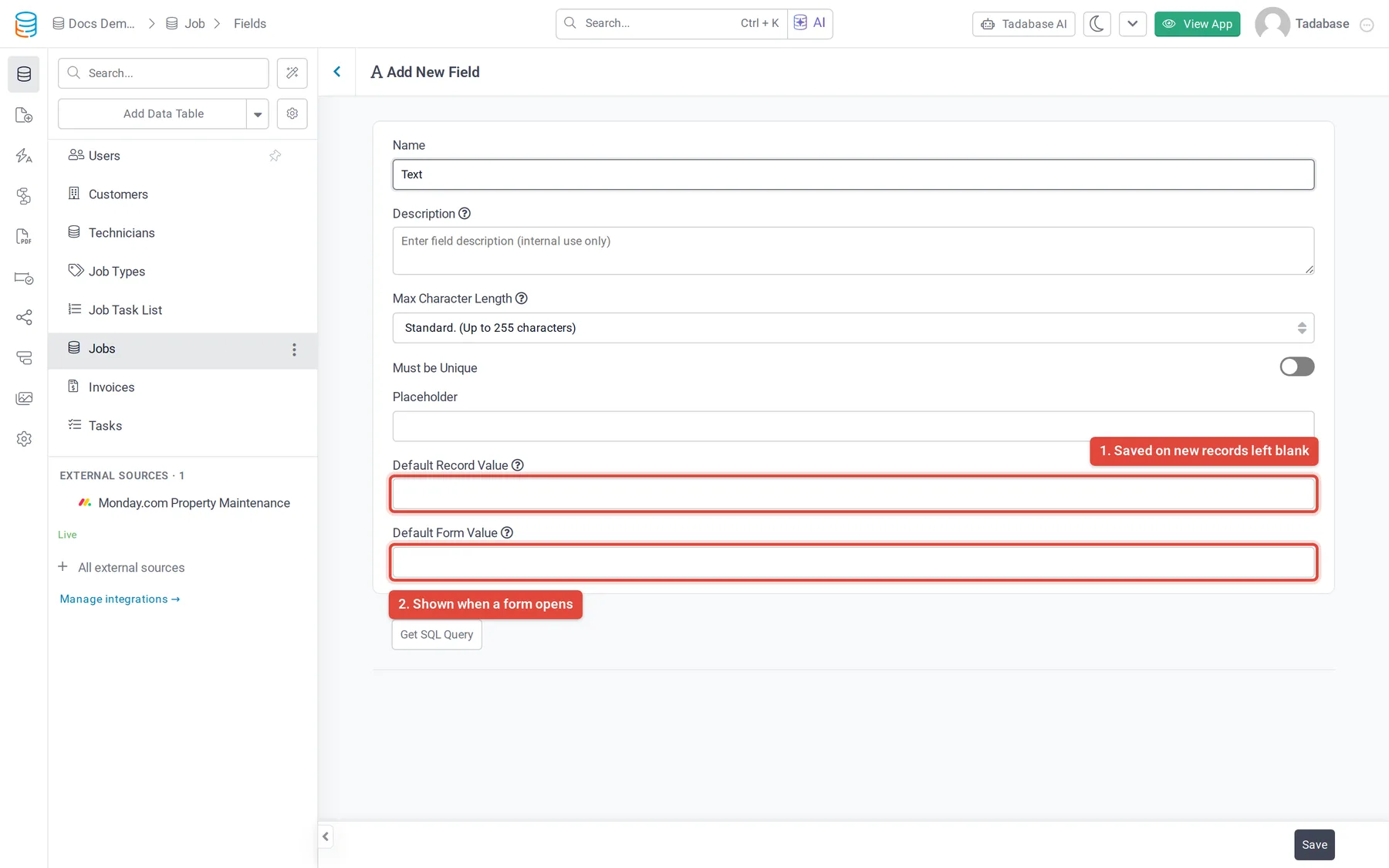
The value is used when a new record is saved with the field blank, whether it is created from a live-app form, in the Data Builder or through the REST API. Editing a record to blank later leaves it blank.
Default Record Value is available for Text, Long Text, Rich Text, Email, Phone Number, Link, Number, Currency, Select, Radio, Checkbox, Multi-Select, Date, Time and Date & Time fields. Option fields use one of their options. Date, Time and Date & Time fields can use the current date or time, or a specific one.
For Number and Currency fields, tick Update existing blank values? to also fill the records that are blank now when you save the field.
Fill a field when a form opens #
- Open the field Open the field's settings in the Data Builder.
- Enter the value Under Default Form Value, enter or pick the value.
- Save Click Save.
Every live-app form that adds a record shows the value in the field when it opens. Edit forms show the saved value instead.
- Text, Long Text, Rich Text, Email, Phone Number, Link, Number, Currency and Slider: type the value.
- Checkbox, Radio, Select and Multi-Select: pick one of the options.
- Decision Box: Checked or Unchecked.
- Date, Time and Date & Time: None, the current date or time, or a specific one.
Set a static or conditional default on one form #
To use a different default on one form, or to choose the value from what the user has entered, set it on the form component's field.
- Open the form In the Page Builder, open the page and the form component, then open the settings of the field.
- Open the Default Value tab Click the Default Value tab.
- Choose the kind of default Use field default keeps the field's own Default Form Value. Static always sets one value. Conditional sets a value based on conditions.
- Save the form Save the field settings and the page.
For Static, use Set to to choose Value and enter it, or Blank to clear the field.
For Conditional, add cases with Add Case (up to 20). Each case has conditions on the record's fields and a Then set to value or Blank. The first case whose conditions match sets the value. Under Otherwise, choose what happens when no case matches: Leave as is, a Value or Blank.
On an edit form, Apply on edit forms decides what happens to the saved value:
| Option | Effect |
|---|---|
| Never (show the saved value) | The default is not used on this edit form. |
| Only when this field is blank | The default fills the field only if the record has no value. This is the starting choice. |
| Always (replace the saved value) | The default replaces the saved value when the form opens, and is saved if the user submits. |
The Default Value tab is available for Text, Long Text, Rich Text, Email, Phone Number, Number, Currency, Slider, Link, Date, Time, Date & Time, Select, Radio, Multi-Select, Checkbox and Decision Box fields. It is not available for connection fields or for fields in a subform.
Fill connections and dates automatically #
- A connection field to the Users table has Auto assign to logged-in user: when a record is created or edited and the connection is empty, it is set to the logged-in user. An existing value is never overwritten.
- Connection fields can also have Auto assign via options, which set the connection to the records the logged-in user is connected to through another connection.
- Date, Time and Date & Time fields have Auto-populate with: Record Created sets the value once when the record is added, and Record Modified updates it every time the record is saved. This overrides any value entered on the form.
Was this page helpful?
Something wrong or missing on this page? Tell us.