
Calculate values with an Equation field
Build a formula from a table's fields and functions, choose a Text, Number or Date result, and use IF statements to calculate a value for every record.
- Verified Nov 17, 2026
- Classic builder
On this page
An Equation field calculates a value for each record from that record's other fields, using functions such as IF, CONCAT, DATEDIFF and ROUND. Use it when a value should always follow from other fields, such as a total with a fee added, a label based on a status, or the number of days between two dates.
The result is saved with the record and updated when the record changes. Nobody can type a value into an Equation field: in forms it is shown read-only.
Add an Equation field #
- Open the table's fields In the Data Builder, open the table and go to its Fields tab.
- Add the field Click Add New Field. In the Equation group choose Equation, then click Add and Configure.
- Name it Enter a Name, for example
Total With Fee. - Write the equation Type the formula in the Equation box. Type
{to pick a field, and start typing a function name to see matching functions. See Write the equation. - Choose the result type Pick Text, Number or Date under Output Type.
- Save Click Save. The builder runs the equation against the table before it saves, and shows an error instead if the database cannot run it.
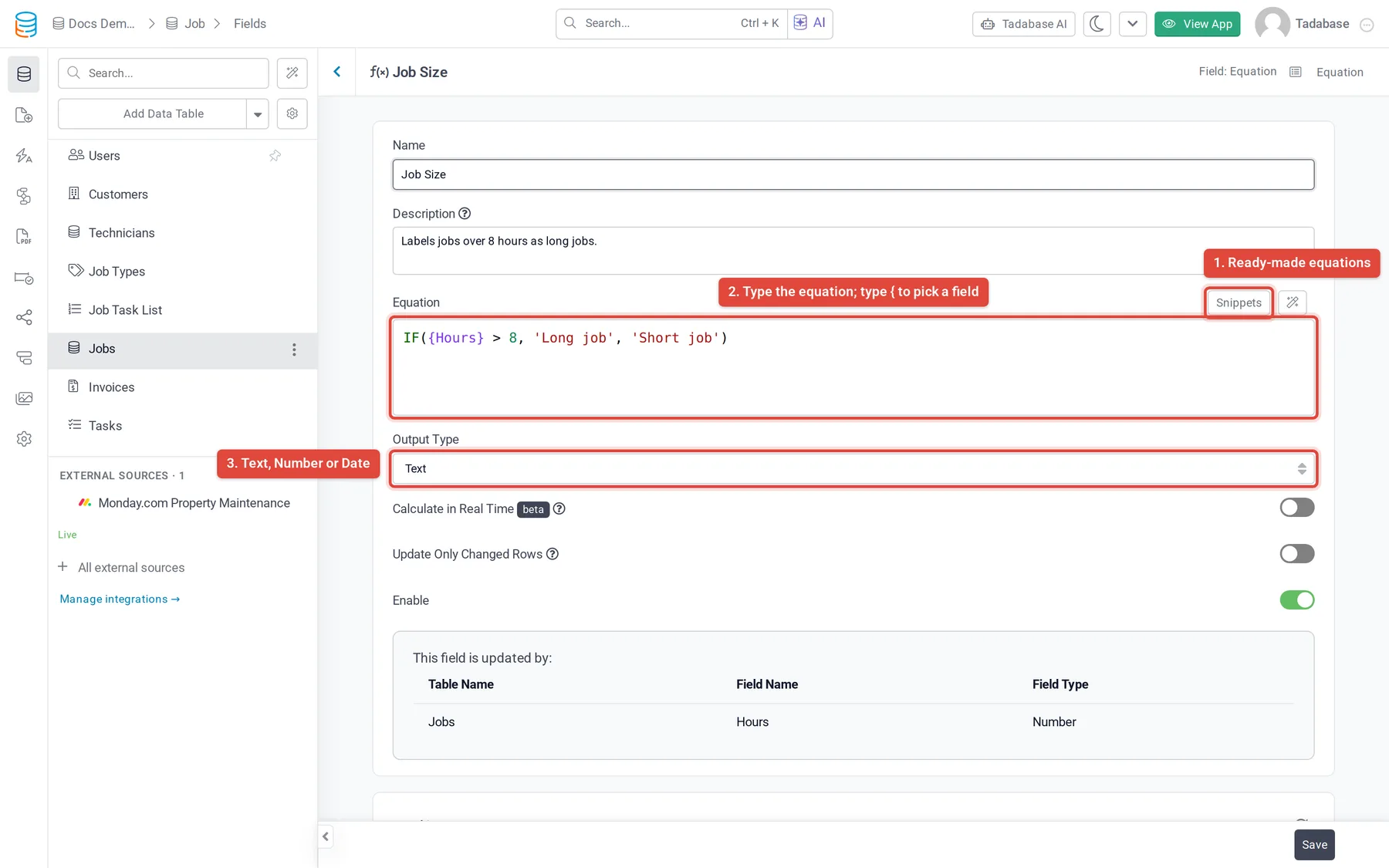
Snippets opens a library of ready-made equations. Click Insert on one to put it in the box, then replace its fields with your own.
Write the equation #
- Put field names in curly braces:
{Total Cost}. The editor shows names, but saves the field's slug, so renaming a field later does not break the equation. - Put text in quotes:
'Paid'. Numbers need no quotes. - Use
+,-,*and/for math, and=,<>,!=,>,<,>=,<=to compare values. - Write a function name followed by parentheses, with every argument inside them:
UPPER({Customer}). - Functions can be nested inside each other:
ROUND({Price} * {Quantity}, 2).
{Price} * {Quantity}
CONCAT({First Name}, ' ', {Last Name})
DATEDIFF({Due Date}, {Start Date})
ROUND({Hours} * {Rate}, 2)
As you type, a line under the box checks the syntax. It shows Valid Syntax! when the equation is well formed, or a message such as Unknown function name, Invalid field reference, Missing closing parenthesis ) or Unclosed function. Fix the message before you save.
Every function you can use is listed, with an example, in Equation functions and examples.
Choose the output type #
The output type decides how the result is stored and which conditions you get when you filter on the field (for example contains for text, or date conditions for a date).
| Output Type | Use it for | Extra settings |
|---|---|---|
| Text | Labels, joined text, formatted values such as $1,250.00 | None |
| Number | Totals, counts, differences between dates in days | Decimal Places (0 to 3), Thousands Delimiter (None, Comma, Period, Space) and Disable Rounding |
| Date | Due dates, renewal dates, any result that is a date | None |
With Disable Rounding on, the full-precision value is stored and used in calculations, and the display is cut to the number of decimal places instead of rounded.
Use IF statements #
IF returns one value when a condition is true and another when it is false. It takes three arguments separated by commas: the condition, the value if true, and the value if false.
IF(condition, value_if_true, value_if_false)For example, to add a $5 shipping fee to orders of $100 or less and leave larger orders as they are:
IF({Total Cost} <= 100, {Total Cost} + 5, {Total Cost})Each argument can be a field, a fixed value, a calculation or another function. This equation shows Valid when a customer's email address ends in tadabase.io and Invalid otherwise:
IF(SUBSTRING_INDEX({Email}, '@', -1) = 'tadabase.io', 'Valid', 'Invalid')Check more than one condition. Join conditions with && (and) or || (or). This adds the fee only to orders from $100 up to, but not including, $200:
IF({Total Cost} >= 100 && {Total Cost} < 200, {Total Cost} + 5, {Total Cost})Several outcomes (else if). Put the next IF in the false argument of the one before. Each nested IF works like any other:
IF({Score} >= 90, 'A', IF({Score} >= 80, 'B', IF({Score} >= 70, 'C', 'Below C')))Troubleshoot IF statements #
A long nested IF is easier to fix when you build it one level at a time.
- Write each condition on its own Put a placeholder text in the false argument and check that the syntax line shows Valid Syntax!.
- Nest the next level Replace the placeholder with the next
IF, again ending in a placeholder. Check it, then save and look at a few records. - Repeat Add one level at a time until the last
IFhas its real false value.
IF({# of Managers} = 2, {Store Quarterly Bonus} * 0.50, 'next')

IF({# of Managers} = 2, {Store Quarterly Bonus} * 0.50,
  IF({# of Managers} = 1 && {Position} = 'Manager', {Store Quarterly Bonus} * 0.70, 'next'))

IF({# of Managers} = 2, {Store Quarterly Bonus} * 0.50,
  IF({# of Managers} = 1 && {Position} = 'Manager', {Store Quarterly Bonus} * 0.70,
    IF({# of Managers} = 1 && {Position} = 'Assistant Manager', {Store Quarterly Bonus} * 0.30, 0)))
If the builder will not save, read the message it shows. A message such as Invalid ROUND() usage — please check the ROUND() signature. means a function got the wrong number or kind of arguments; check it in Equation functions and examples. Check also that the true and false values fit the Output Type: a Number equation should return numbers in both branches.
Fields you can use, and connected records #
Type { to see the fields an equation can read. The list holds the fields of the same table. Some field types appear as parts:
- Person Name:
- Title,- First Name,- Middle Name,- Last Name. - Address:
- Address,- Address 2,- City,- State,- Country,- Zip,- Latitude,- Longitude. - Date Range:
- Start Date,- End Date,- All Day. - The record ID, also as
- Encodedfor the encoded ID used in links and the API.
Connection fields, Checkbox, Multi-Select, Attachments, File, Image and Signature fields are not in the list.
An equation cannot read fields of connected records directly. To use one, first bring the value into this table with a Rollup field (for example the sum, count or latest value of the connected records), then use the Rollup in your equation. See also Which fields can be used in equations and formulas.
Limits #
- An Equation field's value is always calculated. You cannot type it in a form or set it yourself.
- Only the functions in Equation functions and examples are accepted.
- Equations cannot contain
;,@,#or comments, or words such asSELECT,UPDATEorDELETE. They calculate a value from the current record only. NOW(),CURDATE()andCURTIME()return the app's current date and time at the moment the record is calculated. The stored value does not change by itself as time passes; it updates when the record is calculated again.
To show a calculated value without storing it, for example to update a total live while someone fills in a form, use a Dynamic field instead.
Was this page helpful?
Something wrong or missing on this page? Tell us.