
Show calculated values with a Dynamic field
A Dynamic field works out its value each time it is shown, from templates of fields and helpers. Nothing is stored, so saving records stays fast.
- Verified Nov 17, 2026
- Classic builder
On this page
A Dynamic field shows a value that is worked out each time the field is displayed, from a template you write with field values, helpers, text and HTML. Nothing is saved to the database, so it adds no work when records are saved, and in a form it updates as the user types.
One Dynamic field can hold several templates, and each place that shows the field picks which template to display.
How it works #
Most fields store a value in the record. Equation, formula and rollup fields are stored too, and are recalculated when a record is saved, so a table with many of them saves more slowly. A Dynamic field stores nothing: its template is filled in from the record's values at the moment the field is shown.
- On pages and in the Data Builder, the template is filled in by the browser.
- In a form, it is filled in again whenever an input changes, so the user sees the result before saving.
- In exports and API responses, it is filled in on the server.
Templates use Handlebars syntax. The helpers you can use are listed in Dynamic field functions.
When to use it #
| Use | When |
|---|---|
| Dynamic field | You only need to show the value (on a page, in a form, in an export or the API), you want it to update live in a form, or a table has so many calculated fields that saving is slow. Several templates in one field can also replace several separate fields. |
| Equation field | You need to sort, filter or search on the value, use it in another formula or a workflow, or keep it with the record. |
| Rollup field | You need a total, count, average or similar from connected records, stored on the record. |
Plans #
The Dynamic field is turned on by a plan setting. If your plan does not include it, Dynamic does not appear in the Equation group when you add a field. Tadabase support can also turn it on for an account; contact support if you need it.
Create a Dynamic field #
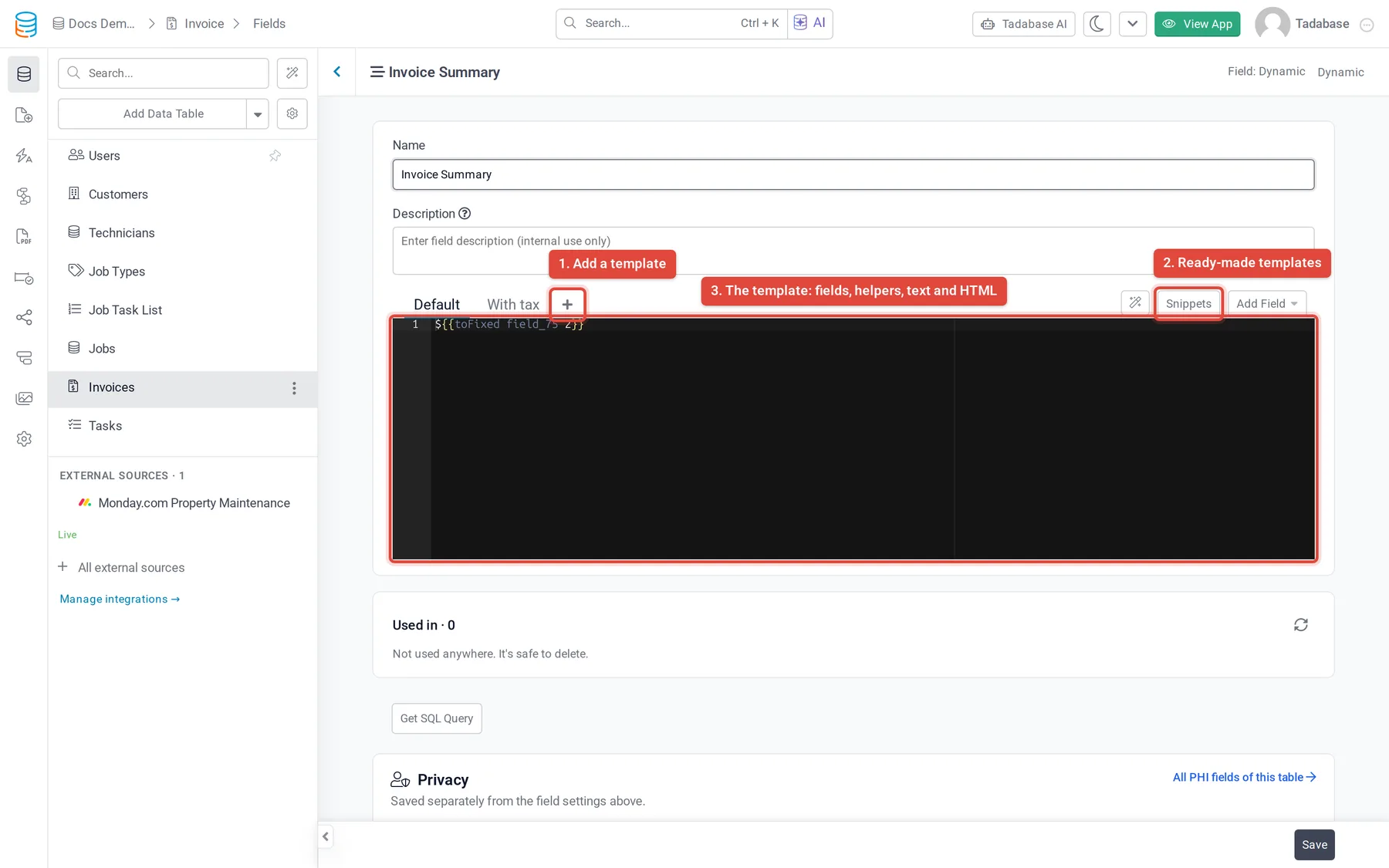
- Open the table's fields In the Data Builder, open the table and go to its Fields tab.
- Add the field Click Add New Field. In the Equation group choose Dynamic, then click Add and Configure.
- Name it Enter a Name, for example
Cost Summary. - Write the first template The first template is called Default. Type it in the editor, or click Add Field to insert a field. A field is inserted by its ID, such as
{{field_50}}, not by its name. - Use a snippet (optional) Click Snippets to browse ready-made templates, and click Insert to add one. Replace its field IDs with your own.
- Add more templates (optional) Click + (Add New) to add another template. Use the pencil to rename it and the bin to delete it. The Default template cannot be renamed or deleted.
- Save Click Save.
In the Data Builder's records view the field shows its Default template.
Write a template #
- Wrap a field ID or a helper in double curly braces:
{{field_123}},{{uppercase field_123}}. - To use one helper inside another, put the inner one in parentheses. Use only one pair of double braces around the whole expression:
{{toFixed (multiply field_50 10) 2}}. - Use triple braces to output HTML as HTML.
{{field_100}}shows the HTML code as text;{{{field_100}}}renders it. - Anything outside braces, including text and HTML, is shown as written.
${{toFixed (multiply field_50 0.001) 2}}

{{#if (gt field_60 100)}}
  <strong>Large order</strong>
{{else}}
  Standard order
{{/if}}
Fields of connected records. In Add Field, connected fields are listed as Connection (Table) > Field. Choosing one inserts a block that repeats for each connected record:
{{#each raw.field_70.field_12}}
{{this}}
{{/each}}
Full helper list with examples: Dynamic field functions.
Show it on a page #
- Add the field to a component Add the Dynamic field to a table, details, form or other component like any other field.
- Pick the template Edit the field in the component and choose the template under Choose Template. Without a choice, the Default template is shown.
- Add it again for another template (optional) You can add the same Dynamic field to a component more than once and pick a different template each time.
In a form, the Dynamic field is shown read-only and recalculates whenever one of the form's inputs changes. For the live update, add the fields the template reads to the same form.
When you export records, you also choose which template each Dynamic column uses.
Limits #
- Table columns of a Dynamic field cannot be sorted.
- Dynamic fields are not offered in filters or search.
- Because no value is stored, other fields cannot calculate from a Dynamic field.
Troubleshooting #
| Problem | What to check |
|---|---|
| The field is blank | Field references must be IDs such as field_123, not names. Check every {{ has a matching }}, every block such as {{#if}} is closed, and helper names are spelled exactly, including capitals. |
| The wrong calculation shows | Edit the field in the component and check Choose Template. |
| A form does not update as you type | The fields the template reads must be inputs in the same form. |
| It works on a page but is blank in an export or the API | A few helpers only work in the browser. See Helpers that work only on screen. |
Was this page helpful?
Something wrong or missing on this page? Tell us.