
Summarize connected records with a Rollup field
Count connected records, or total, average, find the lowest or highest of, or list a field across them, with optional conditions.
- Verified Nov 17, 2026
- Classic builder
On this page
A Rollup field looks at the records connected to each record and returns one value: how many there are, a total, an average, the lowest or highest value, or a list of values. For example, a customer's number of jobs, or the total of their invoices. Conditions let you count or total only some of the connected records.
The table needs a connection to the records you want to summarize. See Connection fields.
Add a Rollup field #
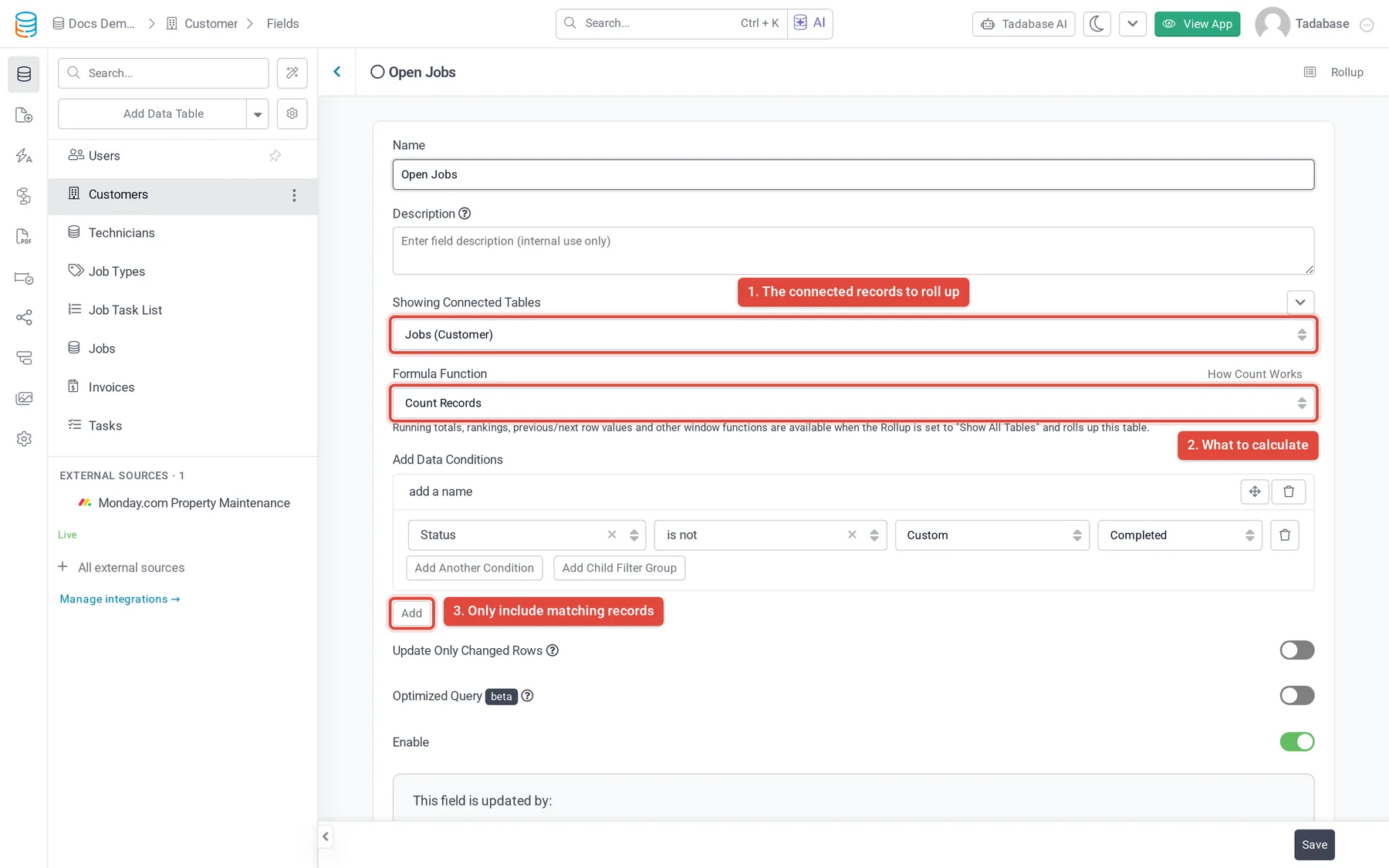
In this example each customer gets an Open Jobs count of their jobs that are not completed.
- Open the table In the Data Builder, open the Customers table and click the Fields tab.
- Choose the field type Click Add New Field. Under Equation, click Rollup, then click Add and Configure.
- Name it Enter a Name, for example
Open Jobs. - Choose the connected records Under Showing Connected Tables, pick the connection to roll up through, for example Jobs.
- Choose what to calculate Set Formula Function to Count Records. For any other function, also pick the field to calculate with.
- Add a condition Under Add Data Conditions, click Add and set the condition, for example Status is not Completed.
- Save Click Save. Each customer now shows how many open jobs they have.
Choose the connected records #
The list under Showing Connected Tables has two kinds of entries:
- This table's own connection fields, by field name.
- Tables that connect to this table, shown as the table name with the connection field in brackets, for example Jobs (Customer). Use these to roll up child records, such as all jobs of a customer.
On some plans, the arrow next to Showing Connected Tables also offers Show All Tables, which rolls up records of any table and matches them with conditions instead of a connection.
Formula functions #
| Formula Function | Returns | Field to calculate with |
|---|---|---|
| Count Records | How many connected records match | None |
| Sum Value | The total of the field | A number field such as Number, Currency, Number Formula, Equation, Rollup, Rating or Slider |
| Average Value | The average of the field | As for Sum Value |
| Minimum Value | The lowest value | A number field, or a date or time field for the earliest |
| Maximum Value | The highest value | A number field, or a date or time field for the latest |
| Concatenate | The field's values from all connected records, in one line | Any field except Link |
| Concatenate Unique | Like Concatenate, but each value only once, sorted by value | Any field except Link |
The field list label tells you what you are choosing, for example Select the field in Jobs data table to get the SUM values. Text, option, connection, file and signature fields are not offered for Sum, Average, Minimum or Maximum.
Concatenate settings #
| Setting | What it does | Default |
|---|---|---|
| Value Separator | The text between values. Spaces are kept, so , gives A, B, C. | , |
| Sort By | The field and direction (ASC or DESC) that sets the order of the values. Concatenate Unique always sorts by the value itself. | ASC |
| Limit Records | All Records, or Limited Records with a number. The number is only applied to a rollup set to Show All Tables; leave it on All Records for a rollup through a connection. | All Records |
Count or total only some records #
Under Add Data Conditions, click Add to add a condition on a field of the connected table. Only connected records that match are counted, totalled or listed. Add more conditions with Add; remove one with its delete button.
Examples: count only jobs whose Status is Completed, or total only invoices whose Paid box is unchecked.
Number format #
When the field you calculate with is a number field, you can also set Decimal Places and Thousands Delimiter. For fields other than Number, such as Currency or Number Formula, you can set a Currency Type and its Format (None, Suffix or Prefix) too.
If a rollup is slow or wrong #
- Use conditions to include only the records you need, and remove rollups you no longer use.
- If a calculation fails, the field settings show Last calculation failed with the error. Check the fields the rollup uses, then save the field to run it again.
- On plans that include it, the Optimized Query switch (beta) calculates the rollup for the whole table in one pass. When you save, the result is tested against your data; if it differs, the field keeps its original query.
- Enable is on by default. Turning it off stops the field recalculating; values already saved stay as they are.
Older Count, Maximum, Minimum, Average and Sum fields #
Before Rollup, Tadabase had separate Count, Maximum, Minimum, Average and Sum field types (also called Complex Formula). Rollup replaces them: they are no longer offered in Add New Field, and Rollup does the same and more, such as Concatenate.
Fields you already have keep calculating. When you open one, it has the same settings as a Rollup: Table, Formula Function (Count Records, Minimum Value, Maximum Value, Average Value or Sum Value), the field to calculate with, Add Data Conditions, Currency Type, Format, Decimal Places and Thousands Delimiter. The field to calculate with can be a Number, Currency or Number Formula field.
An older field cannot be changed into a Rollup. To move to Rollup, add a Rollup with the same settings, switch anything that used the old field to the new one, then delete the old field. A Number Formula can use older fields from the same table, but not Rollup fields; an Equation can use both.
Was this page helpful?
Something wrong or missing on this page? Tell us.