
Date Range field
Store a start and an end date and time in one field, choose how people enter the end on forms, and show the range on a calendar.
- Verified Nov 17, 2026
- Classic builder
On this page
A Date Range field stores a start and an end in one field, each with a date and a time, and can mark the range as all day. Use it for appointments, bookings, leave requests and events, and to place records on a calendar.
Its internal type name is Calendar, which is what you see in the API and in some field-type lists.
Add a Date Range field #
- Open the table In the Data Builder, open the table and go to its Fields tab.
- Pick the type Click Add New Field, then under Date click Date Range.
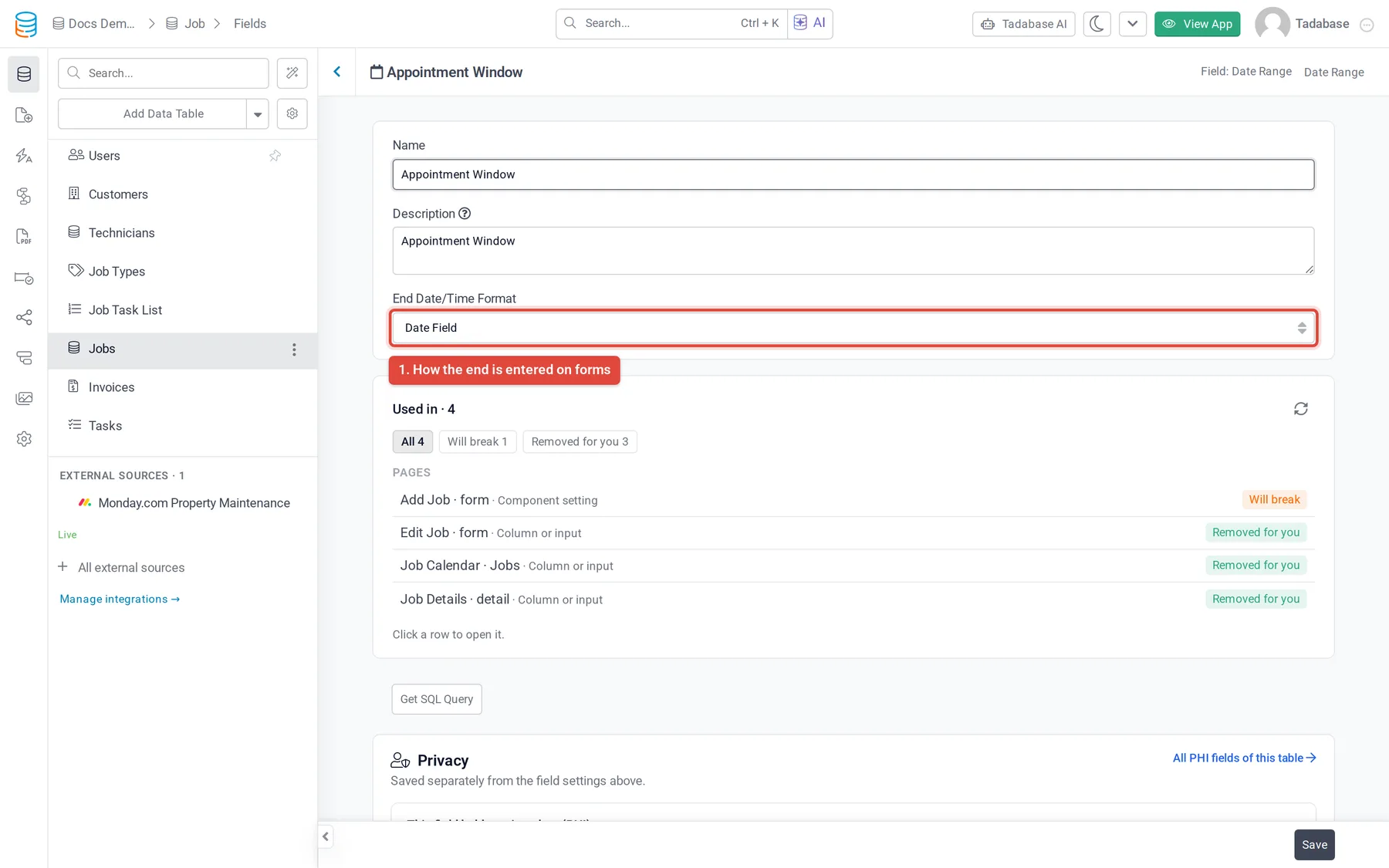
- Configure it Click Add and Configure, enter a Name, choose the End Date/Time Format described below, and click Save.
Choose how the end is entered #
On a form, the start is always a date and time. End Date/Time Format decides how people give the end:
| Choice | On the form | Good for |
|---|---|---|
| Date Field (default) | A second date and time, plus an All Day checkbox | Ranges over several days, such as leave or hotel stays |
| Time Field | Only an end time. The end is on the same day as the start. | Events that end the same day |
| Duration Field | A number and a unit: minutes, hours or days. The end is worked out from the start. | Fixed-length bookings, such as 30-minute appointments |
This setting only changes how the end is entered. The field always stores a full start and end, and shows both wherever the field is displayed.
All-day ranges #
- With Date Field as the end format, forms show an All Day checkbox under the range.
- To collect dates only, open the form component, edit the Date Range field and turn on Hide Time Control. The time pickers are hidden and every range is saved as all day.
Show ranges on a calendar #
A calendar component places each record by its Date Range: from the start to the end, or as an all-day event. See Calendar component.
How the range is displayed #
In a table or details component, the column settings of a Date Range field have an Output Format: Date shows the start and end, Stop Watch shows the time counted as a stop watch, and Age shows the time since the date in years. For Stop Watch and Age, Stop Watch Count By chooses whether to count from the Start Date or the End Date (the default).
What a Date Range field does not have #
- No Default Record Value or Default Form Value.
- No Auto-populate with setting. To stamp a record's created or modified time, use a Date & Time field (see Date, Time and Date & Time fields).
Was this page helpful?
Something wrong or missing on this page? Tell us.