
Export records to CSV
Download a table's records as a CSV file from the Data Builder, let app users export from a Table component, or export with the API.
- Verified Nov 17, 2026
- Classic builder
On this page
Exporting writes a table's records to a file you download (CSV, Excel or JSON Lines). Export a whole table from the Data Builder, let people export from a Table component in your app, or export from your own code with the API. To export only some fields or records every time, use an export template.
Export from the Data Builder #
- Open the table In the Data Builder, open the table and stay on its records.
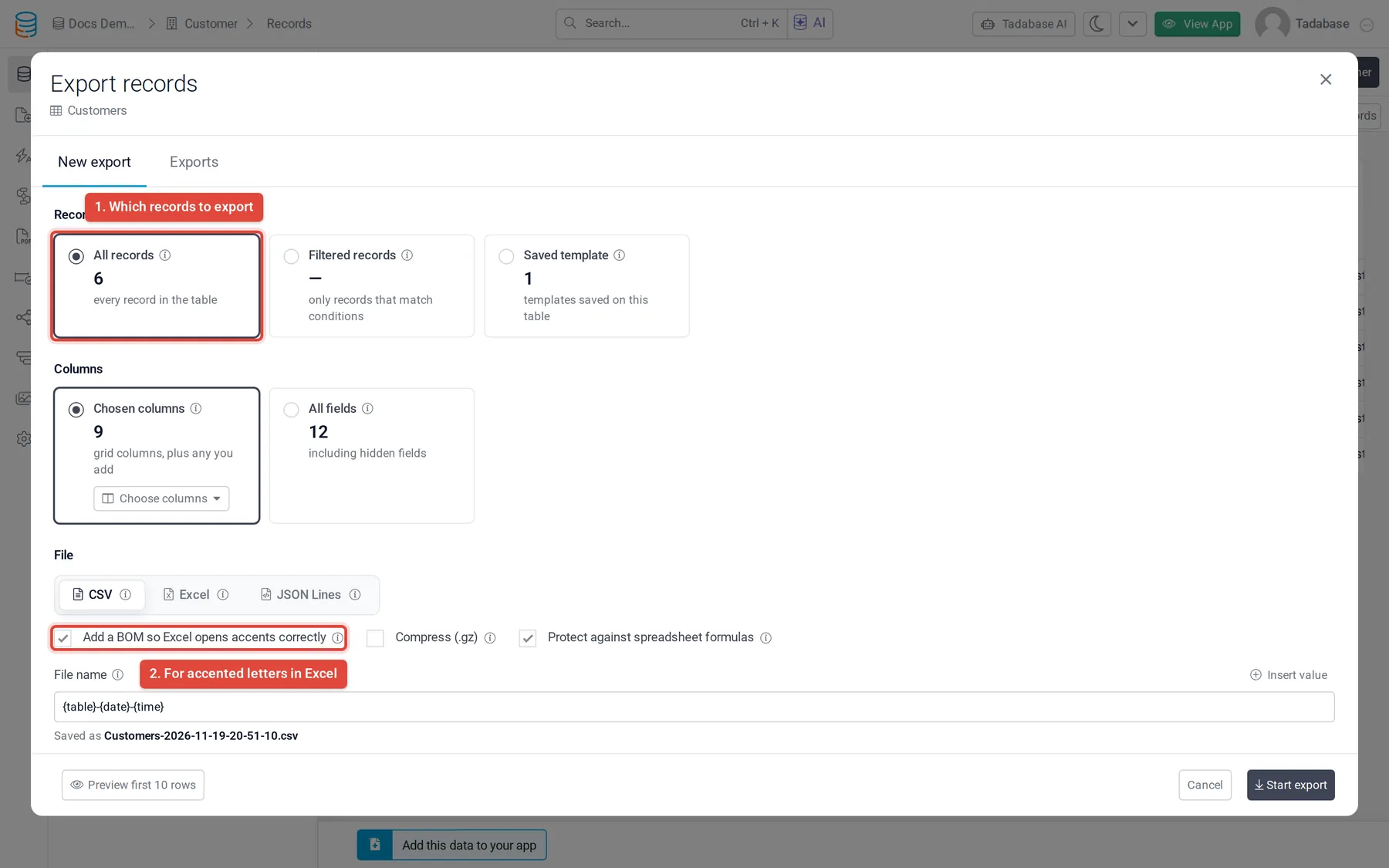
- Click Export Click Export above the records. The Export records window opens on New export.
- Choose the records All records exports every record. Filtered records exports the records that match the conditions you add. Saved template uses an export template: its columns, filters and sort. Selected records appears when you ticked rows in the grid.
- Choose the columns Chosen columns exports the grid columns, plus any you add with Choose columns. All fields exports every field, including hidden fields.
- Choose the file Pick CSV, Excel or JSON Lines. For a CSV you will open in Excel, keep Add a BOM so Excel opens accents correctly ticked. You can also tick Compress (.gz) and Protect against spreadsheet formulas, and change the File name.
- Start the export Click Preview first 10 rows to check the result, then Start export. You can close the window while it runs; you are told when the file is ready.
- Download the file Open the Exports tab of the same window and download the file.
- The Exports tab lists the exports of the last 48 hours, by everyone who works on the app. Download the file before then.
- If no record matches your settings, the preview says No records match these settings.
Let app users export #
In the Page Builder, open a Table component's settings and turn on Enable Export. When the table has export templates, Select Template lets you choose which ones users can export with. Users then get an export button on the table in your app.
The Table component's other settings are in Table component. There is also an Export component that exports with one export template from anywhere on a page.
Export with the API #
To export on a schedule from your own scripts, for example to keep an off-site backup, use the REST API. Create a key in Settings > API Keys and turn on Allow Export for it. The switch is available only on plans that include exporting through the API.
The export endpoints list a table's export templates, start an export from a template and return the file when it is ready. See Imports and exports API for the calls, and Send records to Google Sheets with Apps Script for a script that reads records into a sheet.
Export to Excel or from a pivot table #
The built-in export writes CSV files, which Excel and Google Sheets open. Two plugins cover other cases: Export multiple tables puts two Table components into one Excel file, and CSV exporter adds a CSV download to a pivot table.
Was this page helpful?
Something wrong or missing on this page? Tell us.