
Run imports and exports through the API
Start a saved import template with a CSV file URL or run an export template through the API, then check the run's status and download the file.
- Verified Nov 17, 2026
- Classic builder
- Available on: Business Pro, Business Elite
On this page
Run the import and export templates you saved in the builder from your own code: send a CSV file to an import template, or start an export template and download the file when it is ready.
Before you start #
- Imports and exports through the API are on the Business Pro and Business Elite plans.
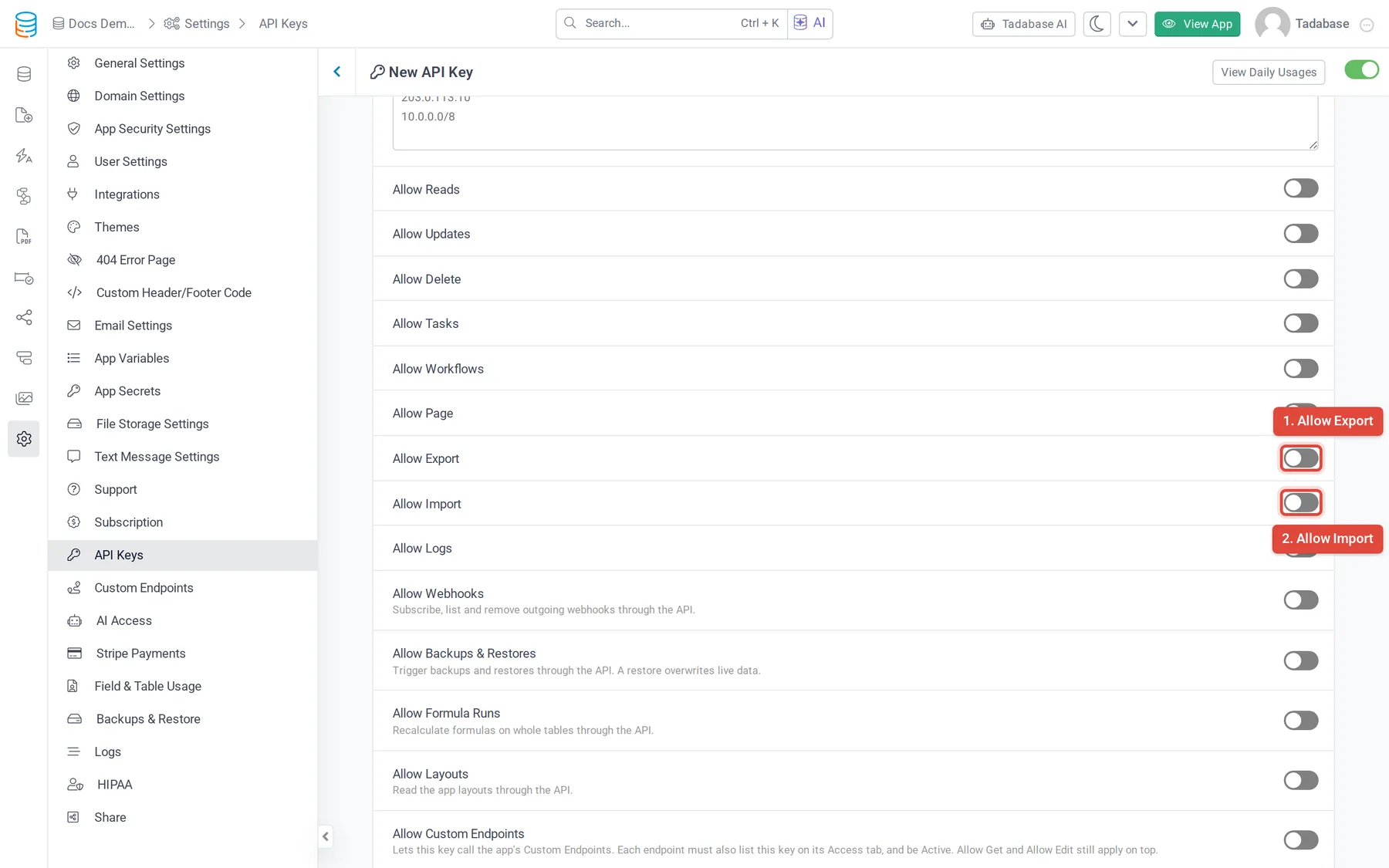
- On the API key in Settings > API Keys, turn on Allow Import, Allow Export or both. Without the switch, calls answer
412with "The method being used is disabled for this API key." - Create the template first in the builder. The API runs templates; it does not create them. See Import templates and Export templates.
- These endpoints are only on version 1.1 of the API: every URL starts with
https://api.tadabase.io/api/v1.1/{appId}/.
Imports #
| Method and path | What it does |
|---|---|
GET imports | Lists import templates: id, name, data_table_id, created_at, updated_at. Optional dataTableId, page and limit (default 10) |
GET imports/{templateId} | One import template |
POST imports/{templateId}/trigger | Starts an import with the template |
POST imports/{templateId}/trigger/{recordId} | Starts an import and connects the imported records to that record, when the template's connection setting uses the record the import is run from |
GET imports/ | The progress of one import run |
GET imports/ | The full details of one import run |
GET imports/ | Lists import runs. Optional data_table_id, status, page and limit (default 10) |
Start an import #
The file must be a CSV file at a URL the server can download. The template decides which columns go into which fields.
curl -X POST https://api.tadabase.io/api/v1.1/YOUR_APP_ID/imports/TEMPLATE_ID/trigger \
  -H "X-Tadabase-App-Id: YOUR_APP_ID" \
  -H "X-Tadabase-App-Key: YOUR_API_KEY" \
  -H "X-Tadabase-App-Secret: YOUR_API_SECRET" \
-d "file_url=https://example.com/customers.csv"| Parameter | Required | What it does |
|---|---|---|
file_url | Yes | The URL of the CSV file. Missing it answers 422 "The file URL is required" |
delimiter | No | The column separator. Default , |
csv_header | No | Which row holds the column names. Default row_1 |
match_field | No | To update existing records instead of adding new ones: the slug of the field to match on, such as field_34 |
match_field_to_field | No | The CSV column to compare with match_field |
match_field_case | No | 1 (default) matches without regard to case, 0 is case sensitive |
{
  "status": "success",
  "queue_id": "kN8Q3wPrJ1",
  "msg": "Import has been started."
}
The import runs in the background. Keep the queue_id to check on it.
Check an import #
Call GET imports/status/{queueId}:
{
  "type": "success",
  "item": {
    "status": "Running",
    "complete": 40,
    "start_at": "2026-11-17 09:15:02",
    "end_at": null,
    "progress": { "records": 250, "completed": 100, "success": 98, "failure": 2 }
  }
}
status is To Be Run while the import waits, Running while it works, then Complete or Error. progress counts the rows read, the rows done, and how many succeeded and failed. Poll every few seconds rather than in a tight loop.
Exports #
| Method and path | What it does |
|---|---|
GET exports/ | Lists export templates: id, dataTableId, name (100 per page, ?page=2 for the next) |
GET exports/ | One export template |
POST exports/ | Starts an export with the template |
POST exports/ | Starts an export limited to the records connected to that record, when the template is set to include only connected records |
GET exports/ | The status and complete of one export run |
GET exports/{exportId} | One export file, with a download link once it is ready |
GET exports | Lists export files (50 per page) with their table and template |
GET exports/ | Lists every export run with its status and complete |
Run an export and download the file #
- Start the export Call
POST exports/templates/{templateId}/trigger. The answer hasstatus: successand aqueue_id. If the same template is already waiting or running, you get itsqueue_idand the message "Already in Queue." instead of a new run. - Wait for it to finish Call
GET exports/queues/{queueId}untilstatusisComplete. It isQueuewhile waiting andRunningwhile it works;Errormeans it failed. - Get the file Call
GET exports/{queueId}(the run and the file share an ID). Once the file exists,fileSignedUrlholds a download link that works for 10 minutes. Download it right away, or call the endpoint again for a fresh link.
{
  "status": "success",
  "item": {
    "id": "kN8Q3wPrJ1",
    "status": "Complete",
    "complete": 100,
    "fileUrl": "...",
    "fileSignedUrl": "https://..."
  }
}
Exports through the API produce CSV files.
Common problems #
| Response | Cause |
|---|---|
412 with a plan message | Your plan does not include imports or exports through the API, or the template is over your plan's template count |
412 "The method being used is disabled for this API key." | Allow Import or Allow Export is off on the key |
Import answers status: error "Failed to retrieve the csv file." | The server could not download file_url. Check that the URL is public and returns the CSV itself |
| "The export template was not found." | The template ID is wrong |
| "Already in Queue." | That export template is already waiting or running; use the queue_id in the answer |
Was this page helpful?
Something wrong or missing on this page? Tell us.