
Use JavaScript callbacks in your app
Add JavaScript to a page or layout and use the TB object to react when components load, show or hide components, change pages and show alerts.
- Verified Nov 17, 2026
- Classic builder
On this page
Every live app page loads a global TB object. Use it in your page or layout JavaScript to run code when a component has loaded, react to a form or a login, show or hide components, move to another page and show short alerts.
Where to add your JavaScript #
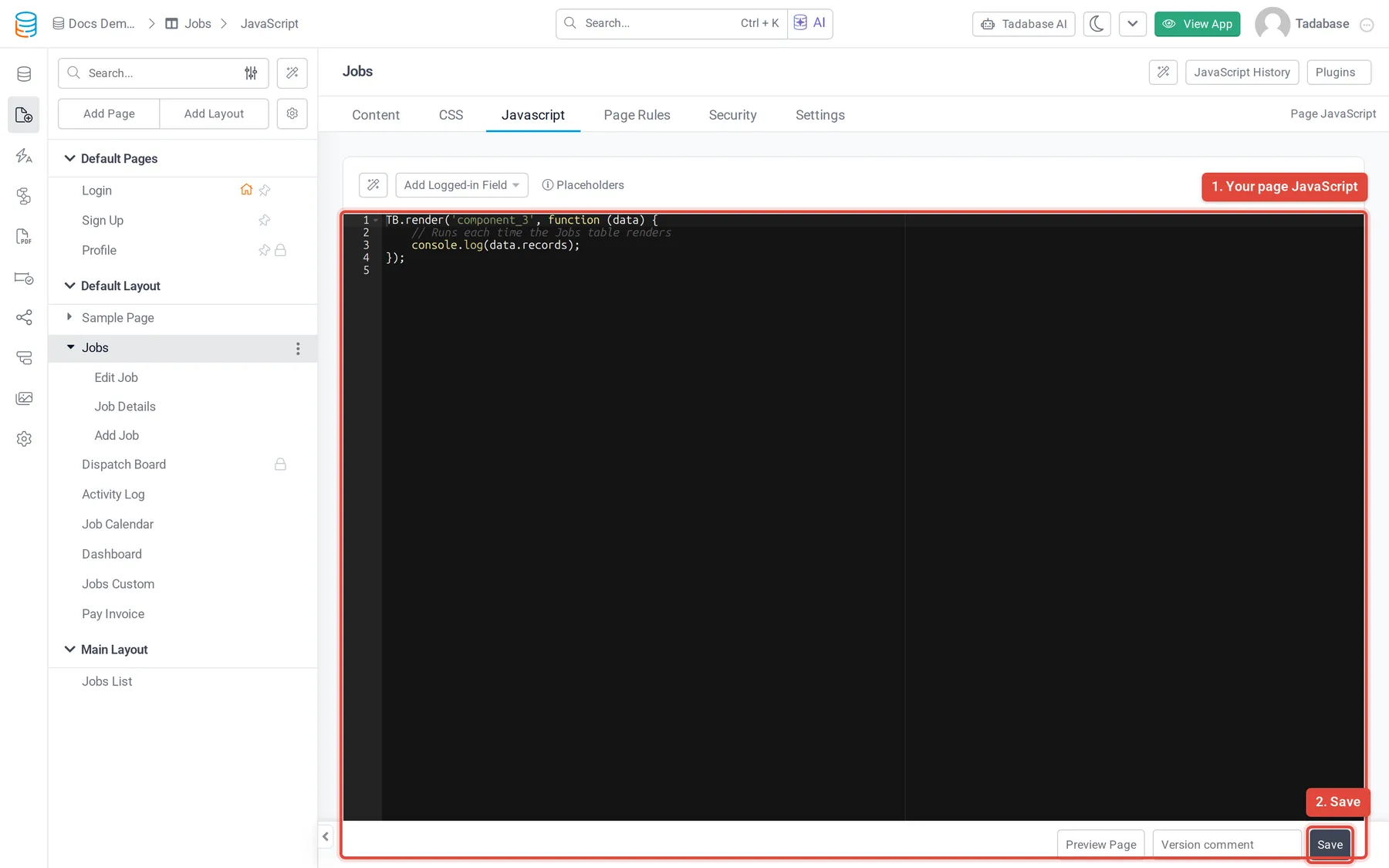
- Open the page or layout In the builder, open the page (or layout) the code belongs to. Code on a layout runs on every page that uses that layout.
- Open the Javascript tab Click the Javascript tab at the top of the page or layout.
- Write your code Type the code into the editor. On a page, Add Logged-in Field and Add Page Data Field insert a field of the logged-in user or of the page's record into the code.
- Save Click Save. On a page, Preview Page opens the live page so you can check the result.
Instead of typing this app's ID or address, you can use placeholders such as {{appId}}, {{appSlug}}, {{appUrl}} or an app variable as {!Slug!}. They are filled in when the page is served, so each environment uses its own values. Hover Placeholders above the editor for the full list.
Find the IDs you need #
| ID | Looks like | Where to find it |
|---|---|---|
| Component ID | component_3 on a page, component_layout_3 on a layout | On the page's Content tab, point at a component and hover the info icon in its toolbar: the tooltip shows the ID. Click the icon to copy a ready-made TB.render snippet for that component. |
| Field ID (slug) | field_44 | In the Data Builder, open the table's Fields tab. The Field Slug column shows each field's slug, with a copy icon. |
| Page ID | o6WQb5NnBZ | Open the page in the builder: the ID is the code after /pages/ in the browser address. For a child page, the address has two IDs; use the second one. |
| Page slug | job-details | The Slug on the page's Settings tab. |
Run code when a component loads #
TB.render(componentId, callback) calls your function when the component has finished drawing its records. Pass 'any' instead of an ID to run it for every component on the page.
TB.render('component_3', function (data) {
    // data.type: the component type, for example 'dataTable', 'list' or 'form'
    // data.objId: the component ID
    // data.ele: the component's element
    // data.records (tables, lists, charts, calendars...) or data.record (forms, details)
    console.log(data.records);
});
Because the callback runs once the records are on the screen, it is the place to change the component's HTML or read its values.
React to forms and logins #
These callbacks also use TB.render, with the field slug and an event name after the component ID.
| When | Call | What data holds |
|---|---|---|
| A user picks a value in a connection field on a form | TB.render('component_8', 'field_44', 'connection_value_updated', fn) | component_id, field_slug, field, value |
| One file finishes uploading in a file or image field on a form | TB.render('component_8', 'field_44', 'form_file_uploaded', fn) | component_id, field_slug, file, total_uploaded_files |
| All files selected in that field have uploaded | TB.render('component_8', 'field_44', 'form_file_uploaded_completed', fn) | component_id, field_slug, files, total_uploaded_files |
| A user signs in with a Login component | TB.render('component_4-login_success', fn) | user (the signed-in user) and token |
// Show a message when the user picks a customer on the job form
TB.render('component_8', 'field_44', 'connection_value_updated', function (data) {
    console.log('Picked', data.value, 'in', data.field_slug);
});

// Run code right after a successful login (component_4 is the Login component)
TB.render('component_4-login_success', function (data) {
    console.log('Signed in as', data.user);
});Stop the user from leaving a page #
TB.registerEvent('before-page-change', pageId, callback) runs your function when the user is about to leave that page. Return false to cancel the move and keep them on the page.
TB.registerEvent('before-page-change', 'K2ejlOQo9B', function () {
    if (!confirm('You have unsaved changes. Leave this page?')) {
        return false;
    }
});
To run code when the user leaves any page, use TB.registerEvent('before-page-route', 'any', callback). Its data.data.pageId is the page being left. Remove a listener with TB.deRegisterEvent(name, id).
Actions you can call #
| Call | What it does | Example |
|---|---|---|
TB.showComponent(componentId) | Shows a component you hid. | TB.showComponent('component_19'); |
TB.hideComponent(componentId) | Hides a component. | TB.hideComponent('component_20'); |
TB.navigateToPageId(pageId) | Opens another page of the app by its page ID. | TB.navigateToPageId('o6WQb5NnBZ'); |
TB.navigateTo(pageSlug) | Opens another page of the app by its slug. | TB.navigateTo('job-details'); |
TB.showAlert(message, type) | Shows a short alert that closes after about a second. type is success, info, warning, wait or error (the default). | TB.showAlert('Saved', 'success'); |
TB.showLoading() / TB.hideLoading() | Shows or hides the app's loading icon. | TB.showLoading(); |
TB.getUserToken() | Returns the logged-in user's token, or an empty string if no one is signed in. | var token = TB.getUserToken(); |
TB.getAppId() | Returns the app's ID. | TB.getAppId(); |
TB.getAppTimeZone(), TB.getAppDateFormat(), TB.getAppTimeFormat() | Return the app's time zone, date format and time format. | TB.getAppDateFormat(); |
TB.getComponentJsonData(componentId, onlyRecords) | Reads the values shown in a Table, List or Details component and returns {headers, data}, or only the rows when onlyRecords is true. | TB.getComponentJsonData('component_3', true); |
TB.setMetaTags({title, desc, props}) | Sets the browser title, the meta description and other meta tags (props is a list of {key, val, type}, where type defaults to property). | TB.setMetaTags({title: 'Job board'}); |
TB.triggerPipe(id, params, callback) | Runs a pipe API call on the server and returns its response. | See Call a pipe from JavaScript. |
Check that it worked #
- Open the live page (Preview Page) and open your browser's developer console. Errors in your code show there.
- Add
console.log(data)inside a callback to see exactly what it receives. - If a callback never runs, check the component ID: a component on a layout uses
component_layout_instead ofcomponent_.
Was this page helpful?
Something wrong or missing on this page? Tell us.