
Create and manage API keys
Generate an API key for the REST API, choose what it may do, limit it by date and IP address, and send its credentials with every call.
- Verified Nov 17, 2026
- Classic builder
- Available on: Business Starter, Business Growth, Business Pro, Business Elite
On this page
Every REST API call is made with an API key. A key belongs to one app and carries its own permissions, so give each integration its own key that can do only what that integration needs.
Create a key #
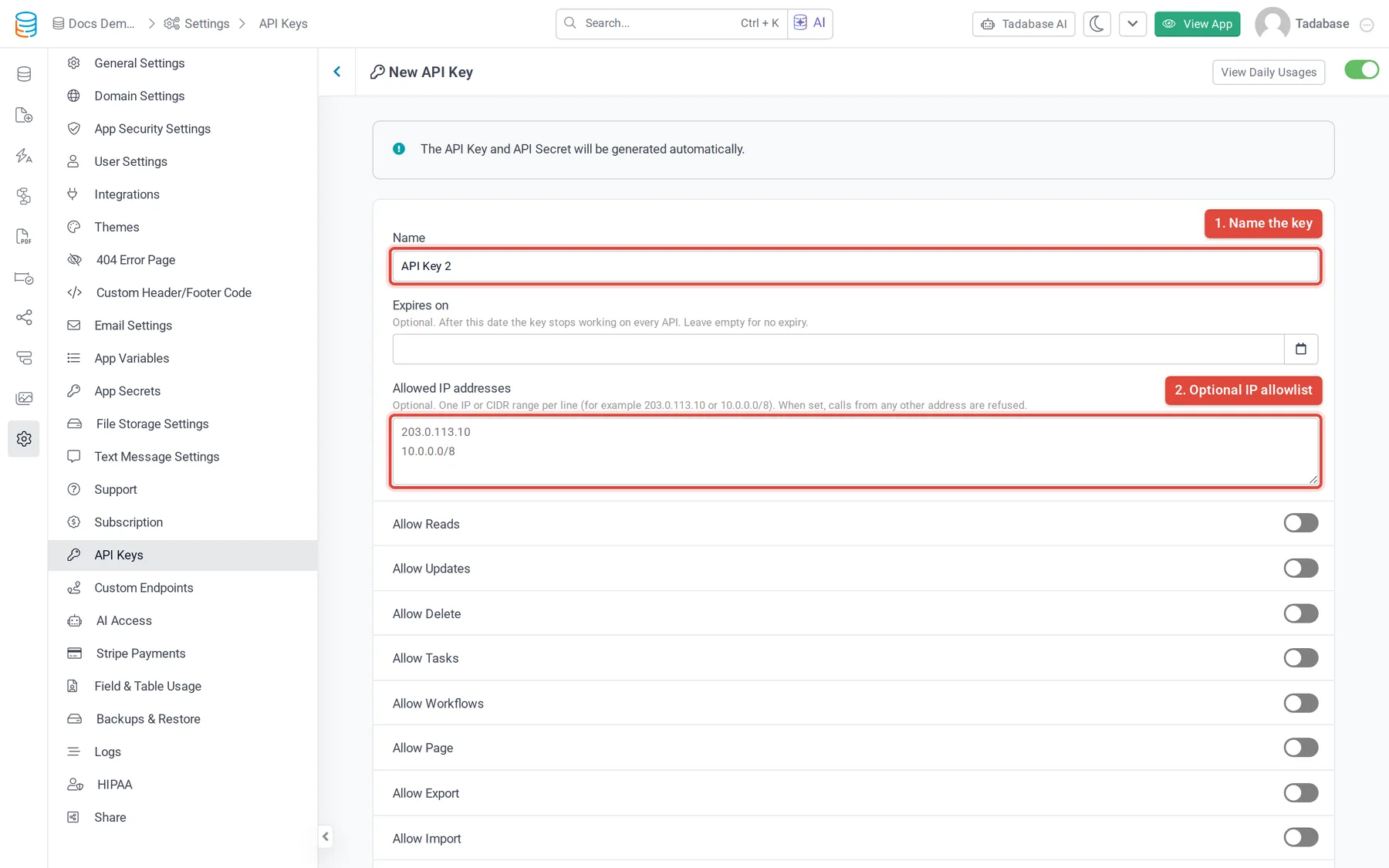
- Open the API keys In the builder, open Settings and click API Keys. The list shows each key's name, key, its Read, Update and Delete permissions, and its status.
- Start a new key Click Generate New Key. The key and its secret are created for you when you save.
- Name it In Name, say what the key is for, for example
Invoice sync. A new key is named API Key 1, API Key 2 and so on until you change it. - Limit it (optional) Set Expires on for a key that is only needed for a while; after that date it stops working. In Allowed IP addresses, enter one IP address or CIDR range per line (for example
203.0.113.10or10.0.0.0/8) to refuse calls from anywhere else. - Choose its permissions Turn on only what the integration needs. A new key starts with every permission off. See the table below.
- Save Click Save. The key is Active unless you switch it to Inactive at the top of the form.
Copy the credentials #
Open the key from the API Keys list. The top of the form shows the App ID and the API Key. Click Reveal live key to show the API Secret; you can reveal it again whenever you need it.
Send all three with every call, in these headers:
| Header | Value |
|---|---|
X-Tadabase-App-id | The App ID. For a v1.1 call the app ID is in the URL instead, and this header is not needed. |
X-Tadabase-App-Key | The API Key |
X-Tadabase-App-Secret | The API Secret |
curl https://api.tadabase.io/api/v1/status \
  -H "X-Tadabase-App-id: $TADABASE_APP_ID" \
  -H "X-Tadabase-App-Key: $TADABASE_APP_KEY" \
  -H "X-Tadabase-App-Secret: $TADABASE_APP_SECRET"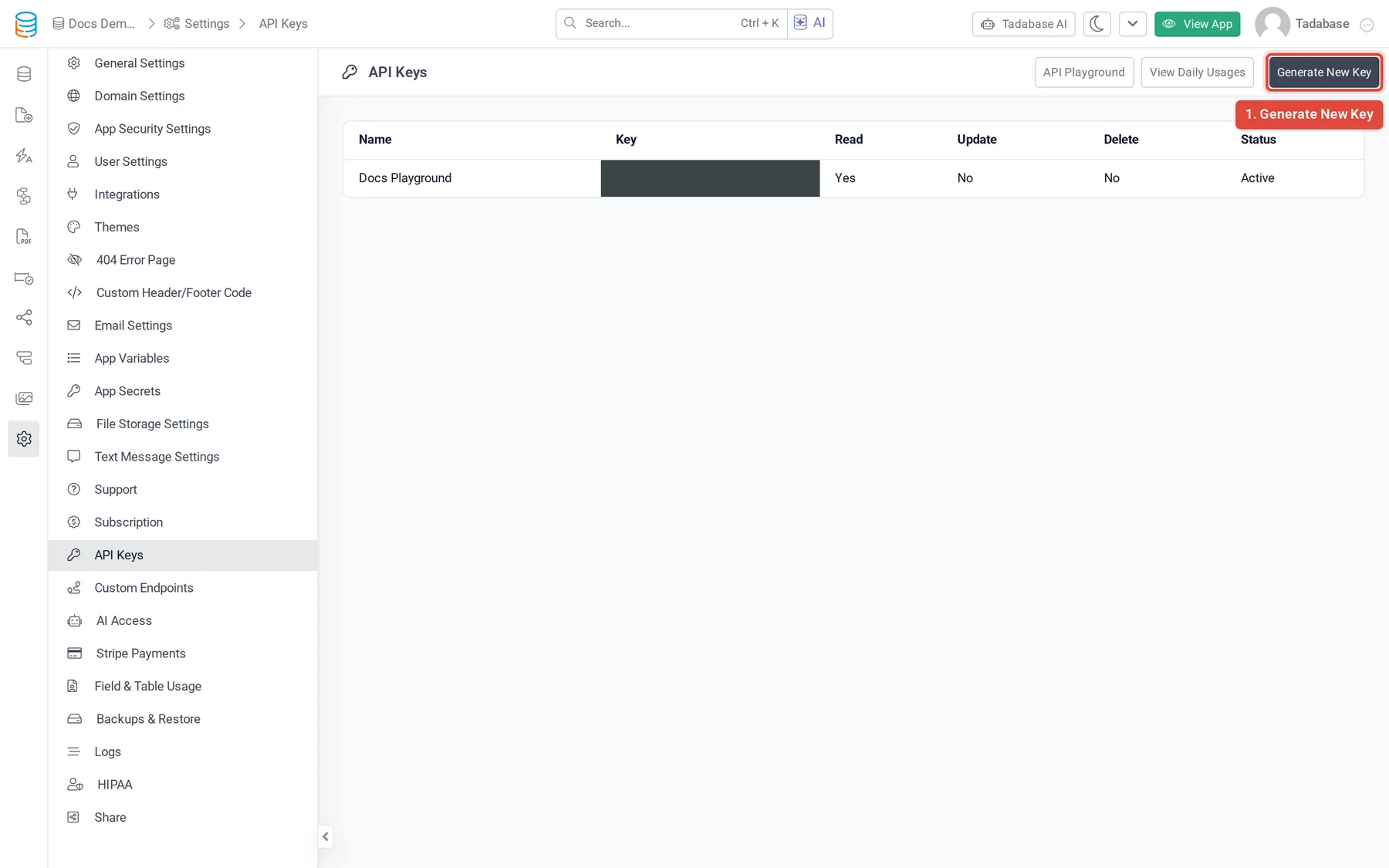
Permissions #
Some permissions also need your plan to include that part of the API; a switch your plan does not include shows an upgrade icon.
| Switch | What it allows |
|---|---|
| Allow Reads | List and read records, tables, fields and roles. |
| Allow Updates | Create and update records. |
| Allow Delete | Delete records. |
| Allow Tasks | Run tasks and check their status and history. |
| Allow Workflows | Run workflows and read their runs and history. |
| Allow Page | Read pages and components, and save records through a component (v1.1). |
| Allow Export | Run export templates (v1.1). |
| Allow Import | Run import templates (v1.1). |
| Allow Logs | Read the app's logs. |
| Allow Webhooks | Subscribe, list and remove outgoing webhooks through the API. |
| Allow Backups & Restores | Trigger backups and restores through the API. A restore overwrites live data. |
| Allow Formula Runs | Recalculate formulas on whole tables through the API. |
| Allow Layouts | Read the app layouts through the API. |
| Allow PDF Form | Create PDFs from PDF forms (v1.1). |
| Allow PDF Page | Create PDFs from PDF pages (v1.1). |
| Advanced App Management | Rebuild the app's cached data bundle and check its status (v1.1 app-management). |
| Allow App Schema | Read the app's whole structure with GET schema, full-schema and deep-schema. |
| Magic Link | Choose the one magic link this key may create sign-in links for (auth/). Your plan must include magic links in the API. |
Not sure what to turn on? In the API Playground, click Which permissions does an integration need?, tick what the integration does, and it lists the switches.
Check that a key works #
GET https://api.tadabase.io/api/v1/status needs no permission. It returns the key's status, what it may do, and how much of your rate limit is left:
{
  "current_code": 200,
  "api_key": { "id": "4yQk924rgP", "status": "Active", "created_at": "2026-11-02 10:30:00" },
  "permissions": { "read": true, "create": true, "update": true, "delete": false, "workflows": false, "logs": false },
  "per_minute_limit": { "allowed": 60, "remaining": 59, "resets_in_seconds": 60, "reset_timestamp": 1794822660 },
  "per_day_limit": { "allowed": 5000, "remaining": 4987, "resets_in_seconds": 51200, "reset_timestamp": 1794873800 }
}
The full permissions object lists every permission; create and update both follow Allow Updates. To see how many calls each key made per day, click View Daily Usages on the API Keys page or in a key's form.
When a key is refused #
| Status | Message | What to do |
|---|---|---|
| 401 | The credentials supplied are missing or invalid. | Send all three headers (for v1.1, the key and secret, with the app ID in the URL). |
| 403 | The API was not found. | The key or secret is wrong, or the key was deleted. Copy them again from the key's form. |
| 403 | The app was not found. | The app ID does not match the key's app. |
| 403 | The API is currently disabled. | The key is Inactive. Switch it back to Active, or use another key. |
| 403 | This API key has expired. | The Expires on date has passed. Change the date or create a new key. |
| 403 | This API key cannot be used from this IP address. | Add the caller's address to Allowed IP addresses. |
| 412 | The method being used is disabled for this API key. | Turn on the permission the call needs. |
A refusal can also name the account, for example when its subscription is past due or canceled. For every other error, see Error handling.
Keep keys safe #
- Call the API from your server. Never put the secret in a web page, a mobile app, a public repository or a screenshot: anyone who has it can do everything the key allows.
- Store the credentials in environment variables or a secrets manager, not in your code.
- Give each integration its own key with only the permissions it needs, so you can switch one off without touching the others.
- If the integration runs on a server with a fixed address, add that address to Allowed IP addresses.
- Set Expires on for keys used by short projects.
- If a secret leaks, there is no button to change it: create a new key with the same permissions, move your integration to it, then delete the old key (open it and click Delete). Then check View Daily Usages for calls you do not expect.
To stay within your plan's limits, see Rate limiting.
Was this page helpful?
Something wrong or missing on this page? Tell us.