
Test API calls in the API Playground
Send REST API requests from the builder with one of your API keys, read the response, and save, export or repeat the requests you need.
- Verified Nov 17, 2026
- Classic builder
- Available on: Business Starter, Business Growth, Business Pro, Business Elite
On this page
The API Playground sends real REST API requests from inside the builder, using one of your app's API keys, and shows the response. Use it to check what a key can do, try an endpoint before you write code, or find out why a call fails.
Before you start #
- You need Settings access to the app. Without it the page says "You need Settings access".
- Your plan must include the API. If it does not, the page says "Your plan doesn't include the API".
- The app needs at least one API key. If it has none, create one first: see Create and manage API keys.
Send a request #
- Open the playground Open Settings > API Keys and click API Playground.
- Choose a key Under Credentials, pick the key in API key. The playground starts with the first active key that can read. The chips under it show what the key Can and Can't do.
- Choose who the call runs as Under Call as, keep The API key only to act as the app owner, or choose A signed-in app user and sign in with a user's email and password to see only what that user may see. See Sign in app users through the API.
- Choose an endpoint Under Request, pick an endpoint in Endpoint. The playground opens on Check the key (status). Chips show what the endpoint needs, such as the key permission or plan, and Changes data marks one that writes.
- Fill in the request Choose a Table if the endpoint needs one. For record lists you can add Filters and Sort, and pick Fields to return. Fill in any Parameters, and turn Options on or off; each option adds its header or parameter for you.
- Send it Check the URL in the bar, then click Send (or press Ctrl+Enter).
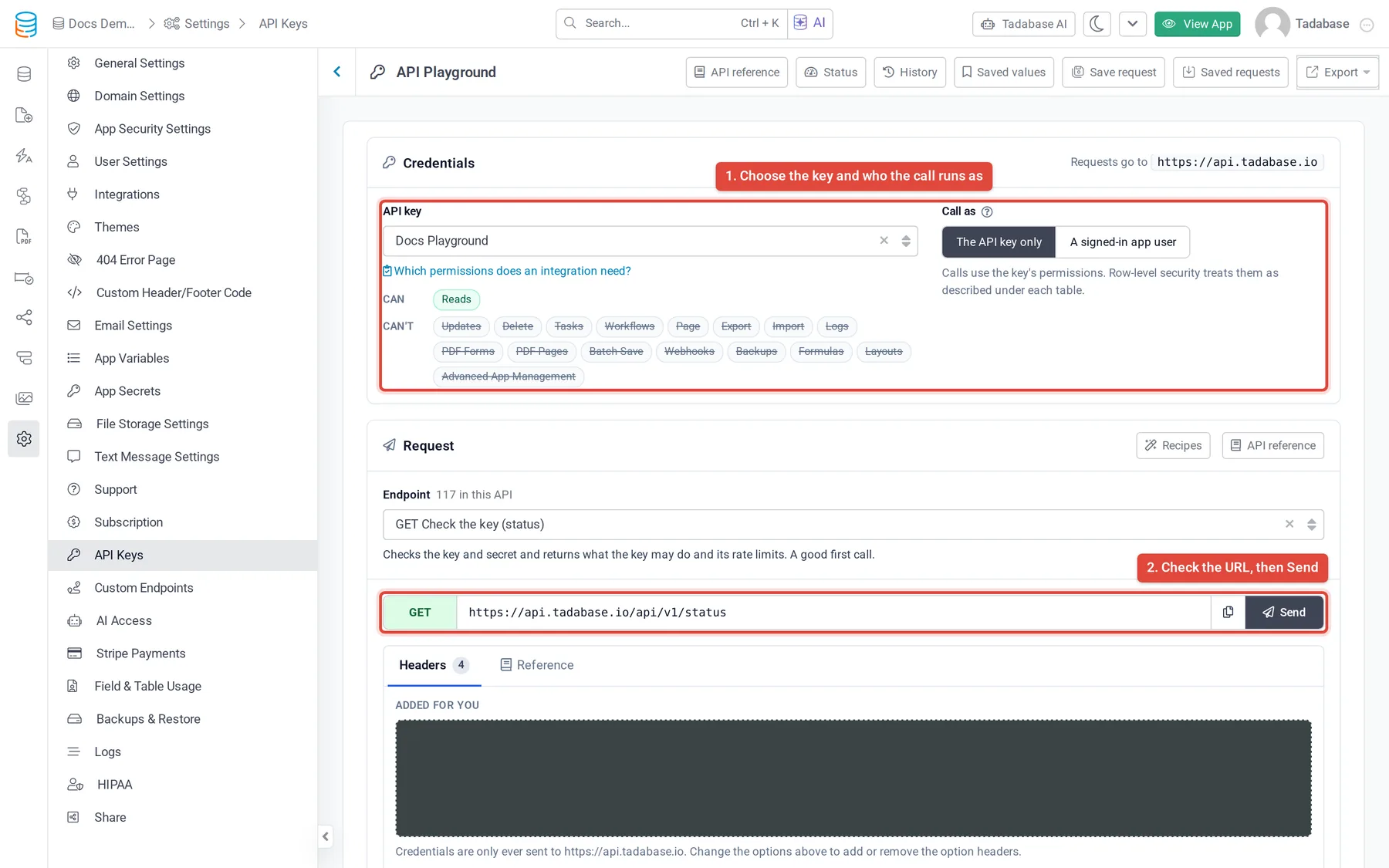
Requests only go to the app's API address (https://api.tadabase.io): the playground never sends your key anywhere else.
Body and headers #
Below the URL, the request has up to three tabs:
| Tab | What it shows |
|---|---|
| Body | For requests that send data. Write it as JSON or Form data, or use Fields to fill in one row per field of the chosen table. Fill from the table's fields builds the body for you; Example loads a sample. |
| Headers | Added for you lists the key and option headers the playground sends. Add your own under Extra headers, one at a time or with Bulk edit. |
| Reference | The endpoint's parameters, a body and response example, and when it is refused. |
Read the response #
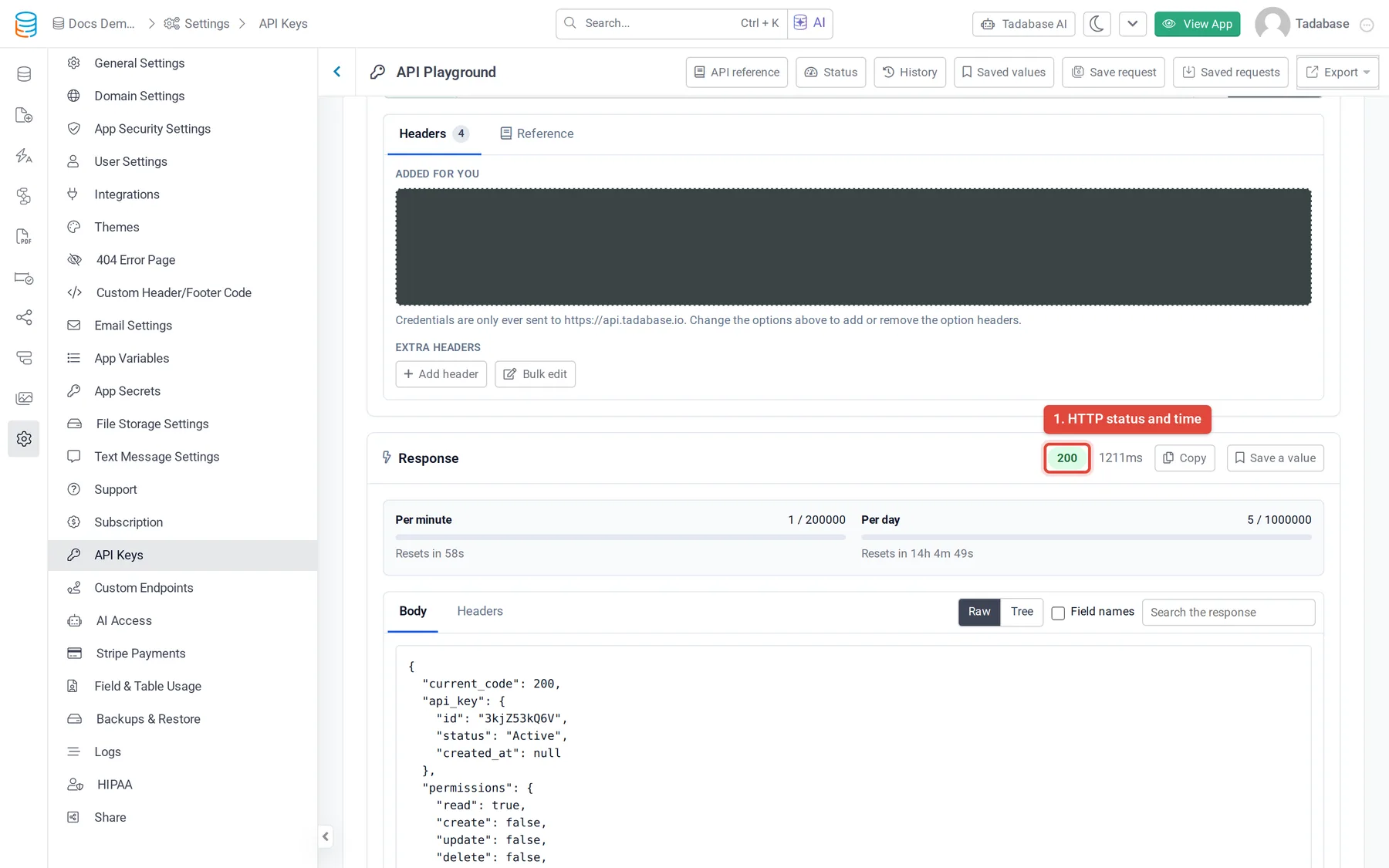
The Response panel shows the HTTP status and how long the call took, and, when the API reports them, bars for the Per minute and Per day limits used. For a list it shows how many items came back, of how many, and which page.
- Body: switch between Raw and Tree. In Raw, tick Field names to show each field's name next to its slug, and use the search box to find text in the response.
- Headers: the response headers, including the rate limit headers.
- Use a record: click a record ID from the response to open that record with the get-one-record endpoint.
- Save a value: pick a value from the response, such as an ID, and use it later by typing its name in double braces in any field.
- Copy: copies the response body.
Save, repeat and export requests #
| Button | What it does |
|---|---|
| History | The requests sent from this browser tab. Load one to send it again, or Compare two responses. |
| Saved values | Values you saved from responses. They are kept in this browser tab only. |
| Save request | Saves the current request under a Name, optionally in a Folder. Tick Save the response on screen as an example to keep the response too. |
| Saved requests | Requests saved for this app, by folder. Load, Move or Delete them, and create, rename or delete folders. |
| Export | Copy this request as cURL, or Download a Postman collection (every endpoint). The secret and user token are left out of the cURL unless you tick Include the secret and user token in cURL. |
User tokens and passwords are never saved: not in saved requests, not in saved values.
API reference, status and key planner #
- API reference (also in the Request panel, with Recipes for common tasks): every endpoint with its parameters and examples, plus your app's tables and fields. Download the whole reference as a Web page (.html), Markdown (.md) or Postman collection (.json); it never includes the key's secret.
- Status: the API status for this app: your account's limits, the busiest keys over recent days, calls per day, and recent failed calls.
- Which permissions does an integration need? (under the key): tick what an integration does and it lists the permissions to turn on, and whether the chosen key has more or fewer than that.
Was this page helpful?
Something wrong or missing on this page? Tell us.