
What workflows are and when to use them
Workflows run steps for you when something happens in your app: a record changes, a schedule comes round, a button is clicked or a webhook arrives.
- Verified Nov 17, 2026
- Classic builder
On this page
A workflow is a set of steps that runs on its own when something happens in your app. Use one when the same work should happen every time: send an email when a job is booked, update a status, create a related record, or process a batch of records every morning.
The three parts of a workflow #
| Part | What it is |
|---|---|
| Trigger | What starts the workflow: a record being created or updated, a schedule, a button in your app, a user event such as logging in, an incoming webhook or an email. Each workflow has one trigger. See Choose what starts a workflow. |
| Steps | What the workflow does, top to bottom. Add Action performs an operation (update a record, send an email, create a PDF). Add Condition splits the flow into Yes and No paths. Add Branches sends each record down the first path that matches. Loop / Bulk Action runs nested steps on every matching record. |
| History | A record of every run: when it ran, what each step did and any errors. Open it with the History button in the workflow editor. See Workflow history and logs. |
Most triggers also pick a table. The record that started the run is the Source Record, and every step can read its fields.
Where to find workflows #
In the builder, click the Workflows icon in the left-hand bar. The list shows every workflow in the app with its trigger, data table and status. You can search, filter by table, trigger, status or tag, and open a workflow by clicking its row.
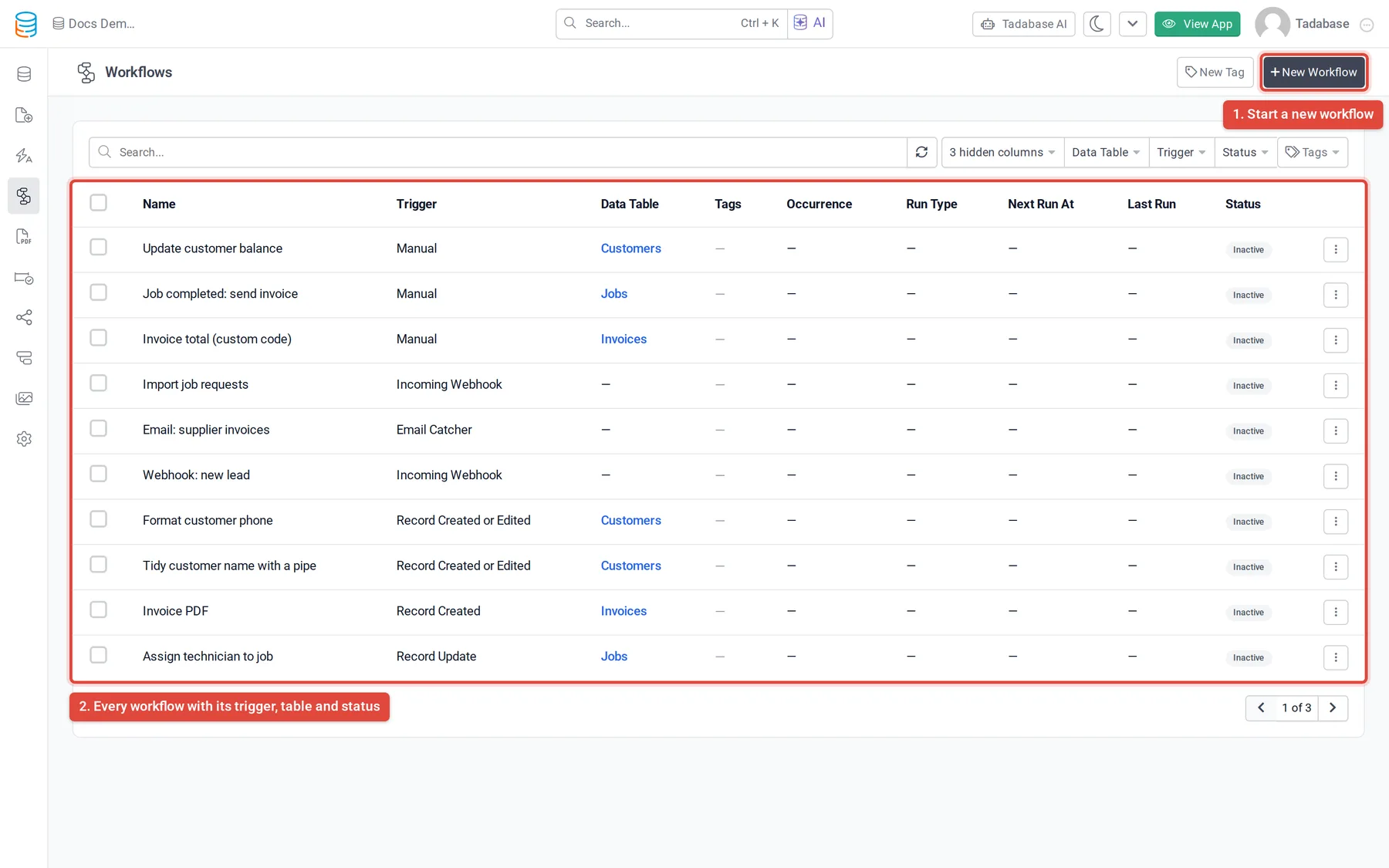
- Click New Workflow to start one. In an app with no workflows yet, the button is Create workflow.
- Use the ⋮ menu on a row to add tags, open its history, duplicate it or delete it.
- Use New Tag to group related workflows, then filter the list by tag.
- A workflow only runs while its status is Active. New workflows start as Inactive.
When to use a workflow #
| You want to… | Use this trigger |
|---|---|
| React to a record being added or edited (from a form, an import, the API or another workflow) | Record Created, Record Updated or Record Created or Updated |
| Process records on a timetable, such as overdue invoices every morning | Schedule |
| Let a user run the work from a button on a page | Manual |
| Do something when a user logs in, logs out, registers or changes their password | User Event |
| Receive data from another system | Incoming Webhook |
| Turn incoming emails into records | Email Catcher |
Plans and limits #
Workflows are part of every current plan. The number of workflows you can have is counted across all your apps:
| Plan | Workflows |
|---|---|
| Business Starter | 15 |
| Business Growth | 40 |
| Business Pro | 100 |
| Business Elite | 200 |
Some triggers and schedule options depend on the plan: Hourly and Every Minute schedules, the Incoming Webhook and Email Catcher triggers, and the External Data Source trigger (Business Pro and Business Elite). A trigger your plan does not include shows a lock in the trigger list. When you reach your workflow limit, the New Workflow button is hidden and a plan limit icon shows in its place.
Older automation tools #
Workflows replaced four older automation tools. Apps that already use them keep running them, and you can keep managing the ones you have, but new automation should be built as a workflow:
| Older tool | Replaced by |
|---|---|
| Table Rules (the older rules on a table's Rules tab) | A workflow with the Record Created, Record Updated or Record Created or Updated trigger. See Table Rules. |
| Record Rules (the older rules inside a form) | A workflow with a record trigger on the form's table. |
| Action Links (older record buttons that ran rules) | A Trigger Workflow button that runs a Manual workflow. See Run a workflow from a button on a page. |
| Scheduled Tasks (the older Automation › Scheduled Tasks list) | A workflow with the Schedule trigger. See Scheduled Tasks and Run a workflow on a schedule. |
Under Automation, an app that already has older scheduled tasks, webhooks or email catchers sees a note that they are moving to Workflows, and the existing ones keep working. An app that has none of them is pointed to Go to Workflows to create new ones there.
Next steps #
Was this page helpful?
Something wrong or missing on this page? Tell us.