
Use values from records, earlier steps and app variables
Every place a workflow step needs a value, Select value source lets you take it from the record, a connected record, an earlier step, the user or an app variable.
- Verified Nov 17, 2026
- Classic builder
On this page
Most workflow steps need values: the fields an Update Record step writes, the parameters of a pipe, the text of a message. Each of those has a Select value source button that opens a list of where the value can come from. This page explains every source in that list.
Pick a value #
- Open the picker In a step, for example under Target Field in an Update Record step, choose the field to fill. Then click Select value source under Value Source.
- Choose a category Pick a category, such as Source Record or Step Data. You can type in Search value sources... to narrow the list.
- Choose the field Pick the source and then the field. Hover a field to see its value in the sample, when there is one.
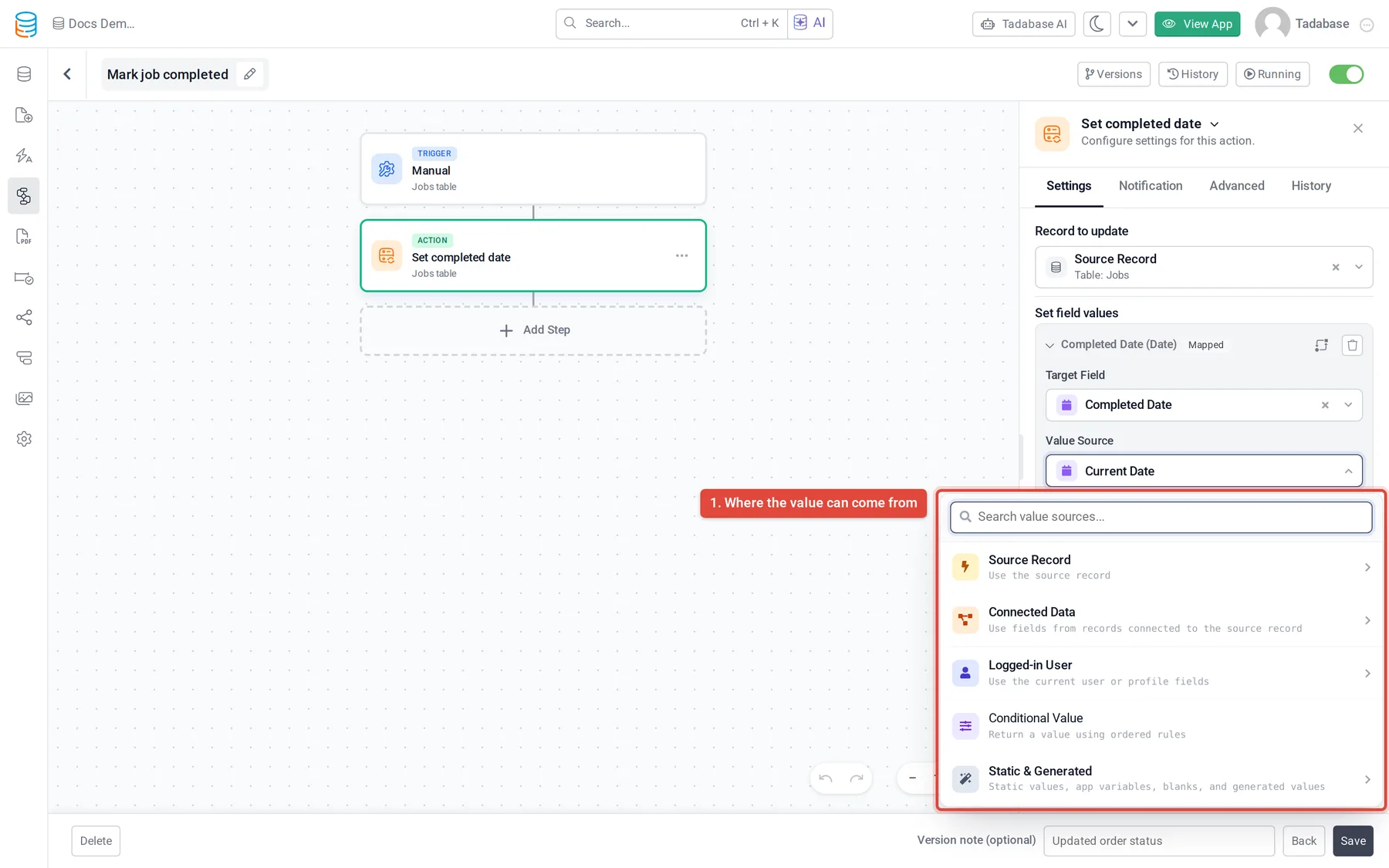
The list only shows what makes sense where you are. A category is left out when the trigger cannot provide it, when there are no earlier steps, or when its values cannot go into the field you are filling.
Value sources #
| Category | What it gives you | When it is offered |
|---|---|---|
| Source Record | A field of the record that started the workflow. For an Incoming Webhook trigger it is called Source Data, with the Webhook Payload; for an Email Catcher trigger, Email Data; for an External Data Source trigger, Available Data. | Always. |
| Loop Item | A field of the current item of the loop. | In steps inside a loop. |
| Connected Data | A field of a record connected to the source record, through one of its connection fields. | When the workflow's table has connection fields. |
| Step Data | A field of a record an earlier step created, found or updated, or a response value of an earlier step, such as the result of Run Custom Code, a pipe, an AI prompt or Aggregate, or the answer to a Show Message question. | In steps that come after another step. |
| Logged-in User | The logged-in user, or one of their fields. Current User Location gives the browser's location. | Only for triggers that someone using the app starts, such as record triggers, Manual and User Event. Scheduled, webhook and email runs have no logged-in user. |
| Code Data | The two-factor or password reset code being sent. | In User Event workflows for those codes. |
| Generate Password | A strong password generated when the workflow runs. | When the field being filled is a password field. |
| Custom | Text you compose from several values, for example a greeting with the customer's first name. | In most value rows. |
| Conditional Value | A value chosen by rules (see below). | In most value rows. |
| Static & Generated | Static Value (a fixed value you type), Blank Value (clears the field), Current Date, Current Time, Current Date & Time, Browser Local Storage, Browser Session Storage and App Variables. | Browser storage only for triggers that run in someone's browser; in other runs it is blank. |
Use an app variable #
Choose Static & Generated, then App Variables, and pick a variable. The list shows each variable's name and its {!code!}. The value is read when the workflow runs, so if you change the variable in settings, the workflow uses the new value from then on. See Store reusable values in app variables.
Choose a value by rules #
Conditional Value returns a different value when specific conditions are met, like an if, else if, else.
- Pick Conditional Value In Select value source, choose Conditional Value. A window opens.
- Add cases For each case, set the conditions under WHEN and the value under THEN USE. Click Add another case for more, up to 20. Cases are checked from top to bottom; the first match returns its value.
- Set the fallback Under Otherwise, set the value to use when no case matches. It is required.
- Apply When every case is complete and the Otherwise value is set, click Apply.
Change a value before it is used #
Each value row has a transformations button (it reads Add transformations when you hover it). Use it to change the value on the way, for example to uppercase text, keep digits only, format a date or add days to it. Transformations are grouped under Text, Numbers, Date & Time, Files and Advanced.
For math across several values, use the Combine values calculation of Aggregate, or a Run Custom Code step.
Add to a field instead of replacing it #
In Update Record, Update Connected Records and Duplicate Record steps, Multi-Select, Checkbox, file and connection fields show three choices under the value:
- Replace: replaces what the field holds with the new value.
- Append Value: adds the new options, connected records or files to what is already there. Nothing is removed.
- Remove Value: takes the options or connected records you select out of the field and keeps the rest. Not offered for file fields.
Values in conditions #
In a condition, you pick the field to check from Source Data, Loop Item, Step Data, Logged-in User or Code Data, and a connection field can be opened to check a field of the connected table. The value to compare with can be a Custom Value, a Source Record Value, an Action Record Value, an Action Response Value or a Logged-in User Field.
If a source is missing #
- No Step Data: the step is the first one, or the earlier step is in another path of a Condition or Branches step.
- No Logged-in User: the trigger runs without anyone using the app, such as Schedule or Incoming Webhook.
- No Loop Item: the step is not inside a loop.
- A field is not listed: its type cannot go into the field you are filling. Pick a field of a matching type, or change the value with a transformation.
Was this page helpful?
Something wrong or missing on this page? Tell us.