
Show custom HTML and record values with the HTML component
Add formatted text or your own HTML to a page, and insert record values, logged-in user fields, app variables and raw values such as an address city.
- Verified Nov 17, 2026
- Classic builder
On this page
The HTML component holds text, links, tables and pictures that you write in an editor, or HTML you paste in. It can also show live values: fields of the record on the page, fields of the logged-in user, and app variables. You can use it on regular pages and on PDF pages.
Add an HTML component #
- Open the page In the Page Builder, open the page, layout or PDF page. Its Content tab opens.
- Pick a spot In an empty column, click Add Component, or drag the component from the left panel into a column.
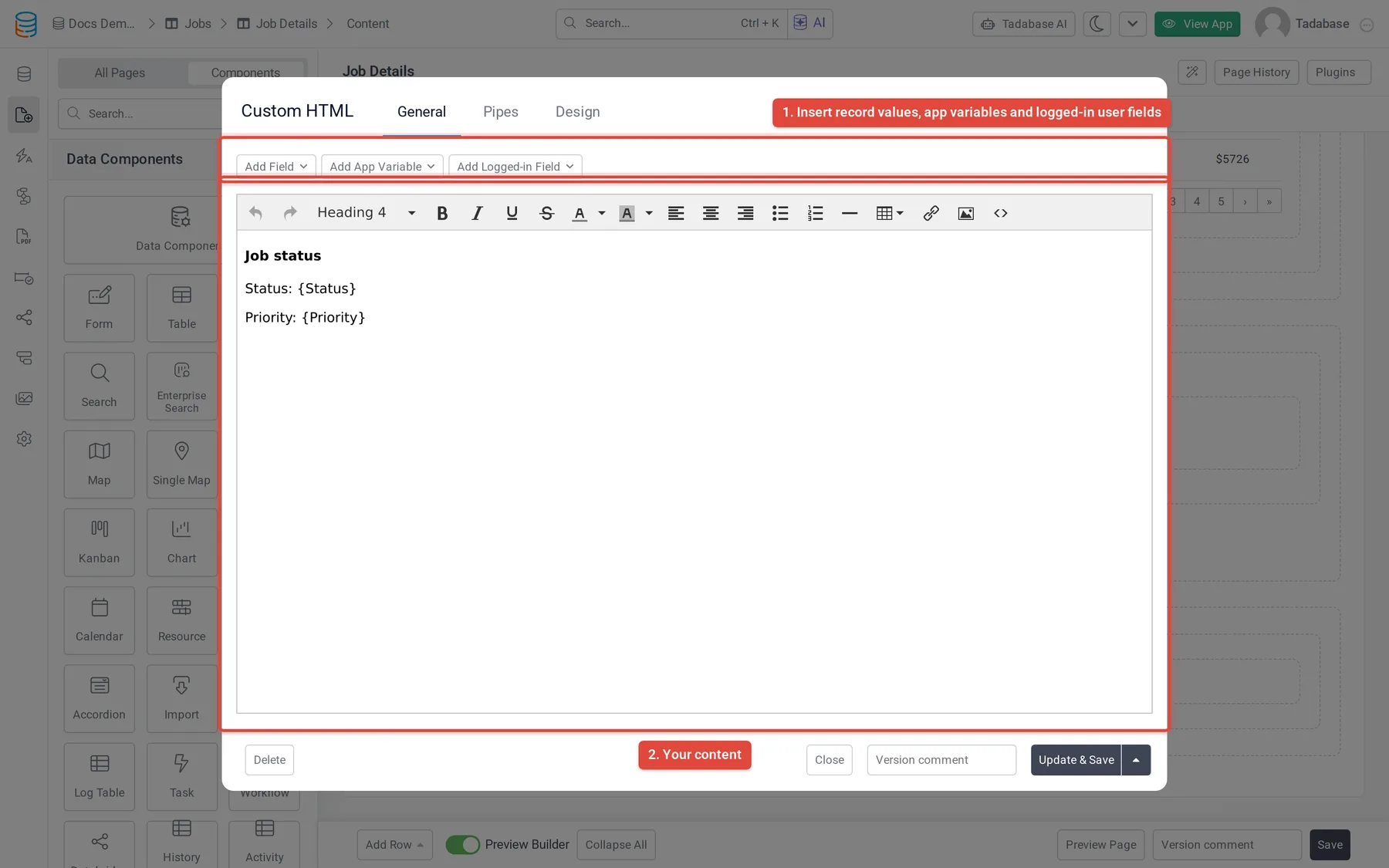
- Choose HTML On the Components tab of the left panel, under System Components, click HTML. The Custom HTML window opens on the General tab.
- Write the content Type and format your content in the editor. To work with the HTML itself, click the code button on the editor's toolbar.
- Insert values Use Add Field, Add App Variable and Add Logged-in Field above the editor to insert values (see below). Each inserts a placeholder in curly brackets where your cursor is.
- Save Click Update & Save.
Values you can insert #
| Kind | Placeholder | Shows |
|---|---|---|
| Record value (formatted) | {Email} | The field of the record on the page, formatted the way a table shows it. An email shows as a link, a date in your date format. |
| Raw record value | {!!Email!!} | The same value as plain text with no formatting, for example john@example.com. |
| Part of a raw value | {!!Address.city!!} | One part of a field made of several parts (see the next section). |
| Logged-in user field | {loggedInUser.Name} | A field of the logged-in user's record in the Users table. |
| App variable | {!currentDate!} | The value of an app variable. |
Placeholders use the field's name in the editor. When you save, Tadabase stores the field itself, so renaming the field later does not break the placeholder.
Record values #
Add Field only appears when the HTML component is on a page that shows one record, such as a details or edit page. It lists the fields of that page's table and inserts the formatted placeholder, for example {Job Status}. To use the raw value instead, change the brackets to {!!Job Status!!}.
Use raw values where formatting would get in the way, for example inside a link: <a href="mailto:{!!Email!!}">Email the customer</a>.
Parts of names, addresses, files and images #
Some fields hold several parts. Add a dot and the part's key inside a raw placeholder to show one part. {!!Address!!} on its own shows all the parts, separated by commas.
| Field type | Placeholders |
|---|---|
| Name | {!!Name.title!!}, {!!Name.first_name!!}, {!!Name.middle_name!!}, {!!Name.last_name!!} |
| Address | {!!Address.address!!}, {!!Address.address2!!}, {!!Address.city!!}, {!!Address.state!!}, {!!Address.zip!!}, {!!Address.country!!}, {!!Address.lat!!}, {!!Address.lng!!} |
| File | {!!File.url!!} (the file's address), {!!File.name!!} (its file name) |
| Image | {!!Image.src!!} (the picture's address), {!!Image.name!!} (its file name) |
| Files (several files) | {!!Files.url!!} and {!!Files.name!!} for the first file; {!!Files.urls!!} and {!!Files.names!!} for all files, separated by commas |
Replace Name, Address and so on with your field's name, for example {!!Client Address.zip!!}.
To show one particular file of a Files field, use the field's slug (such as field_36) and the file's position, counting from 0: {!!field_36.0.url!!} and {!!field_36.0.name!!} for the first file, {!!field_36.1.url!!} for the second. These only work with the slug, not the field's name.
Logged-in user fields #
Add Logged-in Field lists the fields of your Users table and inserts a placeholder such as {loggedInUser.Email}. For a Name or Address field, the list also offers each part (shown indented under the field), which inserts a placeholder such as {loggedInUser.Address.city}.
Logged-in fields work on any page. When nobody is logged in, or the user may not see that field, the placeholder shows nothing.
App variables #
Add App Variable lists your app's variables and inserts a placeholder such as {!companyName!}. Every app has these to start with:
| Variable | Placeholder |
|---|---|
| Logged in User Name | {!loggedInUserFullName!} |
| Logged in User Created | {!loggedInUserCreatedDate!} |
| Logged in User Roles | {!loggedInUserRoles!} |
| Current Date | {!currentDate!} |
| Current Time | {!currentTime!} |
To add your own, see App variables. Values are worked out when the page loads; reload the page to see a changed value.
Values from pipes #
When your app has pipes, the window also has a Pipes tab. Click Add New Pipe, choose the pipe and set its values. Back on General, a (Pipe) Fields button for that pipe inserts any of its response values. See Using pipes.
On PDF pages #
The HTML component is one of the few system components you can add to a PDF page. Record values, logged-in user fields and app variables work the same way there and are filled in when the PDF is made. The Pipes tab is not available on PDF pages. See PDF pages.
Change how it looks #
The Design tab has Fonts, Background, Border, Spacing and CSS settings for the whole component. To remove the component, click Delete at the bottom left of the window.
Was this page helpful?
Something wrong or missing on this page? Tell us.