
Show records on a map
Pin records with an address on a Google map with the Map component, or show one record's address with Single Map. Covers pins, the list panel and popups.
- Verified Nov 17, 2026
- Classic builder
On this page
The Map component places a pin on a Google map for each record that has an address, with an optional list of the records beside it. Single Map shows the address of one record, on a page that shows that record.
Before you start #
- The table needs an Address field. Only tables with an Address field are offered when you add a map.
- A record appears on the map only when its address has a map location (latitude and longitude). Records without one are left off the map.
- Maps are a plan feature. If your plan does not include them, the map's settings window shows an upgrade button instead of the add buttons, and a map already on a page shows Your plan doesn't support map.
- You do not need your own Google Maps key. Tadabase provides the map.
Add a map #
- Open the page In the Page Builder, open the page and its Content tab. Click the Components tab in the left panel.
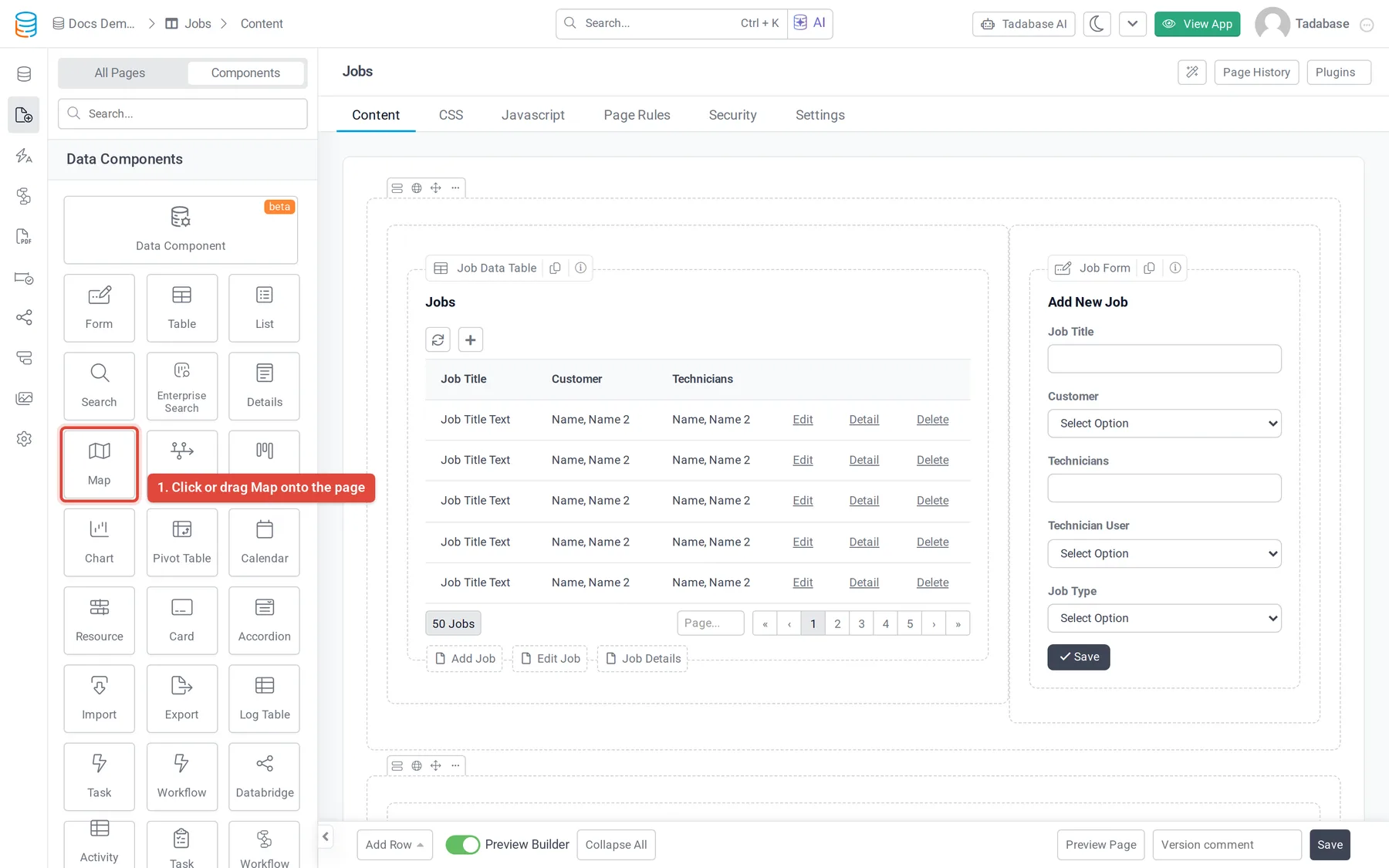
- Add the Map Under Data Components, click Map or drag it into a column.
- Choose the records Answer Which records should this map display? by selecting a table, or records connected to the page's record or to the logged-in user. See Choose which table and records a component shows.
- Quick Add or Customize Click Quick Add to add the map with default settings, or Customize to set it up first.
- Pick the address On the Options tab, check that Address Field is the address you want to map. The first Address field of the table is chosen for you.
- Save Click Update & Close.
The settings window has these tabs: Data Source, List View (when the list panel is on), Popup View (when popups are on), Pin Color Rules, Filters, Options and Design.
Map options #
| Option | What it does |
|---|---|
| Title | A title shown above the map. |
| Description | A note about the map. |
| Address Field | The Address field used to place the pins. A map uses one address per record; for two addresses (home and work), add two maps. |
| Map Size | The map's height in pixels (400 for a new map). The map always fills the width of its column. |
| Zoom Level | How far the map is zoomed in when it loads, from about 1 (the whole world) to 20 (single buildings). A new map uses 8. |
| Map Type | ROADMAP, SATELLITE, HYBRID or TERRAIN. |
| Show List Panel | Shows a list of the records next to the map. Clicking a record in the list opens its pin. Set its content on the List View tab. |
| Enable Popup | Opens a popup with the record's details when someone clicks a pin. Set its content on the Popup View tab. |
| Enable Scroll to Zoom | When on, the mouse wheel zooms the map. Turn it off so the page scrolls past the map instead. |
| Default Pin | The icon used for pins that no pin color rule matches. |
| No Records Found Text | Text shown when there are no records. |
| Record Limit | How many records the map loads: 10, 25, 50, 100 or All (the default). |
List View and Popup View #
On the List View and Popup View tabs, click fields on the left to add them, and arrange them in rows and columns. You can add links such as Edit Link, Delete Link and Record Details Page, and fields from connected tables. See Links in components.
Color pins with rules #
On the Pin Color Rules tab, click Add New Condition Icon. Set the conditions a record must match, then pick the Color and Icon for its pin. For example, show jobs whose status is Urgent with a red pin. Records that match no rule use the Default Pin.
Show one record's address with Single Map #
Single Map is listed under Data Components only on a page that shows one record, such as a job's details page. It maps the address of that record, or of a record connected to it.
- Add Single Map On the details page, click Single Map under Data Components or drag it into a column.
- Choose the record Under Records connected to this page, pick the table whose address to show. If none qualify, the window says There are no tables with valid address to be used with the map.
- Set the options On the Options tab, pick the Address Field and set the options below, then click Update & Close.
| Option | What it does |
|---|---|
| Map Size | Width and Height in pixels. Without values the map is 600 by 400. |
| Zoom Level | How far the map is zoomed in when it loads. |
| Map Type | ROADMAP, SATELLITE, HYBRID or TERRAIN. |
| Mouse Scroll Zoom | Whether the mouse wheel zooms the map. |
Clicking the pin shows the address.
Filter and style the map #
- Data Source > Filters: click Add New Filter Group to map only some records. See Choose which records a component shows.
- Filters: turn on Filter Tabs to show tabs above the map that people click to filter the pins.
- Design: the component's fonts, background, border, spacing and CSS.
If the map is empty #
- Check that the records have an address with a map location. Records without one are skipped.
- Check the data source filters, the selected filter tab and Record Limit.
- If the map does not load at all on your custom domain, contact support with the page address.
Was this page helpful?
Something wrong or missing on this page? Tell us.