
See page history and restore a version
Open Page History to see earlier saved versions of a page's content, CSS or JavaScript, load one back into the editor and save it, and require version comments.
- Verified Nov 17, 2026
- Classic builder
On this page
Each time you save a page's content, CSS or JavaScript, Tadabase keeps a copy. Page History lets you see who saved what and when, and put an earlier version back if a change went wrong.
Before you start #
Page history depends on your plan. If your plan does not include it, the history button and the Version comment box are not shown.
Open page history #
- Open the page In the Page Builder, open the page.
- Pick the tab History is kept separately for each tab. Select Content, CSS or Javascript.
- Open the history Click the button at the top right: Page History on the Content tab, CSS History on the CSS tab, JavaScript History on the Javascript tab.
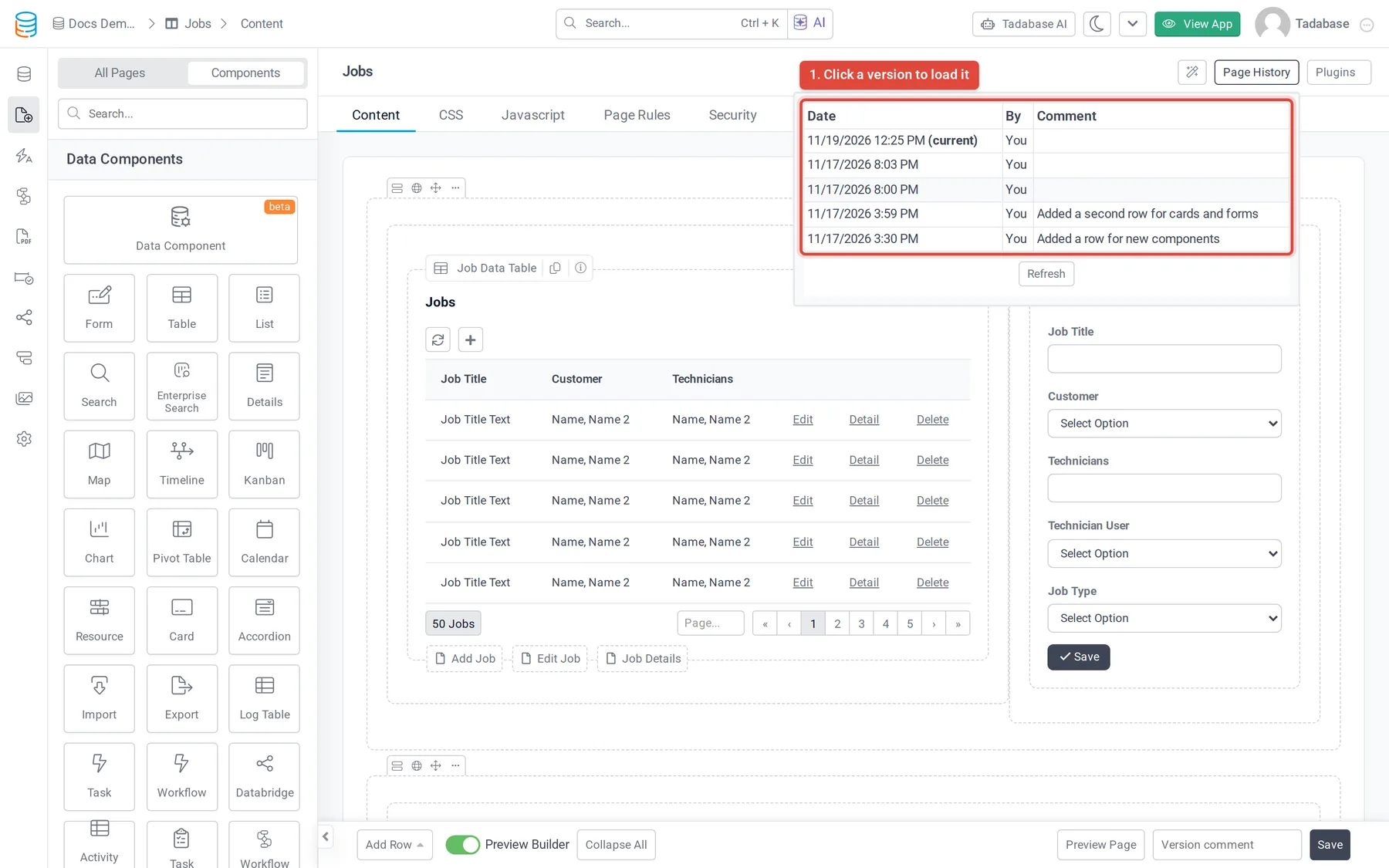
The list shows the 30 most recent versions, newest first, with the Date, who saved it (By, or "You" for your own saves) and the Comment. The top row is marked (current). Click Refresh to reload the list. A tab with no saved versions shows "No content history", "No css history" or "No js history".
Restore an earlier version #
- Pick the version In the history list, click the row of the version you want. If you have unsaved changes, confirm that you want to replace them.
- Check it The version is loaded into the editor. Nothing is saved yet: look it over, and use Preview Page only after saving.
- Save Click Save to make it the current version. Add a Version comment such as "Restored the version from Monday" so others know what happened.
Version comments #
Type a short note in the Version comment box next to Save before you save. It appears in the Comment column of the history.
To make comments required for everyone who builds the app, open Settings → General Settings and turn on Require Version Comment. Saving the Content, CSS or Javascript tab without a comment then shows "Please enter version comment".
See history for all pages #
If your plan includes page logs, Settings → Logs → Pages lists saved versions across all pages. Switch between Page - Content, Page - CSS and Page - JavaScript, and click View to see a version's content. This list is for reading; restore from the page itself.
What page history does not cover #
- Page Settings, Security and Page Rules changes are not part of page history.
- Layouts have no history button, so a layout's earlier versions cannot be opened or restored from the builder.
- Page history is about the design of a page, not the records in your tables. To recover data, use a backup: see Backing up and restoring your app.
Was this page helpful?
Something wrong or missing on this page? Tell us.