
Add CSS and JavaScript to a page or layout
Use the CSS and Javascript tabs to style one page or layout and run code when it loads, insert logged-in user and record values, and know when to use app-wide code.
- Verified Nov 17, 2026
- Classic builder
On this page
Each page and layout has a CSS tab and a Javascript tab. Code there applies only where you put it: a page's code to that page, a layout's code to every page that uses the layout.
Add CSS #
- Open the CSS tab In the Page Builder, open the page or layout and select CSS.
- Write your styles Type or paste CSS into the editor. To target one page, give it a Page CSS Class on its Settings tab; to target one component, use the id shown by the info icon on the component, for example
component_3. - Save and preview Click Save, then Preview Page to see the result in the live app.
To style one row, column or component without code, use its Design tab instead. See Add, move and style components.
Add JavaScript #
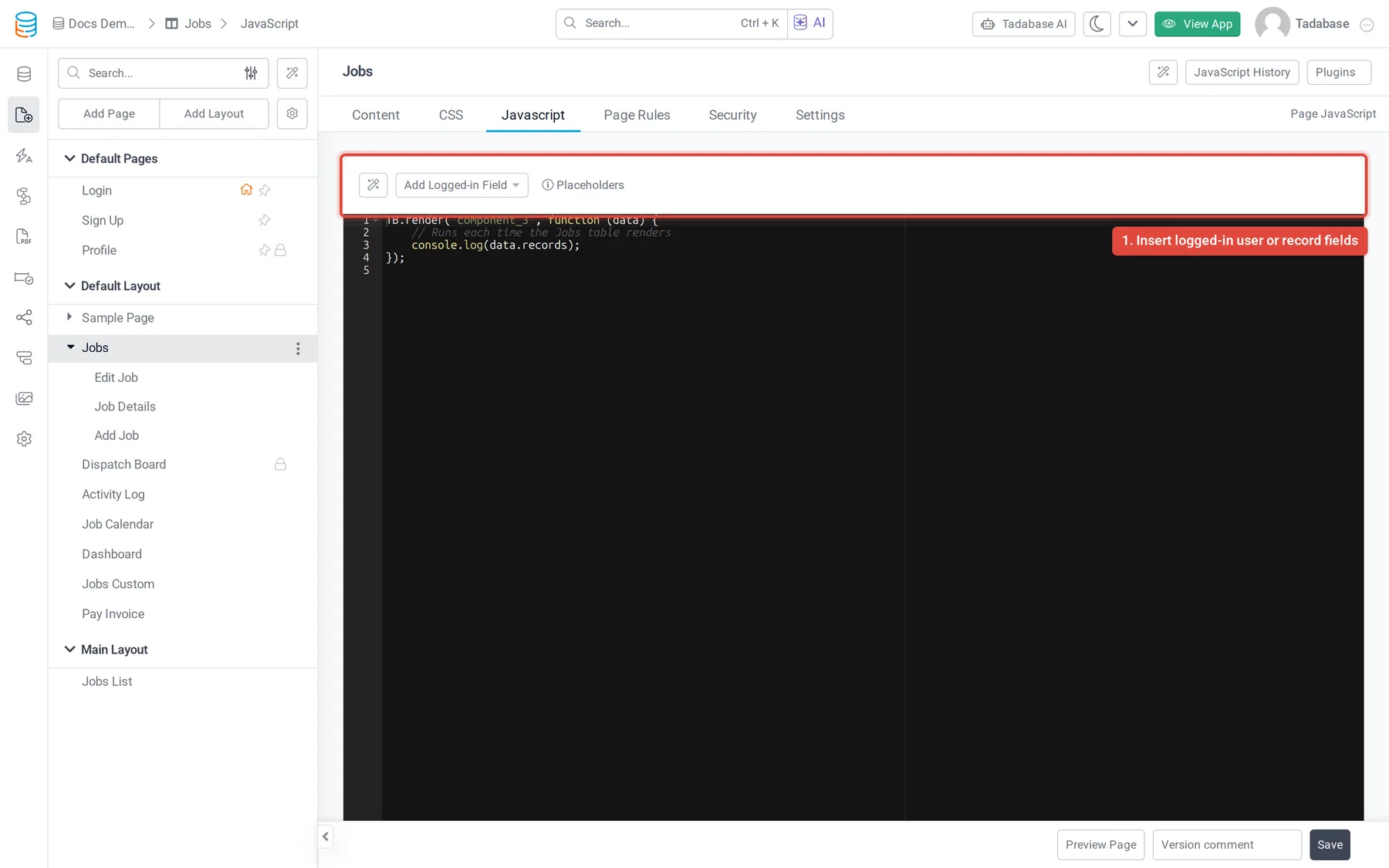
- Open the Javascript tab Open the page or layout and select Javascript.
- Write your code Type or paste JavaScript into the editor. Do not wrap it in a script tag.
- Insert values Click Add Logged-in Field to insert a field of the signed-in user, written as
{loggedInUser.Field Name}. On a page that shows a record, Add Page Data Field inserts a field of that record as{pageField.Field Name}. Tadabase replaces these with the real values when the page is served. - Save Click Save, then test the page in the live app.
Where and when the code runs #
- The code is added to the page in the live app each time the page or layout is loaded, after its content. It does not run inside the builder.
- A layout's code is loaded with the layout, so it applies on every page in that layout. A page's code applies only on that page.
- Page JavaScript is not added when the page is turned into a PDF.
- While the app is on a trial and the account owner is not yet verified, JavaScript is not added to the live app.
For the callbacks and helpers you can use in this code, see JavaScript callbacks and actions. To run JavaScript as a workflow step, see Running custom JavaScript.
Page code or app-wide code? #
| Put it in | When |
|---|---|
| A page's CSS or Javascript tab | The code is only for that page. |
| A layout's CSS or Javascript tab | The code is for every page in one layout, for example styles for the customer area. |
| Settings → Custom Header/ | The code is for the whole app, or it must go in the page head, such as an analytics or chat script. Its tabs are Custom Header, Custom Footer and Resource. See Custom header and footer code. |
Undo a change #
If your plan includes page history, the CSS History and JavaScript History buttons at the top of a page's tabs list earlier saved versions of its code. See See page history and restore a version.
Was this page helpful?
Something wrong or missing on this page? Tell us.