
Email In: the Email Catcher
Some work arrives by email. Partner practices send referrals, and vendors send invoices. This video shows how the Email Catcher turns each email into a record, attachments included.
On this page
Chapters
Read the docs
- Start a workflow when an email arrives Give a workflow its own email address, capture a test email, use the sender, subject, body and attachments in steps, and limit who can send to it.
- Create records from incoming emails Give a workflow its own inbox address so every email sent to it runs the workflow, with the sender, subject, body and attachments ready to use.
Transcript
Show the full transcript
0:00 Intro
Some work arrives by email. Partner practices send referrals, and vendors send invoices. This video shows how the Email Catcher turns each email into a record, attachments included.
0:13 The idea
Think of a P.O. box with a sorting clerk. The box has its own address, so anyone can mail to it. A letter arrives. The clerk opens it and sorts out the pieces: who sent it, what it's about, the note, and what's enclosed. And a letter marked urgent on the envelope goes to its own pile.
0:31 In your app
In your app it works the same way. Brookside gives its partner practices one address for referrals. Lakeview Pediatrics emails a referral for Ana Ruiz, with photos of her insurance card. The workflow reads the email, and a new referral appears in the table, with the card photos attached. Every email is split into fields the workflow can use. From holds the sender's email, name and domain. Then the Subject. The body comes as the full text, and as Reply Text, only the newest part. And Attachments lists every file, with its name and size.
1:12 The editor
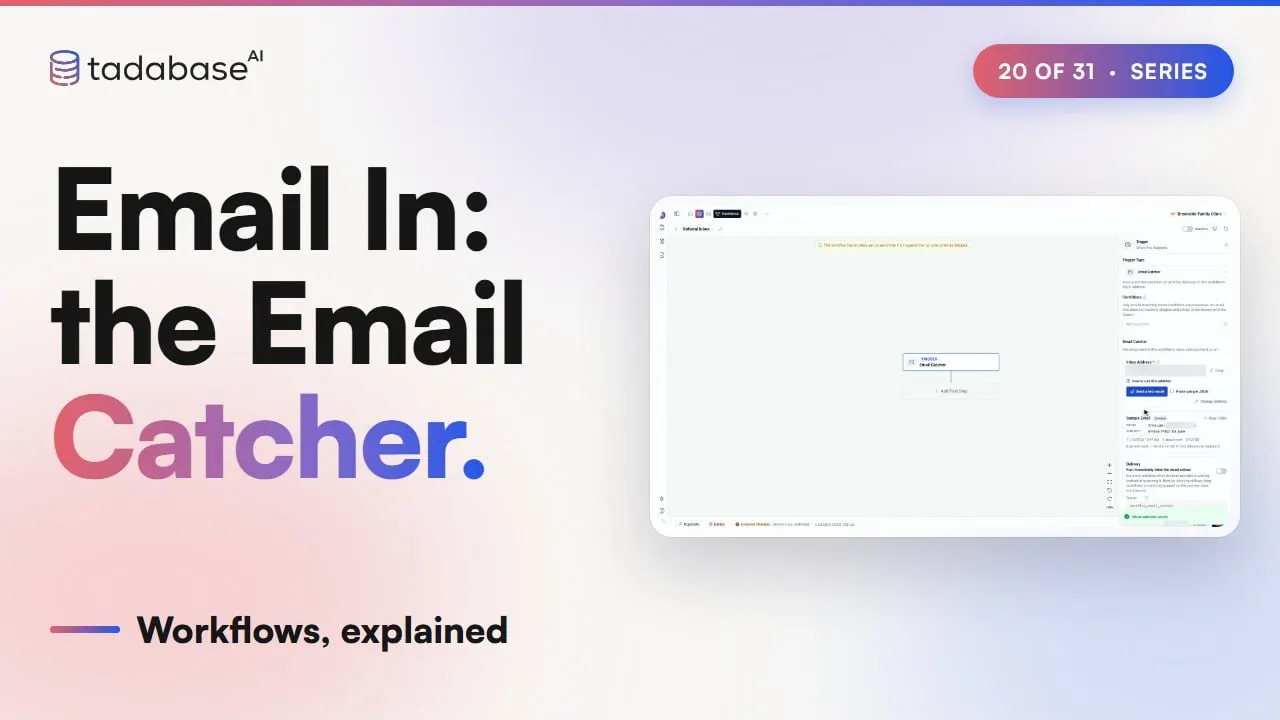
Here's that workflow in the AI Builder. The trigger is Email Catcher. Find Records looks up the practice by the sender's domain. And Create Record adds the referral.
1:23 Setting it up
Setting it up starts with the trigger. Choose Email Catcher, and the workflow saves itself so it can hold an address. The app needs an inbox subdomain first, set once in Email Settings. Click Choose an address, and type referrals. The panel checks that no other workflow has it. Save address, then copy it and send it to your partner practices. Until a real email arrives, the field pickers use a built-in example. Click Send a test email, and the workflow starts listening. Send any email to the address, or click Send me a test email. While the workflow is inactive, the email is only captured as a sample. Nothing runs. Here it is, from Lakeview, with two attachments. Click Use this sample, and Sample Email shows the real one. Now add Find Records on Referring Practices. Email Domain is, then the bolt, Source Data, From, Domain. Then add Create Record in Referrals. Practice gets the record that Find Records found. Subject and Message come from Source Data, and Message uses Reply Text. Insurance Card is a Files field, so it takes the whole Attachments list. Save, and turn the workflow on. When Lakeview refers Marcus Lee, the workflow runs once. In run history, What came in shows the email: who it's from, the subject, when it was received, and two attachments. And his referral is in the table, with both card photos. To sort mail without a new address, use a tag. Add a plus and a word before the at sign, like referrals plus urgent. It still reaches the same workflow, and the word arrives in Recipient, Mailbox Hash. Add a condition or a branch on it, and urgent referrals get handled first. The same pattern fits any business. A vendor emails an invoice to a company's invoices address, and the workflow creates a bill, with the PDF attached.
3:26 Rules
Three rules to keep track of. Rule one: pick Reply Text or the full body. When a practice answers an earlier email, Body Text holds everything, even the old message quoted below. Reply Text keeps only what they wrote this time, above the line that says who wrote before. Rule two: attachments go into a file field. They're stored privately, and you map them into a Files or Image field. A secured File field keeps them private. Some file types, like programs and web pages, are never kept, and run history marks them dropped. And there's a size limit for each email. Rule three: test while the workflow is off. An inactive workflow takes email only while it's listening, as a sample, and nothing runs. When it's off and not listening, email is turned away. Once it's active, every email runs it, test emails too. That's the Email Catcher. An email arrives at the workflow's own address. The workflow reads the sender, the subject, the text and the files. And each email becomes a record. Who may send to that address, and how junk mail and loops are kept out, come next, in Email In, Safely. What each plan includes is on the pricing page at tadabase.com.
Also on Vimeo · the whole series on Vimeo