
Custom Code
Sometimes a workflow needs a small job that no built in step does. Custom code does that job, in a few lines of JavaScript or Python. This video shows how to hand it values, get an answer back, and keep your keys safe.
On this page
Chapters
Read the docs
Transcript
Show the full transcript
0:00 Intro
Sometimes a workflow needs a small job that no built in step does. Custom code does that job, in a few lines of JavaScript or Python. This video shows how to hand it values, get an answer back, and keep your keys safe.
0:15 The idea
Think of calling in a specialist for one job, like a jeweller checking a ring. You hand over exactly what they need, the ring. They work in their own workshop, not in your house. They note what they did in a work log. They hand back a written answer. And if something is wrong, they stop and tell you why. Custom code has the same pieces. What you hand over are the inputs. The workshop is our server. The work log is the console. The written answer is return data. And stopping the job is fail.
0:46 In your app
Brookside gets referrals from partner clinics, and each referral number ends in a check digit. When a referral is added, the code adds up the other digits. Four, eight, two, one and three make eighteen. Eighteen ends in eight, like the number, so it's valid. The step hands back valid, true. And a condition emails the intake coordinator when a number isn't valid.
1:09 The editor
Here's that workflow in the AI Builder. The trigger is Record Created, on Referrals. Run Custom Code does the check. And a condition reads its answer.
1:19 Setting it up
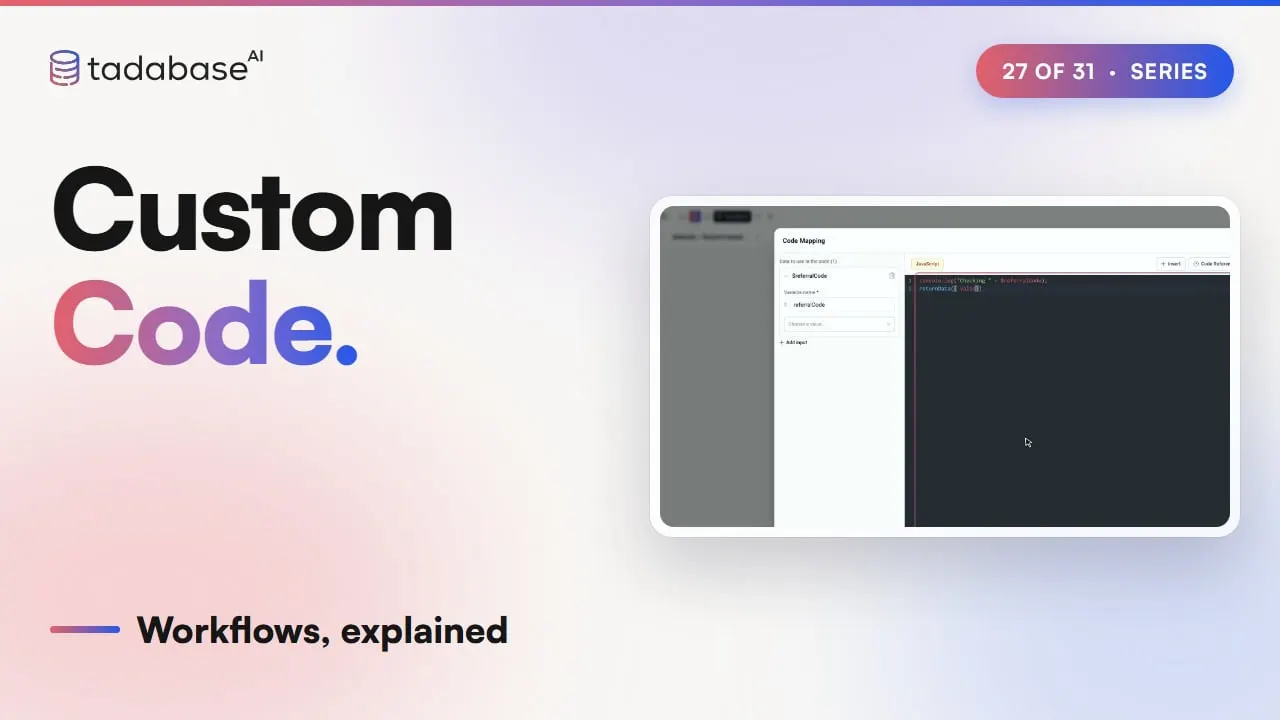
Setting it up starts with the inputs. Add a step, choose Action, and under Utilities, pick Run Custom Code. Leave the language on JavaScript, or pick Python. Under Data to use in the code, click Add input. Name it referral code, as one word. Then pick Source Record, and the Referral Code field. Click to write code, and the Code Mapping window opens. The input is ready to use, with a dollar sign in front. Console log writes a line to the work log. And return data hands valid to the steps after this one. Click Run. The code runs on the newest referral. Response shows what it returned, valid, true. Console shows the line it wrote. Close the window, and save the workflow. When the next referral comes in, run history lists the step. Custom code finished, in JavaScript, and how long it took. What it returned. And the console output, so you can see what happened inside.
2:18 Stopping a run
Sometimes the right answer is to stop. Fail, with a message, ends the step with an error, and the message shows in run history. On the step's Advanced tab, turn on Abort workflow if this step fails. Now a failed step stops the run, and nothing after it happens.
2:37 Secrets
Some jobs need a key, like asking the partner network if a clinic is a member. In Settings, open Variables and Secrets, and click Add secret. Name it partner key, and paste the value. It's never shown again. In the code, get app secret, with that name in quotes, reads it on the server. If the key ends up in a log line, run history shows dots instead. Custom code runs on our server, not in the user's browser. So it can't see the page, or what the browser stored. To use a browser value, add an input and pick Browser Local Storage, with its key. The app sends that value with the run, and the code reads it like any other input. The same pattern fits any business. A wholesaler checks a customer's tax number before invoicing, and stops the invoice run when it isn't valid.
3:23 Rules
Three rules to keep track of. Rule one: there's a time limit per run. Code that runs too long is stopped, and the step fails with a timeout. Keep each step to one small job. Rule two: fail stops the run only when Abort is on. With the switch off, the step fails, and the next steps run anyway. With it on, the run stops at that step. Rule three: secrets stay redacted. Even if the code logs the key, run history shows only dots. Name the secret in quotes. A name kept in a variable doesn't load the secret. That's custom code. Inputs go in. It runs on the server, and writes to the console. And return data brings the answer back, or fail stops the run. What each plan includes is on the pricing page at tadabase.com. In the next video, we look at AI in workflows.
Also on Vimeo · the whole series on Vimeo