
User Events
Let's look at user events. A workflow can run when something happens to a user's account: they sign up, sign in, sign out, change their password, or connect an AI assistant. This video shows how to use them, and when not to.
On this page
Chapters
Read the docs
Transcript
Show the full transcript
0:00 Intro
Let's look at user events. A workflow can run when something happens to a user's account: they sign up, sign in, sign out, change their password, or connect an AI assistant. This video shows how to use them, and when not to.
0:17 The idea
Think of a clinic's front desk. Someone new walks in, and the desk hands her a welcome packet. A regular walks in, and the desk notes the time. Someone leaves, and that gets noted too. And when someone gets a new key, the desk tells them, just in case it wasn't them. User events work the same way, for the people who sign in to your app. User Registered is the new face. User Logged In is the regular. User Logged Out is someone leaving. And User Updated Password is the new key. There are two more. They're right below, in the same Event list. 2FA Code Requested runs when someone signs in and needs a code. Password Reset Code Requested runs when someone asks for a reset code. We come back to those in a minute.
1:03 In your app
A user event always runs on the Users table, so there's no table to pick. It runs for the user the event happened to. That user's record, with their name and email, is what every step can read.
1:15 Linking a user
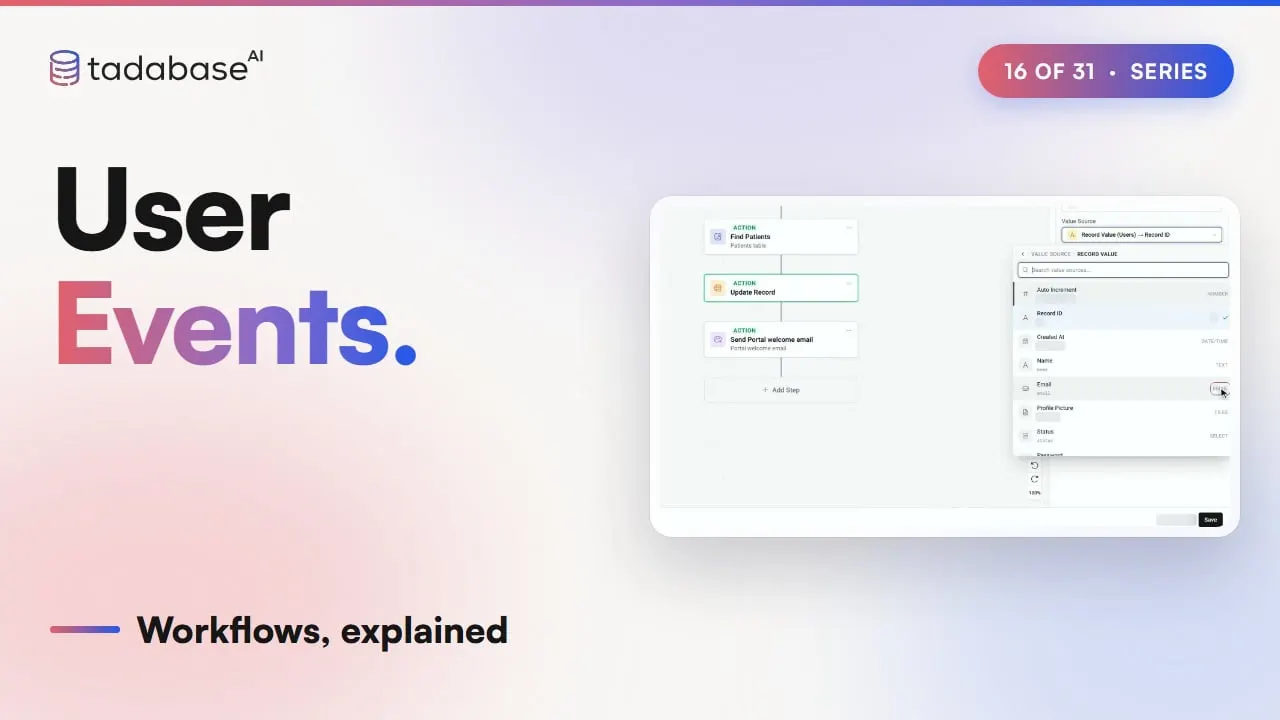
Ana Ruiz is already a patient, and today she registers for the patient portal. User Registered starts the workflow. Find Records searches Patients for the same email as the new user, and finds her. Update Record sets that patient's Portal user to Ana's new account, so the two are linked. Then Send Email welcomes her, and says how to message the clinic. A second workflow watches passwords. User Updated Password runs when someone changes theirs. One Send Email step tells them: your password was changed. If this wasn't you, call the clinic.
1:52 AI connections
Your users can also connect an AI assistant to your app, and work in it through the assistant. Further down the Event list is a group marked AI connection. These run when someone connects an assistant, when the connection ends, or when the assistant does something worth knowing about, like deleting records. At Brookside, Marcus Lee connects his AI assistant to the patient portal. AI Connected starts a workflow, for his user record. Send Email tells him an assistant was connected, and to call the clinic if it wasn't him. These workflows run in the background, with nobody on screen, so there's no Show Message step. And when someone signs in through an AI assistant, AI Connected runs instead of User Logged In. The email can name the assistant. In the value picker, open Event Data, the values this event carries. For AI Connected, that includes the AI Client, when it happened, and when the connection expires. Pick AI Client, and its name goes into the email. User Logged In carries Event Data too: Login Source says whether the sign-in came from the app or the API.
2:58 Sending the code
Now the code events. Say you'd rather text sign-in codes than email them. Lena Park signs in, and the app makes her code. 2FA Code Requested starts a workflow with that code. A Trigger Webhook step sends Lena's details and the code to your text message service, and Lena gets a text. On a code workflow, the webhook step shows a card called Sending the code. It lists what is sent: the code, when it expires, and whether it's a resend. The code only goes to https addresses. And a signing secret lets your server check that the request came from Tadabase. Keep it hidden, and regenerate it if it leaks. Then stop the app from emailing the code as well. In Settings, open User Settings, and find Additional Security Options. Turn off Email the 2FA code. If no active workflow sends the code, or its run fails, the code is emailed anyway, so nobody is locked out.
3:55 Setting it up
Here's the portal workflow from the start. In Workflows, click New workflow, then click the trigger. Open Trigger Type, and pick User Event. Under Event, choose User Registered. Add an action: Find Records, on Patients. Add a filter: Email is, then click the bolt and pick the user's Email. Add Update Record, on Find Patients, and set Portal user from the user's record. Add Send Email, with the Portal welcome email. And save.
4:25 Elsewhere
Every business with sign-ins can do this. Someone joins a gym's member site, and the workflow links the new account to their member record.
4:34 Rules
Three rules to keep track of. Rule one: it runs during the sign-in. The user waits while the steps run, so keep these workflows short. And if a step fails, the sign-in still goes through. Rule two: don't email on every login. User Logged In runs every time someone signs in. An email there floods their inbox. Use it for quiet jobs, like keeping a Last login date on their record, and send emails on Registered or Updated Password. Rule three: a code workflow only runs when the app sends a real code. Test run won't start it, and says why. To try it, sign in to your app as a test user. And in run history, the code always shows as hidden.
5:19 Recap
That's user events. Four everyday events, two for sign-in codes, and a group for AI connections. Link a new user to their record, and greet them once. And keep each run short, because the user is waiting. What each plan includes is on the pricing page at tadabase.com. In the next video: talking to the user, with Show Message.
Also on Vimeo · the whole series on Vimeo