
Calling Any API
Sometimes a workflow needs to ask another service a question, and use the answer. This video shows how a workflow calls any API, and how it keeps both the answer and the key safe.
On this page
Chapters
Read the docs
- Send record data to another system with Trigger Webhook The Trigger Webhook action posts a record, connected records or an earlier step's result as JSON to one or more URLs, such as Zapier, Make or your own server.
- JavaScript examples: call an external API Call an outside API from a Run Custom Code step with fetch, keep keys in app secrets, handle errors, and when to use Trigger Webhook or a pipe instead.
Transcript
Show the full transcript
0:00 Intro
Sometimes a workflow needs to ask another service a question, and use the answer. This video shows how a workflow calls any API, and how it keeps both the answer and the key safe.
0:14 The idea
Think of ordering by phone, from a script. You dial the number. You say what you want to do, place an order. You give your account number, so they know it's you. You read out the order. And you write down the two things you need from the answer. There are two ways to reach another service. A note through the door. You drop it off, and that's it. That's the Trigger Webhook step. Or a phone call with a script. You choose every part of the call, and you hear back. That's a Custom API step.
0:47 In your app
Brookside checks a patient's insurance before the first visit. When a new patient is added, the workflow calls the eligibility service with the member ID and the date of birth. The service answers. Coverage is active, with a twenty five dollar copay. The workflow writes that onto the patient's record. And a condition after it can send anyone who isn't covered to billing.
1:11 The editor
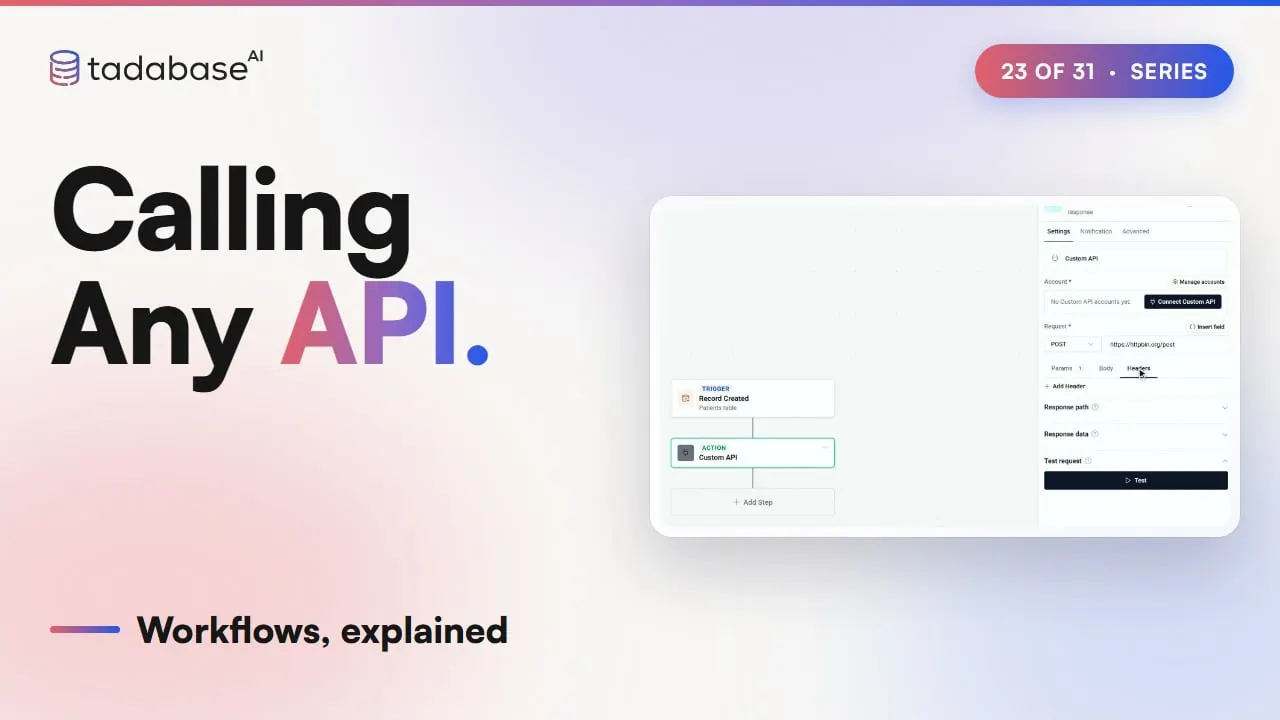
Here's that workflow in the AI Builder. The trigger is Record Created, on Patients. The Custom API step makes the call. And Update Record writes the answer onto the patient.
1:25 Setting it up
Setting it up starts with the account. Add a step, choose Action, and under Integrations, pick Custom API. Under Account, click Connect Custom API. Pick the Authentication Method, here API Key or Bearer Token. Name the account, and enter the service's Base URL. Paste the token into Bearer Token. It's stored encrypted, and never shown again. Then click Connect and test. Now the request. Pick the method, POST, and type the path after the base URL. On Params, add Member ID and Date of Birth, each from a field on the patient's record. On Body, choose JSON, and place each one by its name, in curly brackets. Headers already holds the sign-in, locked and masked. You never type the key here. Under Test request, click Test, and then Send. The call runs, and the answer comes back. Request Successful, with its body. Extracted Keys lists every value in it. Add coverage active and coverage copay, give them friendly names, and click Apply and Close. They're now the step's Response data. Next, add Update Record, on the patient. For Coverage Active, pick Step Data, then Custom API, then Coverage Active. Copay works the same way. Save, and the workflow waits for the next patient. Now Lena Park is added as a new patient, and the workflow calls the service. A moment later, her record shows coverage active, and a twenty five dollar copay. The same pattern fits any business. A shipping app sends a parcel's weight and address to a carrier, and writes the rate quote back onto the order.
3:16 Rules
Three rules to keep track of. Rule one: Trigger Webhook only posts. It sends the record, as JSON, to a URL, and that's all you set. For another method, a header, a sign-in, or an answer you want to keep, use Custom API. Rule two: map the response to use it later. Only the keys listed under Response data show up in later steps. A value you didn't list isn't there to pick. Add it, and test again. Rule three: never paste a key into a field. A key typed into a header or the body stays in the step, where anyone who edits the workflow can read it. Put it on the account instead. It's stored encrypted, and filled in for you. The Secrets list in Settings is for custom code, in video twenty seven. That's calling any API. The account holds the key. The request says what to send, and where. And the parts of the answer you keep go into your records. What each plan includes is on the pricing page at tadabase.com. In the next video, we look at connectors, SMS and push.
Also on Vimeo · the whole series on Vimeo