
Securing and Answering Webhooks
An incoming webhook gives a workflow its own web address. This video shows how to lock it, choose which requests get in, and answer the sender. Video eighteen covers the URL and the mapping.
On this page
Chapters
Read the docs
- Webhook Security Features Protecting your incoming webhooks is crucial to ensure only authorized systems can send data to your Tadabase app. The webhook catcher provides multiple…
- Start a workflow from an incoming webhook Give a workflow its own URL so another system can start it by sending data, capture a sample payload, use its values in steps and secure the URL.
Transcript
Show the full transcript
0:00 Intro
An incoming webhook gives a workflow its own web address. This video shows how to lock it, choose which requests get in, and answer the sender. Video eighteen covers the URL and the mapping.
0:14 The idea
Think of a doorman. A visitor walks up. The doorman asks for the password. Then he checks the guest list. And he hands over a receipt: you're in, here's your number.
0:26 In your app
A webhook URL with no doorman is a key anyone can copy. The booking service posts bookings to it. But anyone who sees the URL can post too. So the builder warns you: anyone with this URL can start this workflow. Every request passes the same checks. Security: is it really from the booking service? Conditions: should this workflow handle it? Then the workflow runs, and the Response hands back a receipt.
0:56 Security
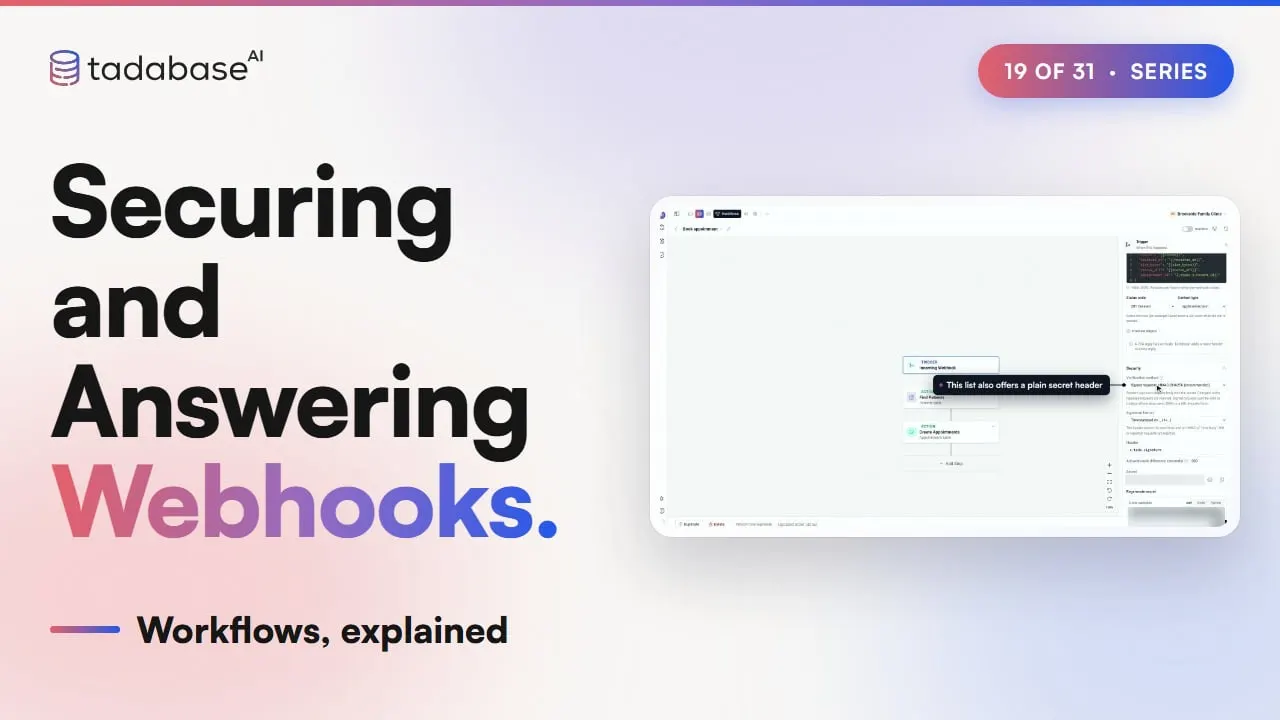
The strongest lock is a signed request. The booking service and Tadabase share a secret. The service signs each request body with it, in a header. Tadabase signs the same body, and compares. A changed, old or repeated request is turned away, and no run starts. You can add more locks. Allow or block certain IP addresses. Accept only certain hosts or user agents. Require basic authentication: a username and password. A plain secret header works too, but anyone who sees one request can reuse it. In the Book appointment workflow, click the Incoming Webhook trigger, and scroll to Security. Open Verification method, and choose Signed requests, HMAC-SHA256. Keep the format and the header. Copy the secret into the booking service. Code samples show how to sign. It saves right away, and the warning is gone.
1:59 Who gets in
Next, the guest list. The booking service serves two clinics, and sends both here. Under Conditions, add Clinic ID is brookside. A request for the other clinic is skipped, and run history says why: Clinic ID had to be brookside, but this request was lakeview.
2:19 Answering
Now the receipt. By default, the run is queued, and the sender gets a two oh two at once, with a run ID and a status URL. Turn on Allow immediate processing, and the workflow runs while the sender waits, so the reply can carry the result, like the new appointment's ID. Back in the trigger. Under Delivery, turn on Allow immediate processing. Under Response, choose Custom JSON. From Variables, insert the Create Record step's Record ID. Set the status code to two oh one, Created. Save, and every booking gets its appointment ID back.
2:59 When it fails
Sometimes a run fails. Under Failure Notification, turn on Email on failure. The workflow owner hears about it by default. Add anyone else, like the front desk, and save. Open the failed run in run history. It shows Failed. Fix the cause, open Rerun, and choose Run this request again. It runs again with the saved workflow, and this time it completes. Now the other direction. When a webhook your app sends keeps getting the answer Gone, Tadabase pauses it and emails the app owner. Usage, then Webhooks, lists them under Dead endpoints. Any business can use this. A shop sends paid orders to a shipping app. Each one is signed, and a condition skips test orders. The reply carries the shipment's ID.
3:48 Rules
Three rules to keep track of. Rule one: turn on verification before you go live. A new webhook is open to anyone with the URL. Turn on signed requests, and give the secret only to the sender. If it leaks, regenerate it. The old one keeps working for twenty four hours. Rule two: immediate processing has a time limit. The sender waits on the line while the workflow runs. A short workflow answers in a moment. A long one can run out of time, so leave it queued and let the sender check later. Rule three: an Idempotency-Key stops duplicates. A sender that hears nothing back sends the booking again. With the same Idempotency-Key header, within a day, no new run starts. It gets the first run's answer, and the booking isn't doubled. That's a webhook with a doorman. Security checks who's at the door. Conditions decide who gets in. And the Response hands back a receipt. What each plan includes is on the pricing page at tadabase.com. In the next video, we take a look at Email Catcher.
Also on Vimeo · the whole series on Vimeo