
Test It, and When It Updates
A Lookup with three keys can be hard to check by eye. So every Lookup has a Test it box, which shows the answer, why, and which row it came from, before you save. And once it's saved, it updates by itself. This video shows both.
On this page
Chapters
Read the docs
Transcript
Show the full transcript
0:00 Intro
A Lookup with three keys can be hard to check by eye. So every Lookup has a Test it box, which shows the answer, why, and which row it came from, before you save. And once it's saved, it updates by itself. This video shows both.
0:19 The idea
Before the shop prints new labels from a new chart, the clerk holds one sample parcel up to it. She reads the row it lands on and checks the price makes sense. Nothing gets printed until she's happy.
0:32 Test it
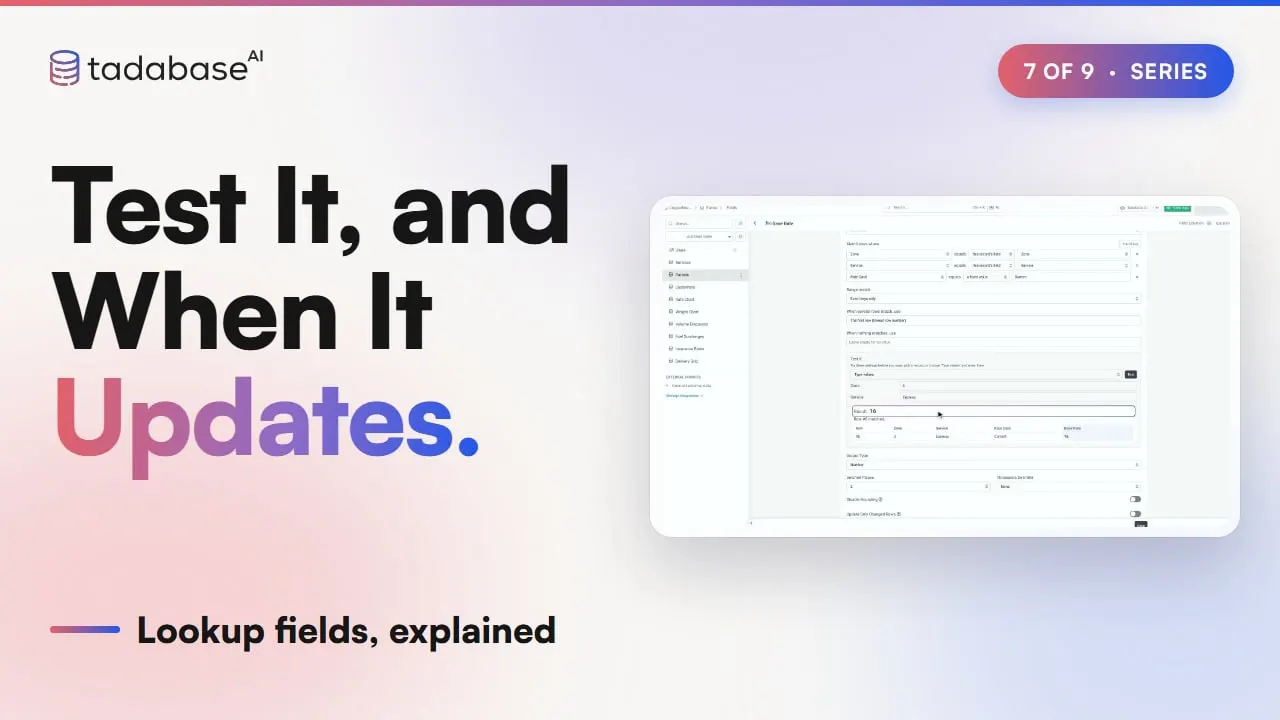
Open the Base Rate Lookup from video two. Under the settings, find Test it. Open the list and pick a parcel. Each one shows its record number, zone and service. Pick number two, P one thousand two. The test runs right away. The result is thirteen fifty. Underneath, one line says which row matched, row four, and the values it used, zone two and Express. And the table shows that row, with the base rate column highlighted. You can also try values that no record has yet. Pick Type values. A box appears for each field the Lookup reads. Type three for zone and Express for service, then click Test. Sixteen dollars, from row six, the zone three Express row. The rows table always says why a row is there. Matched is the row the value came from. Also matched, not used, is a row that matched too but wasn't picked, a handy way to spot duplicates. Below and Above are the two rows an interpolation draws its line between. And for a two key grid, each corner gets a label like below, below. Test it also checks the settings. If a key is missing its field, the test doesn't run. It tells you exactly what to fix, the same message you'd get on a save.
1:56 When it updates
Once saved, a Lookup keeps itself up to date. Here's the Weight Charge on every parcel, worked out from the Weight Chart. Four, eleven, eleven, empty, seven fifty. Three kinds of change make it recalculate. One: the chart changes. Raise the up to ten pound charge from eleven dollars to eleven fifty, and every parcel that reads that row updates. P one thousand two and P one thousand three both show eleven fifty. Two: the record changes. Re-weigh P one thousand three at twelve pounds. Its Weight Charge moves to the up to twenty row, eighteen dollars. Three: a row is deleted. The May promotion is over, so delete its row from Fuel Surcharges. P one thousand two falls back to the April to June row, nine and a half percent. That works wherever the row is deleted: in the builder, in your app, through the API, or by an AI tool. And when the chart grows, so do the answers. Add a row for parcels up to thirty pounds, at twenty-four dollars. P one thousand four, at twenty-five pounds, finally has a match, twenty-four dollars.
3:02 Rules
Three rules to keep track of. Rule one: Test it only reads. It tries the settings you're editing, saved or not, and never changes a record or the chart. Rule two: the value is stored on the record, like any field. It sits there, ready for views, filters and reports. It's refreshed when the record's keys change, or the chart's rows change. It isn't worked out live on every screen, so Calculate in Real Time isn't offered for a Lookup. Rule three: changing a chart rechecks every record that reads it. One edit to the Weight Chart, and every parcel is worked out again. On a very large table that takes longer, so batch your chart changes together when you can. So that's Test it, and updating. Try it on a record or on typed values, and read the rows it used. Save, and it's stored. Change the record or the chart, and it updates on its own. Next up: freezing a Lookup's value once it's final, so a chart change can't move it.
Also on Vimeo · the whole series on Vimeo