
Use an AI prompt in a workflow
Run an AI prompt as a workflow step, fill its variables from the record, then save the answers to fields or branch on them in later steps.
- Verified Nov 17, 2026
- Classic builder
- Tadabase AI
On this page
The AI Prompt workflow action runs one of your AI prompts with values from the workflow and makes its answers available to the steps after it. Use it to summarize, classify or draft text automatically, for example to write a short summary every time a job is created.
Before you start #
- Create the prompt in Automation > AI Prompts, with a dynamic variable for each value you will send and a response for each answer you want back. See Create an AI prompt.
- Create the workflow and its trigger. See Workflow triggers.
Add the AI Prompt action #
- Add a step In the workflow editor, click Add Step where the prompt should run, then Add Action.
- Pick the action Choose AI Prompt (Run AI Prompt and expose its response).
- Choose the prompt Under AI Prompt, open Select a prompt... and pick your prompt. A row is added under Set Values for each of the prompt's dynamic variables. A variable that has a default value starts filled in with that value as a Custom Value.
- Fill each variable Open each row, check the variable in Select prompt field... and choose where its value comes from (see the table below). Click Add Value to add a row for a variable that is not listed.
- Save the workflow Save. If no prompt is chosen, the step shows the error Select an AI Prompt.
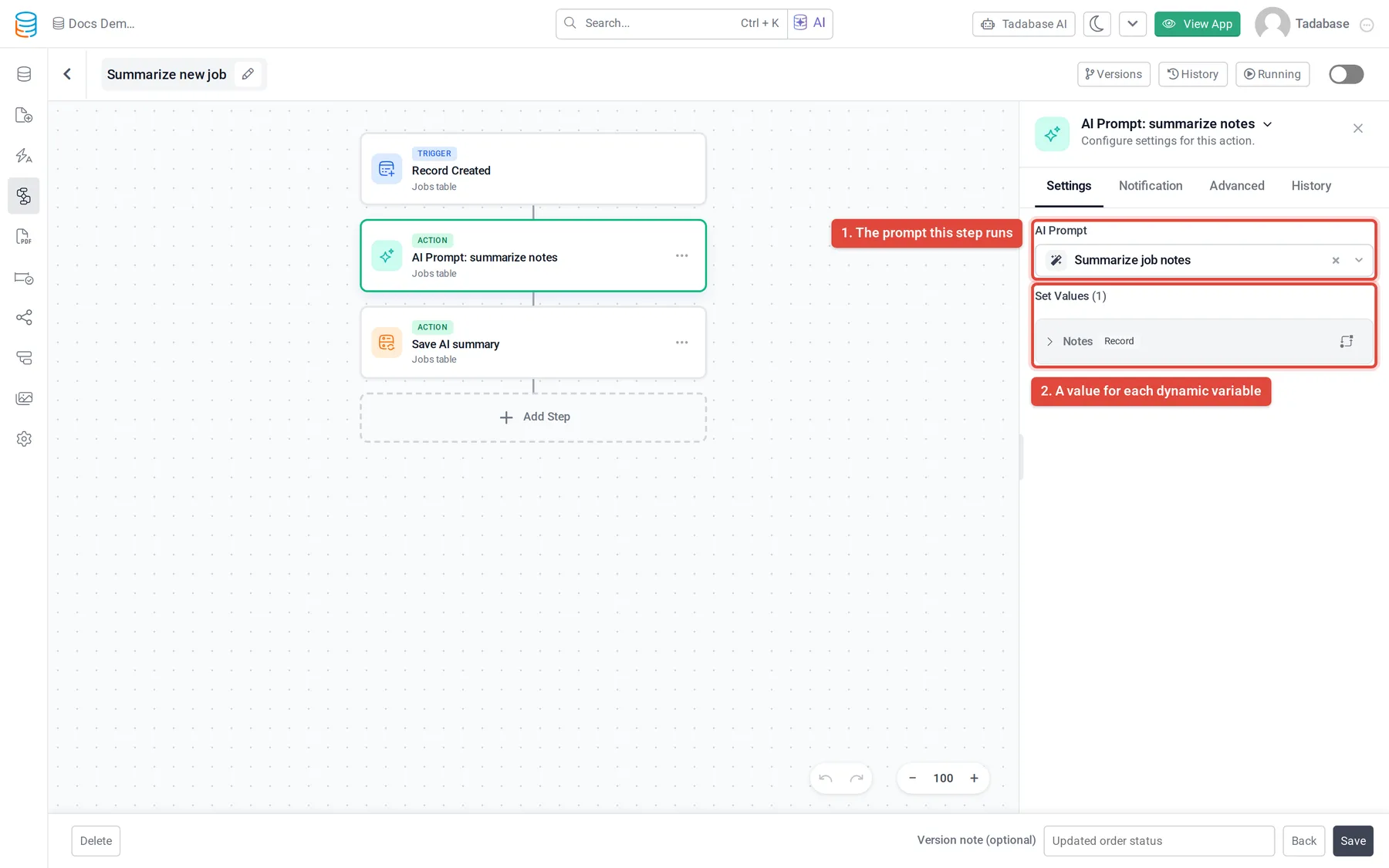
If the prompt has no dynamic variables, the panel says No dynamic input fields configured for the selected prompt. The prompt then runs with its fixed text only. Variables you leave out use their default value.
Where a variable's value can come from #
| Value type | Use it for |
|---|---|
| Record Value | A field of the record the workflow is running on. |
| Connected Value | A field of a connected record. |
| Logged-in User's Field | A field of the user who started the workflow, when there is one. |
| Custom Value, Custom | Fixed text, or text that mixes fixed words with values. |
| Set to a Blank Value | An empty value. |
| Current Date, Current Time, Current Date & Time | The moment the step runs. |
| Conditional | A value picked by rules you set. |
| Action Output Value, Action Response Value, AI Prompt Response, Pipe Response, Integration Response, Step Data | The result of an earlier step. Each is listed only when an earlier step produces that kind of result. |
Use the answer in later steps #
Each response defined on the prompt becomes a value that later steps can read. In any later step that asks for a value, choose the value type AI Prompt Response, then pick the AI Prompt step and the response by name.
- Save it to a field: add an Update Record step after the prompt and map the field to AI Prompt Response. See Data actions.
- Branch on it: add a condition that compares an AI Prompt Response, for example to route jobs whose
priorityresponse isHigh. See Conditions and branches. - Send it on: use it in an email, a pipe or another prompt's variables.
Run it on many records #
The action runs once for each record the workflow runs on. To fill a field for new records, start the workflow when a record is created; to update a set of existing records, use a schedule trigger with a filter. See Workflow triggers. Every run uses AI tokens, so filter the records to the ones that need an answer.
Check what happened #
Open the workflow's run history and select the AI Prompt step. See Workflow history and logs. The step shows the prompt's name, the values it was sent and its outcome:
| Outcome | Meaning |
|---|---|
| Answered | The prompt ran. Each response and its value is listed. |
| Failed | The prompt did not answer. The reason follows the dash, for example Daily AI Prompt Tokens Limit Reached. |
| Skipped | No prompt was selected on the step (AI Prompt is not configured.). |
| Not run (dry run) | The workflow ran as a test, so the prompt was not called. |
Plans and limits #
- AI prompts are a plan feature.
- Each run counts toward your account's daily AI token limit, shared by all apps on the account. When it is used up, the step fails with
Daily AI Prompt Tokens Limit Reacheduntil the next day. See How AI prompts work.
Was this page helpful?
Something wrong or missing on this page? Tell us.