
Preview and open your live app
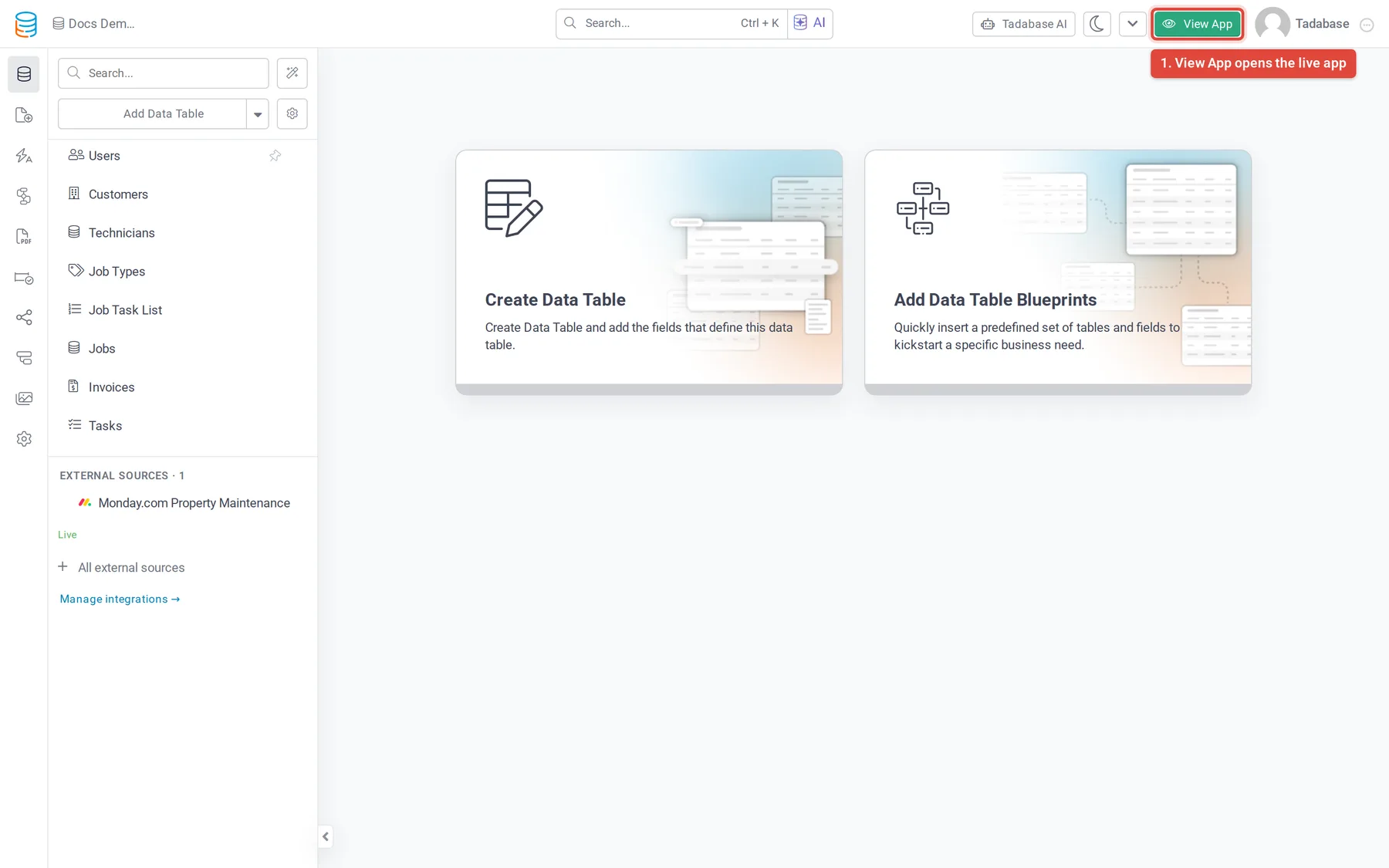
Open your live app from the builder with View App or Preview Page, find the app's web address, and change its App Slug.
- Verified Nov 17, 2026
- Classic builder
The live app is what your users see: the pages you build in the Page Builder, showing the data in your tables. Open it from the builder at any time to check your work.
Open the live app from the builder #
- View App, in the top bar of the builder, opens the live app in a new tab. It is there on every screen.
- Preview Page, above a page in the Page Builder, opens that page in the live app.
- On My Apps, the Actions menu (⋮) of an app has View Live.
There is no separate publish step. When you click Save on a page, the live app shows the change the next time that page loads.
Find your app's web address #
Every app has an address on a Tadabase domain, made of two parts: your account's slug, then the app's slug. For example: https://youraccount.tadabase.io/your-app/.
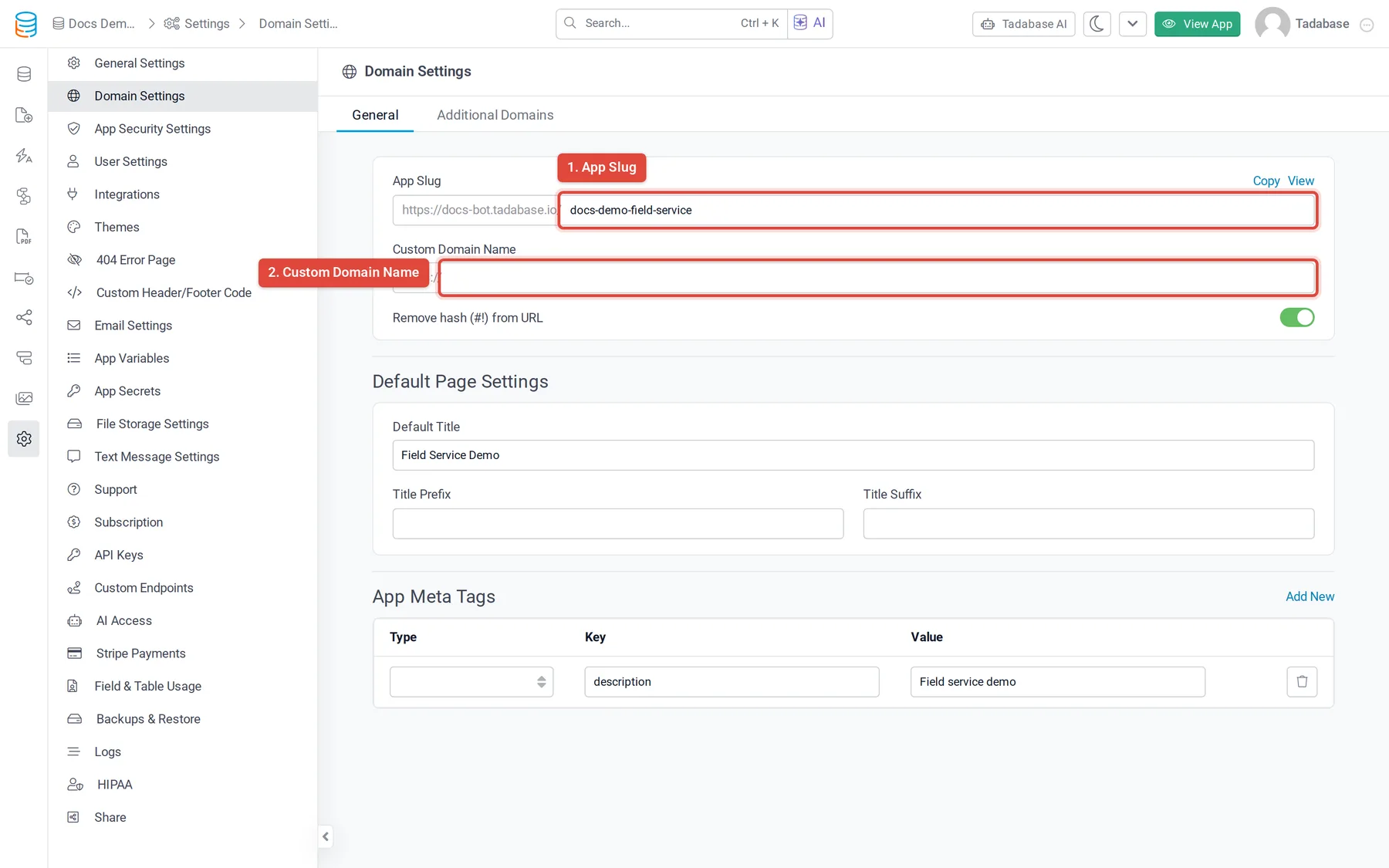
- Open the domain settings In the left bar, click Settings, then Domain Settings.
- Find the address On the General tab, App Slug shows the full address. Click Copy to copy it or View to open it.
Change the address #
- To change the app's part of the address, edit App Slug in Settings › Domain Settings and save.
- To change your account's part, open your account menu in the top right, choose Edit Profile and change Slug. It is shared by every app in your account, so all their addresses change.
- To use your own domain, such as
app.yourcompany.com, enter it in Custom Domain Name on the same screen. Custom domains are part of the paid Business plans; see Custom domains.
Was this page helpful?
Something wrong or missing on this page? Tell us.