
What pipes are and when to use them
A pipe is a saved set of API calls your app can run, with the response mapped into values you can show, save or check. Learn the kinds and where they run.
- Verified Nov 17, 2026
- Classic builder
On this page
A pipe is a saved set of API calls that your app can run. Each call sends a request to a service and maps parts of the response to named values, which your app can then show on a page, write into a field or use in a condition.
Use a pipe when your app needs data or an action that lives outside your tables: format a value with a Tadabase function, call the Tadabase REST API on your own app, or talk to a third-party service such as an accounting or shipping system.
How a pipe is built #
Every pipe has the same parts. You see them as tabs when you open a pipe in the builder.
| Part | What it holds |
|---|---|
| General | The pipe's name and description, and Enable Debug Mode. |
| API Calls | One or more calls. Each call has a method and URL, parameters, authorization, headers, a request body and response mappings. |
| Global Parameters | Values every call in the pipe can use, for example an API key. |
| Global Headers | Headers sent with every call in the pipe. |
When your app runs a pipe, you pick one of its calls, fill its parameters (from a record, the logged-in user or a fixed value), and choose what to do with the response values that call maps.
The kinds of pipes #
The pipe library has ready-made pipes in three groups, and you can build your own.
| Kind | What it does | Examples |
|---|---|---|
| Tadabase functions | Runs a function on Tadabase's side and returns the result, with no outside account needed. | Text functions, date functions, QR codes |
| Tadabase REST API pipes | Calls the Tadabase REST API to read or change records in your app, for example to look up, copy or export several records. | Vertical lookup, Generate CSV |
| Third-party pipes | Calls another company's API. You usually need an account and an API key with that service. | OpenAI, QuickBooks, Google Sheets |
| Custom pipes | A pipe you build yourself for any service that has an HTTP API. | See Create a custom pipe |
Configurable and Not Configurable pipes #
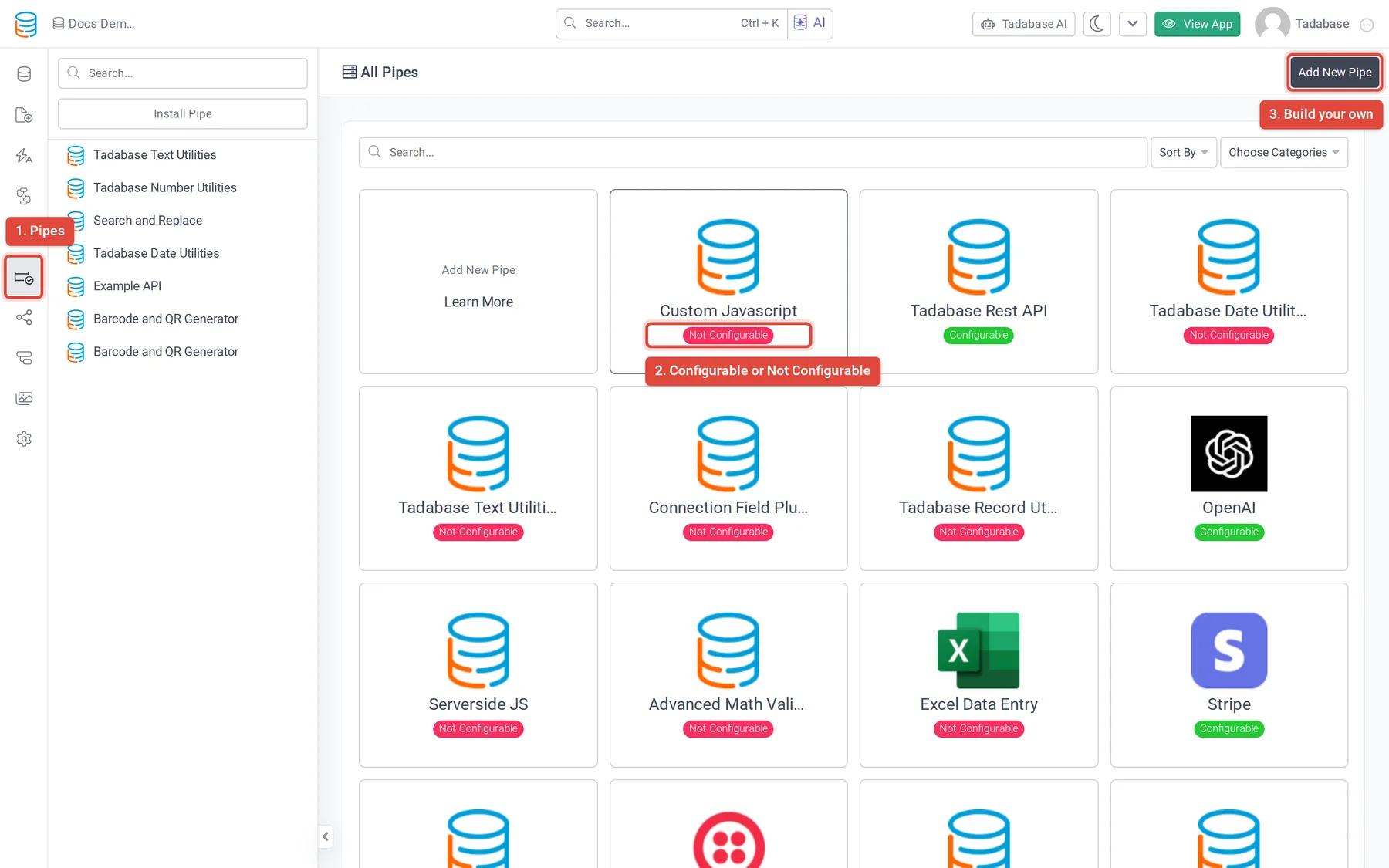
Each pipe in the library carries a badge.
- Configurable: installing it copies the whole pipe into your app. You can change every call, parameter, header and response mapping, the same as a pipe you built yourself.
- Not Configurable: the pipe stays linked to the library version. You can set its parameter values (such as your API key), but the calls themselves are fixed. Its call settings show only the tabs the pipe's author allows, and the Global Parameters and Global Headers tabs appear only when the pipe lets you edit them.
Install a pipe or build your own #
Open Pipes from the icon bar on the left of the builder. The All Pipes list shows the library, and the panel beside it lists the pipes already in your app.
- To use a library pipe, click its card and install it. See Install a pipe from the pipe library.
- To connect to a service that has no library pipe, click Add New Pipe and set up the calls yourself. See Create a custom pipe.
Where a pipe runs #
Installing a pipe does nothing by itself. You choose where it runs: in a workflow with the Trigger Pipe action, from a button in a form, as extra columns in a table or other data component, inside an HTML component, or in a form's validation rules. See Run a pipe from a form, field, component or workflow.
Plans and limits #
Whether your app can install pipes, and how many it can have, depends on your plan. When your plan does not include pipes or you reach its pipe limit, the builder shows a plan-limit icon next to Add New Pipe and an upgrade button in place of Install. Running JavaScript from a pipe (the Pipescripts tab) is a separate plan permission. Compare plans on the pricing page.
Was this page helpful?
Something wrong or missing on this page? Tell us.