
Send mail with the LetterStream pipe
Install the Letter Stream pipe with your LetterStream API ID and key, create a mailing job from a PDF, authorize it, and check your account balance.
- Verified Nov 17, 2026
- Classic builder
The Letter Stream pipe sends printed letters and postcards through LetterStream, a mailing service. You create a job from a PDF, then authorize the job so LetterStream prints and mails it.
Before you start #
- You need a LetterStream account. You can sign up at letterstream.com.
- You need your LetterStream API ID and API Key. Sign in to LetterStream and go to My Account > API Information.
- The pipe library lists it as Letter Stream. It is a Not Configurable pipe: you can change its Global Parameters, and each call shows its Parameters and Test tabs.
Install the pipe #
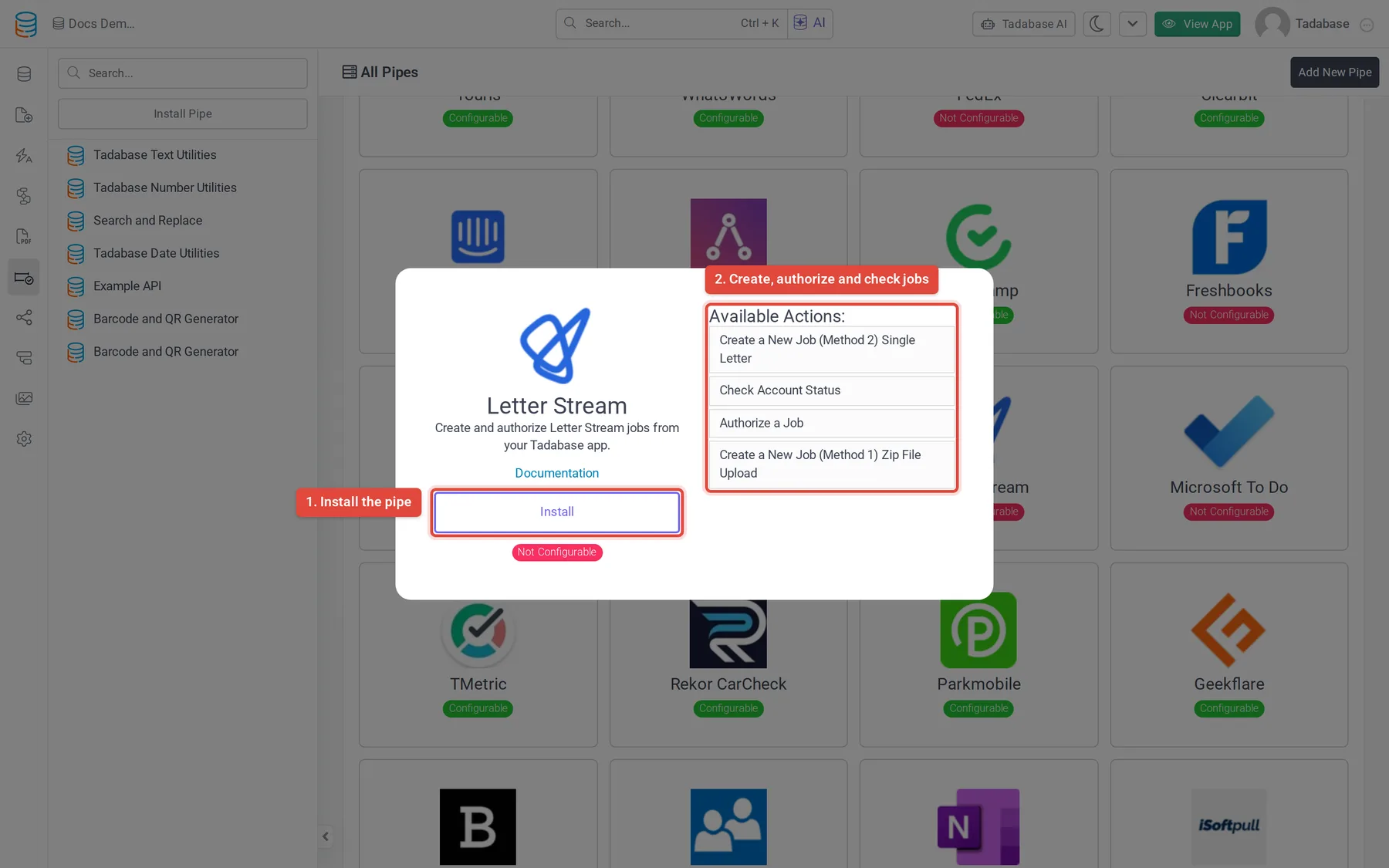
- Open the pipe In the builder, click Pipes in the icon bar on the left, then click the Letter Stream card in All Pipes.
- Install it Click Install. Enter your API ID and API Key and click Install again. The pipe opens on its General tab.
- Check the connection Click the API Calls tab, pick Check Account Status, open its Test tab and click Test. A working connection returns your Balance and whether Test Mode is on.
If you leave the fields empty during the install, or need to change them later, open the pipe's Global Parameters tab, enter API ID and API Key in the Value column, and click Save.
Calls #
| Call | What it does | Parameters |
|---|---|---|
| Create a New Job (Method 2) Single Letter | Creates a job that mails one PDF to one recipient. Returns Auth Code, Cost, Quantity, Batch and the job's document details. | PDF URL, Unique Job ID, Number of Pages, sender and recipient name and address, Mail Type, Ink, Return Envelope, Cover Sheet |
| Create a New Job (Method 1) Zip File Upload | Creates one job for many letters from a zip file. The zip's layout is described on LetterStream's API Information page. | Zip File URL |
| Authorize a Job | Authorizes a job you created, so LetterStream prints and mails it. | Auth Code (returned when the job was created) |
| Check Account Status | Returns your Balance and whether Test Mode is on. | None |
Options for Create a New Job (Method 2) Single Letter:
| Parameter | Values |
|---|---|
| Unique Job ID | A name for the job that you have not used before, so you can find it in LetterStream later. |
| Number of Pages | The number of pages in the PDF. |
| Mail Type | firstclass, firstclass_hse, certified, certnoerr, postcard, flat or propostcard |
| Ink | B (black and white) or C (color) |
| Return Envelope | Y or N: include a return envelope |
| Cover Sheet | Y or N: add a cover sheet with the address, for a PDF not laid out for LetterStream's window envelope |
Sender Address Line 2 and Recipient Address Line 2 are optional; every other parameter of this call is required.
Example: mail an invoice #
Say your Invoices table has an Invoice PDF File field and text fields Mail Auth Code and Mail Cost.
- Create the job In a workflow on the Invoices table, add a Trigger Pipe step with Letter Stream > Create a New Job (Method 2) Single Letter. Map PDF URL to Invoice PDF, Unique Job ID to the invoice number, the recipient fields to the customer's name and address, and set Mail Type, Ink, Return Envelope and Cover Sheet as static values.
- Save the job details Add an Update Record step and save Auth Code and Cost from Step Data into Mail Auth Code and Mail Cost.
- Authorize it When the cost is approved, run a second workflow, for example from a button, with a Trigger Pipe step on Authorize a Job and Auth Code mapped to Mail Auth Code.
See Run a pipe from a workflow and Run a pipe from a form, field, component or workflow.
Common problems #
- Calls fail straight away. Check API ID and API Key on the Global Parameters tab, then run Check Account Status from its Test tab.
- Nothing is mailed. A new job waits until you run Authorize a Job with its Auth Code. Also check Test Mode in the response of Check Account Status.
- The job is refused. Unique Job ID must be new, and PDF URL must be a link LetterStream can download.
Was this page helpful?
Something wrong or missing on this page? Tell us.