
Decode a vehicle VIN
Look up a vehicle's year, make, model and engine from its VIN with the Vehicle VIN Decoder pipe, which calls the CarMD API.
- Verified Nov 17, 2026
- Classic builder
On this page
The Vehicle VIN Decoder pipe sends a vehicle identification number (VIN) to the CarMD API and returns details about the vehicle: year, make, model and more. Use it to fill in vehicle records from a VIN.
Get your CarMD keys #
- Create a CarMD API account Sign up for the CarMD API at carmd.com/api.
- Copy your keys From your CarMD API dashboard, copy your Authorization Key and Partner Token.
Install the pipe #
- Open Pipes In the builder, click the Pipes icon in the left menu. The All Pipes page lists every pipe you can install.
- Find the pipe Type
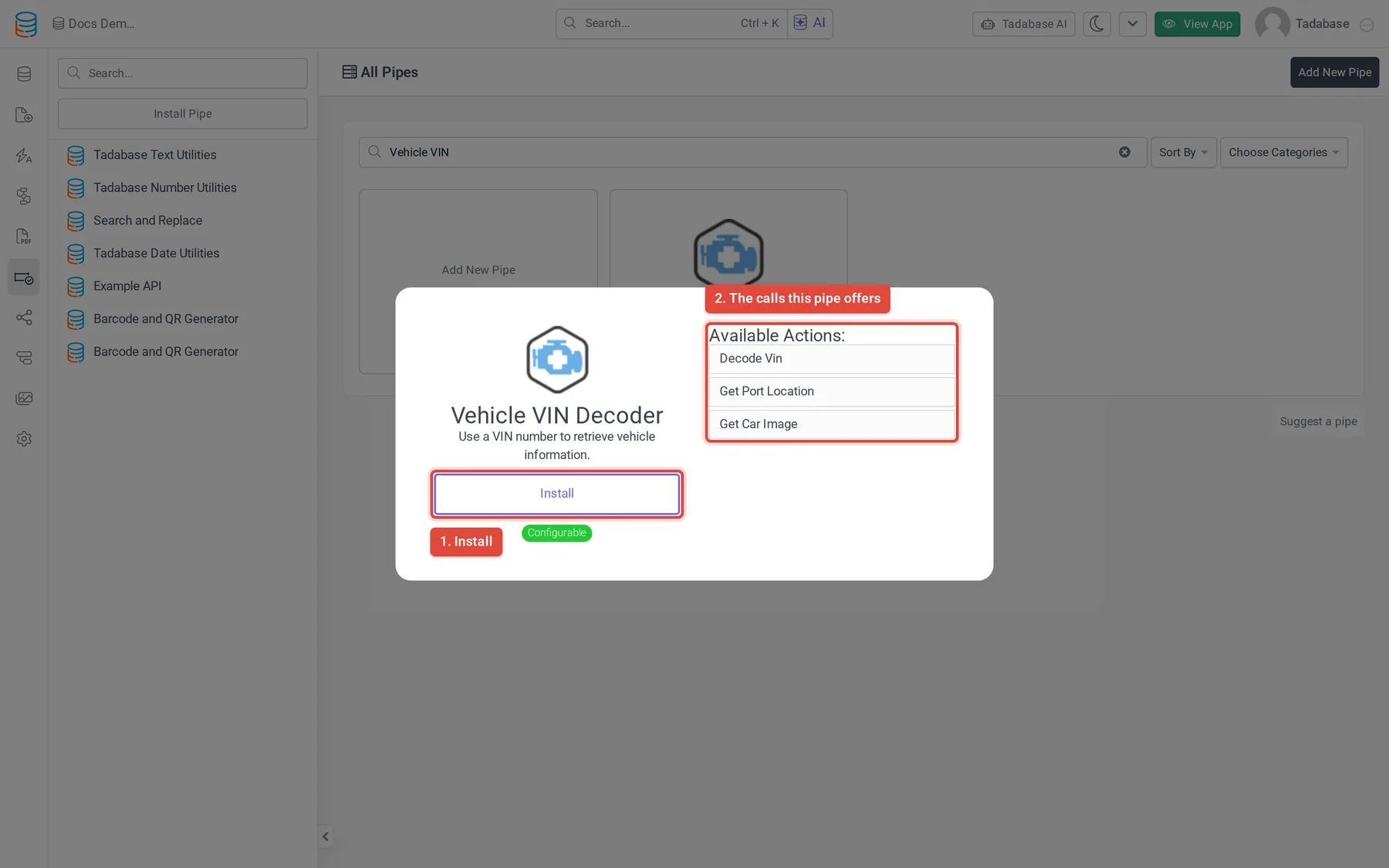
Vehicle VINin the Search... box and click the Vehicle VIN Decoder card. The window shows what the pipe does and its Available Actions: the calls it offers. - Click Install Click Install. If your plan does not include pipes, an upgrade button shows instead.
- Enter your keys Enter your CarMD keys in Authorization Key and Partner Token and click Install. You can change them later on the installed pipe's Global Parameters tab; click Save after a change.
Calls in the pipe #
| Call | Parameter | Returns |
|---|---|---|
| Decode Vin | VIN | Year, Make, Model, Manufacturer, Engine, Trim, Transmission |
| Get Port Location | VIN | Location Image, Location Value, Access Image, Access Notes, Notes (where the vehicle's OBD2 diagnostic port is) |
| Get Car Image | VIN | Car Image (an image address) |
Use it in a workflow #
You can run any call of an installed pipe from a workflow with the Trigger Pipe action, and use what it returns in later steps. Pipes can also run in other parts of your app, as described in Using pipes.
Example: fill in a vehicle's details when its VIN is saved.
- Add the fields In your Vehicles table, add a text field for the VIN and fields for Year, Make and Model.
- Start a workflow Create a workflow that runs when a vehicle record is created.
- Add a Trigger Pipe step Add the Trigger Pipe action, choose the Vehicle VIN Decoder pipe's Decode Vin call in Pipe Method, and set VIN to the record's VIN field.
- Save the details Add an Update Record step and set Year, Make and Model to the pipe's Year, Make and Model responses.
More from CarMD #
For the full response of each call, see the CarMD API documentation.
Was this page helpful?
Something wrong or missing on this page? Tell us.