
Change text with the Text Utilities pipe
Install the Tadabase Text Utilities pipe and use its calls to mask, count, cut, check and convert text values in your app.
- Verified Nov 17, 2026
- Classic builder
On this page
The Tadabase Text Utilities pipe changes or checks a text value: it can mask an email address, count words, take characters from one end, validate an email, or turn HTML into plain text or Markdown. Install it once, then run its calls wherever your app uses pipes.
Install the pipe #
- Open Pipes In the builder, click Pipes in the left menu, then click Install Pipe. The All Pipes list opens.
- Find the pipe Type
Text Utilitiesin the Search... box and click the Tadabase Text Utilities card. The window lists every call under Available Actions. - Install it Click Install. The installed pipe opens on its General tab and appears in the list of pipes on the left.
The card is marked Not Configurable: you can change the default values of a call's parameters, but not the call itself. If your plan does not include pipes, the window shows an upgrade button instead of Install.
Pick a call and try it #
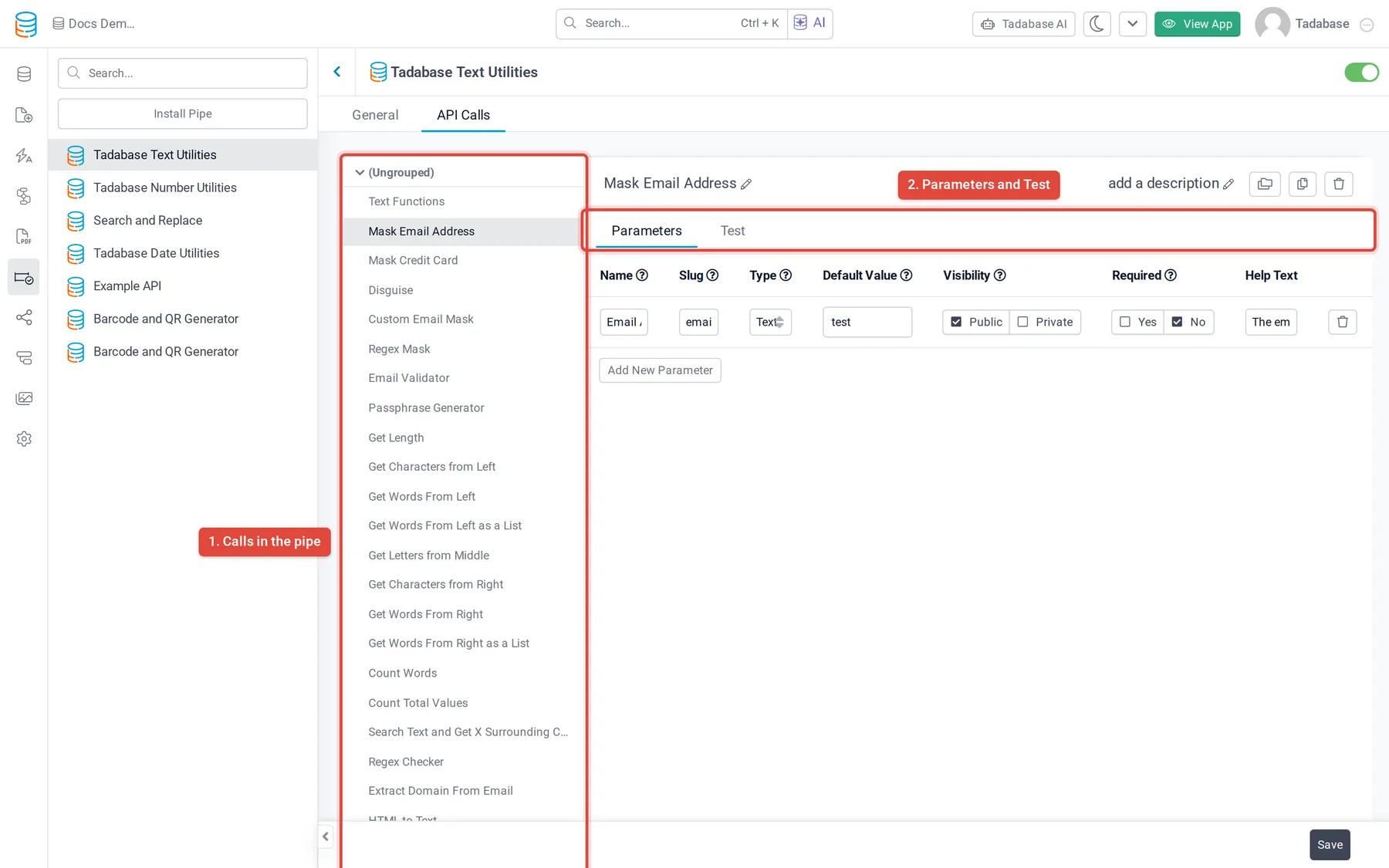
- Open the calls In the installed pipe, open the API Calls tab. The calls are listed on the left.
- Select a call Click a call, for example Mask Email Address. Its Parameters tab shows each value the call needs, with a Default Value you can change.
- Test it Open the Test tab, enter a value for each parameter and click Test. The response appears on the right with its Status.
- Save If you changed a default value, click Save.
Map the input and output fields #
A call takes its input from your app and returns one or more named values. Where you run the pipe decides how you map them; Use pipes in your app covers each place. In a workflow, for example:
- Add the action Add a Trigger Pipe action to the workflow (see Workflow actions at a glance).
- Choose the call In Pipe Method, choose the Text Utilities call you want.
- Set the input Under Parameters, set each parameter to a field of the record or to a value you type. Parameters marked
*are required. - Use the output Later steps can use the values the call returns, such as Masked Email or Total Characters, for example to update a field.
Calls in the pipe #
Each row is one call. Parameters are the inputs you map; Returns are the values you can use afterwards.
| Call | What it does | Parameters | Returns |
|---|---|---|---|
| Text Functions | Runs the text action you name in Actions on the text. | Text, Actions | Result |
| Get Length | Counts the characters in the text, for example hello my name is. | Text | Status, Total Characters |
| Get Characters from Left | Returns a number of characters, starting on the left. | Text, Number Of Characters | Status, Response |
| Get Characters from Right | Returns a number of characters, starting on the right. | Text, Number of Characters | Status, Response |
| Get Letters from Middle | Returns a number of characters from inside the text. Start is the character to start from. | Text, Start, Number Of Characters | Status, Response |
| Get Words From Left | Returns a number of words, starting on the left. | Text, Number Of Words | Status, Response |
| Get Words From Right | Returns a number of words, starting on the right. | Text, Number Of Words | Status, Response |
| Get Words From Left as a List | Returns a number of items from a separated list, starting on the left, for example from milk/ with separator /. | Text, Separator, Number Of Words | Status, Response |
| Get Words From Right as a List | Returns a number of items from a separated list, starting on the right. | Text, Separator, Number Of Words | Status, Response |
| Count Words | Counts the words in the text. | Text | Status, Response |
| Count Total Values | Counts the items in a separated list, for example milk/ with separator /. | Text, Seperator | Status, Response |
| Search Text and Get X Surrounding Characters | Finds a value and returns it with a number of characters from its left and right. | Text, Search, Left Characters, Right Characters, Case Sensitive (true or false, default false) | Status, Result |
| Regex Checker | Checks a value against a regular expression, for example /test/, and returns your own text when it matches or does not. | Regex, Value, Response if True, Response if False | Original Value, Regex Response, Original Regex |
| Email Validator | Checks whether an email address is valid and can receive email. | Is Valid, Is Sendable, Is Email, Is Example, Is Disposable, Has MX | |
| Extract Domain From Email | Returns the domain part of an email address. | Status, Domain | |
| HTML to Text | Removes the HTML tags and returns the text. | HTML | Status, Stripped Value |
| HTML to Markdown | Converts HTML to Markdown. | HTML | Status, Markdown |
| Markdown to HTML | Converts Markdown, for example ###### h6 Heading, to HTML. | Markdown | Status, HTML |
| Convert US State to 2 Letter Abbreviation | Turns a full US state name, for example Florida, into its two-letter code. | State | Status, Result |
| Passphrase Generator | Creates a random passphrase. | Letters (total bits, between 26 and 120; default 50), Disable Separator (true or false) | Result |
Mask and disguise values #
Five calls hide part of a value, for example to show an email address or card number without exposing all of it.
| Call | What it does | Parameters | Returns |
|---|---|---|---|
| Mask Email Address | Masks an email address, for example test@tadabase.io. | Email Address | Masked Email |
| Custom Email Mask | Masks an email address with separate settings for the username and the domain part. | Email, Username, Domain | Masked Email |
| Mask Credit Card | Masks a card number, for example the test number 4242424242424242. | Credit Card | Masked Credit Card |
| Disguise | Replaces the text with a character of your choice, leaving a number of characters visible. | Text, Number of Characters to Display (default 6), Disguise Character (for example *) | Disguised Text |
| Regex Mask | Replaces the parts of the text that match a regular expression with the Replace With value. Put the expression in quotes, for example "[0-9]". | Text, Regex, Replace With (a value, or blank) | Result |
Common problems #
- The call returns nothing. Check that every required parameter is mapped and that the field you mapped has a value for that record.
Was this page helpful?
Something wrong or missing on this page? Tell us.