
Show a barcode or QR code
Turn a field value into a barcode or QR code with the Barcode and QR Generator pipe, and show it in a table or save it with the record.
- Verified Nov 17, 2026
- Classic builder
On this page
The Barcode and QR Generator pipe turns a value, such as a job number or a link, into a barcode or a QR code. One pipe covers both: it has two barcode calls and two QR code calls.
Use it to print scannable labels, show a QR code on a record's page, or keep a barcode with each record.
Install the pipe #
- Open the pipe library In the builder, click Pipes in the icon bar on the left. The All Pipes list opens.
- Find the pipe Type
Barcodein Search..., or use Choose Categories and pick Utilities. - Install it Click the Barcode and QR Generator card and click Install.
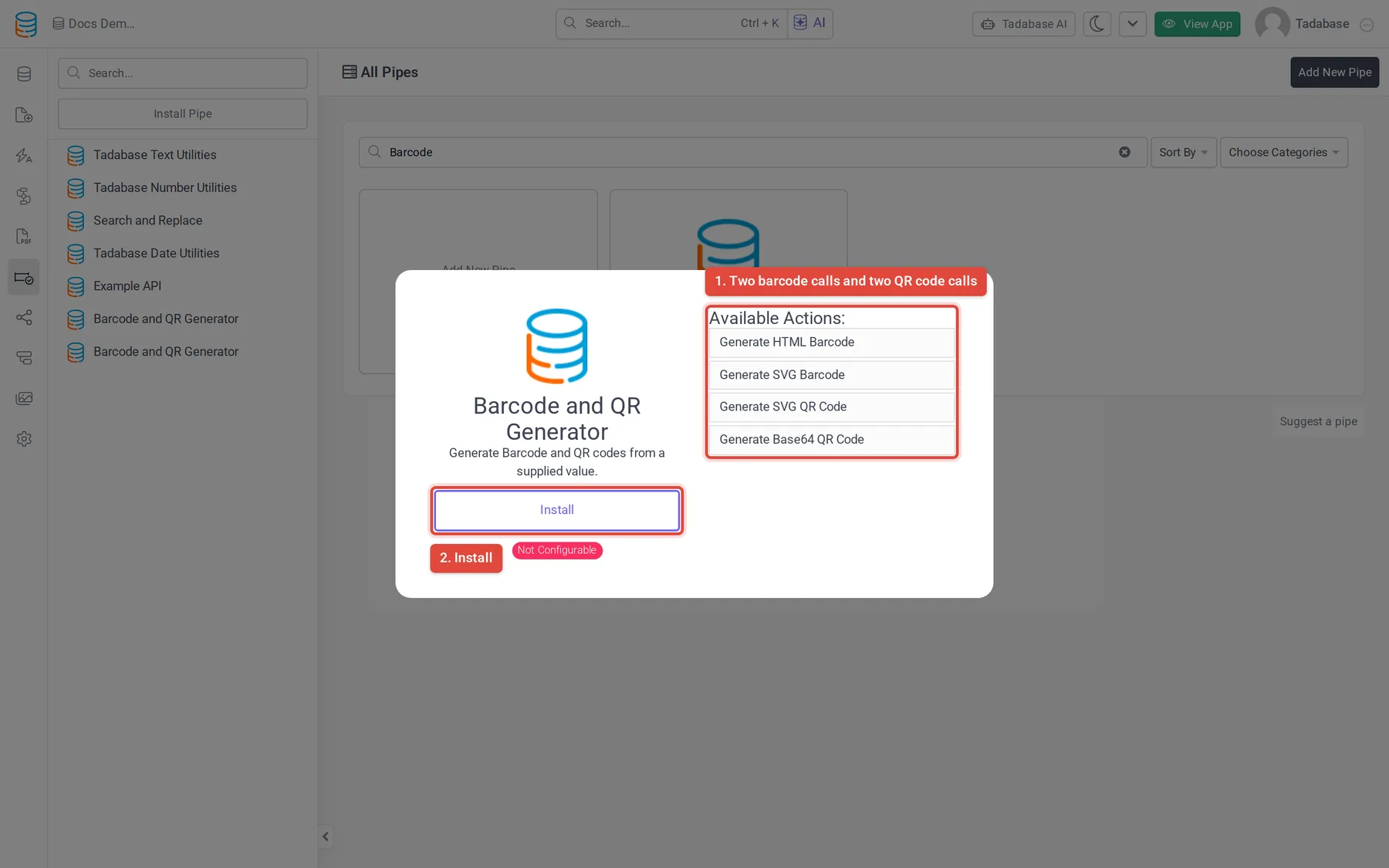
The pipe is Not Configurable: you choose the values you send, but the calls are fixed. It needs no outside account.
The four calls #
| Call | What it returns |
|---|---|
| Generate SVG Barcode | A barcode as an SVG image. |
| Generate HTML Barcode | A barcode built from HTML. |
| Generate SVG QR Code | A QR code as an SVG image. |
| Generate Base64 QR Code | A QR code as a Base64-encoded image string. |
Each call returns one response value that holds the whole code. Pick it when you map the response.
Barcode Generator #
Generate SVG Barcode and Generate HTML Barcode take the same parameters.
| Parameter | What to send | Default |
|---|---|---|
| Value | The text or number to encode, usually mapped from a field of the record. | |
| Barcode Type | The barcode standard, written as a type name such as TYPE_CODE_128. The data you encode must suit the standard you choose. | TYPE_CODE_128 |
| Width | The width of each bar. | 2 |
| Height | The height of the barcode. | 30 |
TYPE_CODE_128 encodes letters, digits and symbols, so it suits most job numbers, order numbers and SKUs. Leave Barcode Type at its default unless your scanner or label format needs another standard.
QR Code Generator #
Generate SVG QR Code and Generate Base64 QR Code take the same parameters.
| Parameter | What to send | Default |
|---|---|---|
| Value | The text to encode: a link to the record's page, a phone number, a job number or any other text. | |
| Size (pixels) | The width and height of the QR code. | 300 |
| Margin (pixels) | The empty space around the code. Scanners need some margin to find the code. | 10 |
| Encoding | The character encoding. Leave it at the default. | ISO-8859-1 |
| Label | Optional text sent with the code. |
Show the code on a page #
Run the pipe in a Table component so each row gets its own code when the page loads.
- Edit the table In the page builder, open the page and edit the Table component, for example a table of Jobs.
- Add the pipe to the data source On the Data Source tab, open Pipes and click Add New Pipe. Under Select Pipe, choose Barcode and QR Generator, then the call, for example Generate SVG QR Code.
- Map the value Below the call, click Add Parameter, choose Value and set it to Record Value and the field to encode. Add Size (pixels) or other parameters only if you want to change their defaults.
- Add the code as a column Open the Columns tab. Under Pipe Fields, click the pipe's response value to add it as a column, then save the component.
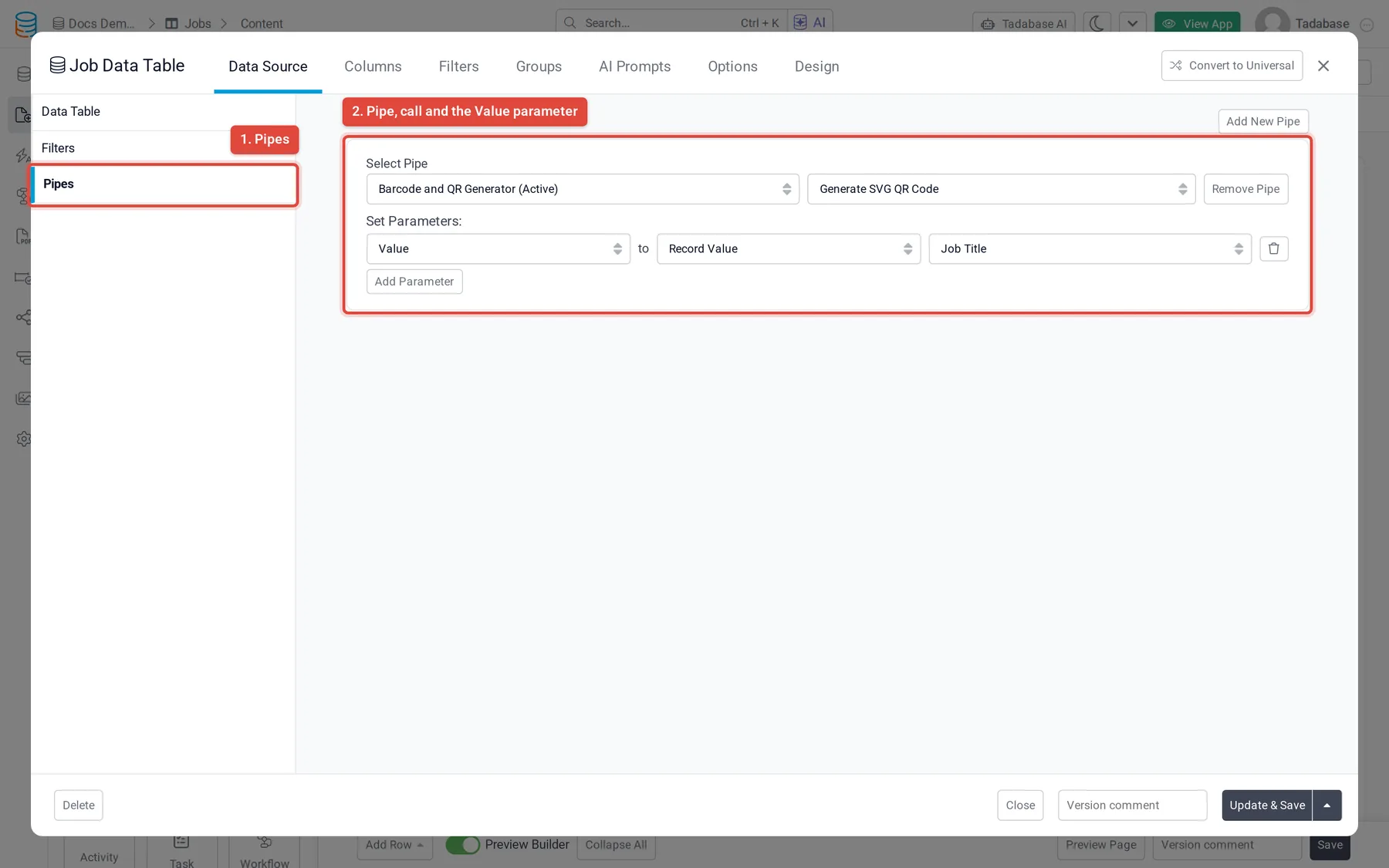
For the other places a pipe can run, such as an HTML component or a form, see Using pipes.
Save the code with the record #
To keep a code instead of generating it on every page load, run the pipe from a workflow and write the response into a field.
- Add a field for the code In the table, add a Rich Text field (for markup from the barcode calls) or a Long Text field (for the Base64 string).
- Run the pipe in a workflow In a workflow that starts when the record is created or updated, add a Trigger Pipe step. Under Pipe Method, pick the call, and map Value to the field to encode.
- Write the response into the field Add an Update Record step after it and set the new field to the Trigger Pipe step's response value. See Run a pipe from a workflow.
Common problems #
- Nothing shows. Check that Value is mapped and the field has a value for that record.
- A barcode does not scan. The value may not suit the Barcode Type. Try
TYPE_CODE_128, which accepts most characters. - A QR code does not scan. Make the code larger with Size (pixels), keep Margin (pixels) above zero, or shorten the value.
Was this page helpful?
Something wrong or missing on this page? Tell us.