
Convert and check dates with the Date Utilities pipe
Use the Tadabase Date Utilities pipe to convert a date to another time zone or format, check it (is day, is month, is leap year) and add or count days.
- Verified Nov 17, 2026
- Classic builder
On this page
The Tadabase Date Utilities pipe works on a date and time you pass in: it converts it to another time zone or format, checks it (is it a Monday, this month, a leap year), and adds, sets or counts days, hours and business days.
Install the pipe #
- Open Pipes In the builder, click Pipes in the left menu, then click Install Pipe.
- Find the pipe Type
Date Utilitiesin the Search... box and click the Tadabase Date Utilities card, then click Install. - Set the defaults The window asks for Timezone, Format and Datetime. These are the defaults every call uses when you do not pass a value. Leave Datetime empty; you map it to a field when you run the pipe.
- Finish Click Install. The pipe opens on its General tab.
To change the defaults later, open the pipe's Global Parameters tab, edit Value and click Save.
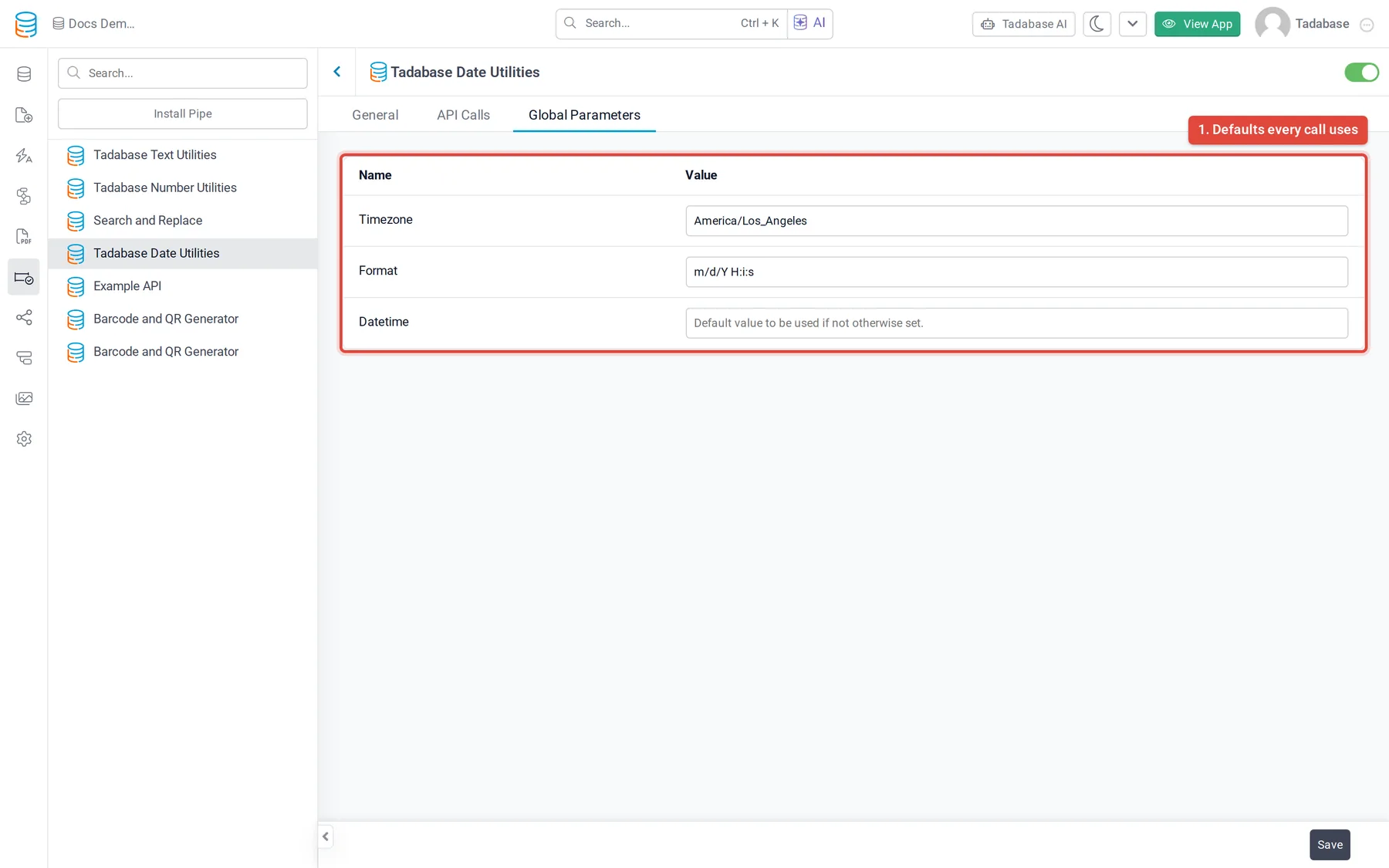
| Parameter | What to enter | Default |
|---|---|---|
| Datetime | The date and/yyyy-mm-dd (for example 2022-11-28), with a time if you need one. | none |
| Timezone | The time zone of Datetime, as a time zone name such as America/. | America/ |
| Format | How the returned date is written (see the format letters below). | m/ |
Convert a date to another time zone or format #
Use the Convert Time call. It reads Datetime in Timezone and returns it in Destination Timezone, written in Format.
- Add the pipe where you need it For example, add a Trigger Pipe action to a workflow. Use pipes in your app covers the other places.
- Choose the call In Pipe Method, choose Convert Time.
- Map the input Under Parameters, set Datetime to your date field and Destination Timezone to the time zone you want, for example
Asia/Jerusalem. Set Timezone or Format only if they differ from the pipe's defaults. - Use the output The converted date is returned as Response. Use it in a later step, for example to update a text field.
To get a standard timestamp instead, use Convert to RFC 3339. It always uses the format Y-m-d\TH:i:sP.
Format letters and time zone names #
Format is a pattern of letters, each standing for one part of the date, with the separators you want between them. With the default m/d/Y H:i:s, 28 November 2022 at 9:30 is written 11/28/2022 09:30:00.
| Letter | Part of the date | Example |
|---|---|---|
d | Day of the month, two digits | 28 |
m | Month, two digits | 11 |
Y | Year, four digits | 2022 |
H | Hour, 24-hour clock, two digits | 09 |
i | Minutes, two digits | 30 |
s | Seconds, two digits | 00 |
P | Offset from UTC | -08:00 |
Timezone and Destination Timezone take names from the IANA time zone database, written as Region/City: for example America/New_York, America/Los_Angeles, Europe/London or Asia/Jerusalem.
Check a date #
These calls check Datetime and return the answer in Response and Response String. Map them the same way as Convert Time.
| Call | Checks whether the date is | Extra parameter |
|---|---|---|
| Is Day | a given day of the week | Day Name, for example Monday |
| Is Month | in a given month | Month, for example December |
| Is Current Week | in the current week | none |
| Is Current Month | in the current month | none |
| Is Current Year | in the current year | none |
| Is Yesterday | yesterday | none |
| Is Tomorrow | tomorrow | none |
| Is Leap Year | in a leap year | none |
Two more calls check business days. Both take a Region (default us).
| Call | Returns |
|---|---|
| Check if Date is a Holiday | Is Holiday?, Holiday Name, Holiday ID |
| Check if Date a Business Day | Is Business Day?, Next Business Day, Previous Business Day, Current or Next Business Day, Current or Previous Business Day |
Get, change and count dates #
The rest of the calls return a value from the date, a changed date, or a count. Unless a parameter is listed, they use only Datetime, Timezone and Format.
| Calls | Extra parameters | Returns |
|---|---|---|
| Get Year, Get Second, Get Weekday Number, Get Day Name, Get Month Name, Get Quarter, Get Total Days of Month | none | Response |
| Set to Beginning of Day, Set to End of Day, Set to Beginning of Week, Set to End of Week, Set Beginning of Month, Set End of Month, Set Beginning of Quarter, Set End of Quarter | none | Response |
| Set Hour, Set Minute | Hour Number, Minute Number (0-59) | Response |
| Add Days, Add Weeks, Add Months, Add Years, Add Hours, Add Minutes, Add Seconds | how many to add, for example Number of Days | Response |
| Subtract Days, Subtract Hours, Subtract Minutes, Subtract Seconds | how many to subtract, for example Number of Days | Response |
| Get Difference in Days | End Date | Response |
| Subtract Times | End Time | Total Hours, Total Minutes, Total Seconds |
| Get Next Business Day, Get Previous Business Day | Region | Added Business Day or Previous Business Day |
| Add Business Days, Subtract Business Days | Region, Number of Business Days to Add or Number of Business Days to Subtract | Added Business Day |
| Total Business Days | Region, End Date | Total Business Days |
| Total Business Days in Month | Region | Total Business Days |
| Get Age | none | Total Days, Total Months, Years, Full Formatted Age, Short Age |
| Time Ago | none | Response: how long ago the date was. A current or future date returns just now. |
| Time Difference in Natural Language | End Date and Time | Response |
| Combine Seperate Date and Time Fields | Time, Inpurt Format | Status, Result: a date and time you can save to a date/ |
Was this page helpful?
Something wrong or missing on this page? Tell us.