
Look up a value in another table
Find a record by one field's value and return another field from it, with a Find Records workflow step or the Vertical Lookup pipe.
- Verified Nov 17, 2026
- Classic builder
On this page
A lookup finds the record whose field matches a value you give, for example a part number, and returns another field from that record, for example its price. In a workflow, the Find Records step does this without a pipe. The Vertical Lookup pipe does the same job by calling your app's REST API.
Choose a way to look up a value #
| Way | Use it when |
|---|---|
| Connection field | The two records belong together for good, for example an order line and its product. Connect them once and show any field of the connected record on pages. See Connect tables with connection fields. |
| Find Records workflow step | You only have a value, such as a part number typed into a form, and want a field of the matching record in later steps of a workflow. No API key is needed. See Find records and use them in later steps. |
| Vertical Lookup pipe | You already run the lookup through pipes, or you want the lookup as a pipe call. The rest of this page covers it. |
In a Find Records step, choose the Lookup table, add a filter on the field to search (for example Part Number is the value from the trigger record), and set Record Limit to 1. Later steps can then use any field of the record it found, for example to copy the price onto the order line with Update Record.
Before you start #
The Vertical Lookup pipe reads your records through the Tadabase REST API, so it needs an API key from your app. Your plan must include pipes and API access.
- Create an API key In the builder, open Settings > API Keys, click Generate New Key, name it (for example
Pipes), turn on Allow Reads and click Save. See Create and manage API keys. - Keep the key active The pipe stops working if the key is switched to Inactive, expires, or loses Allow Reads.
Install the pipe #
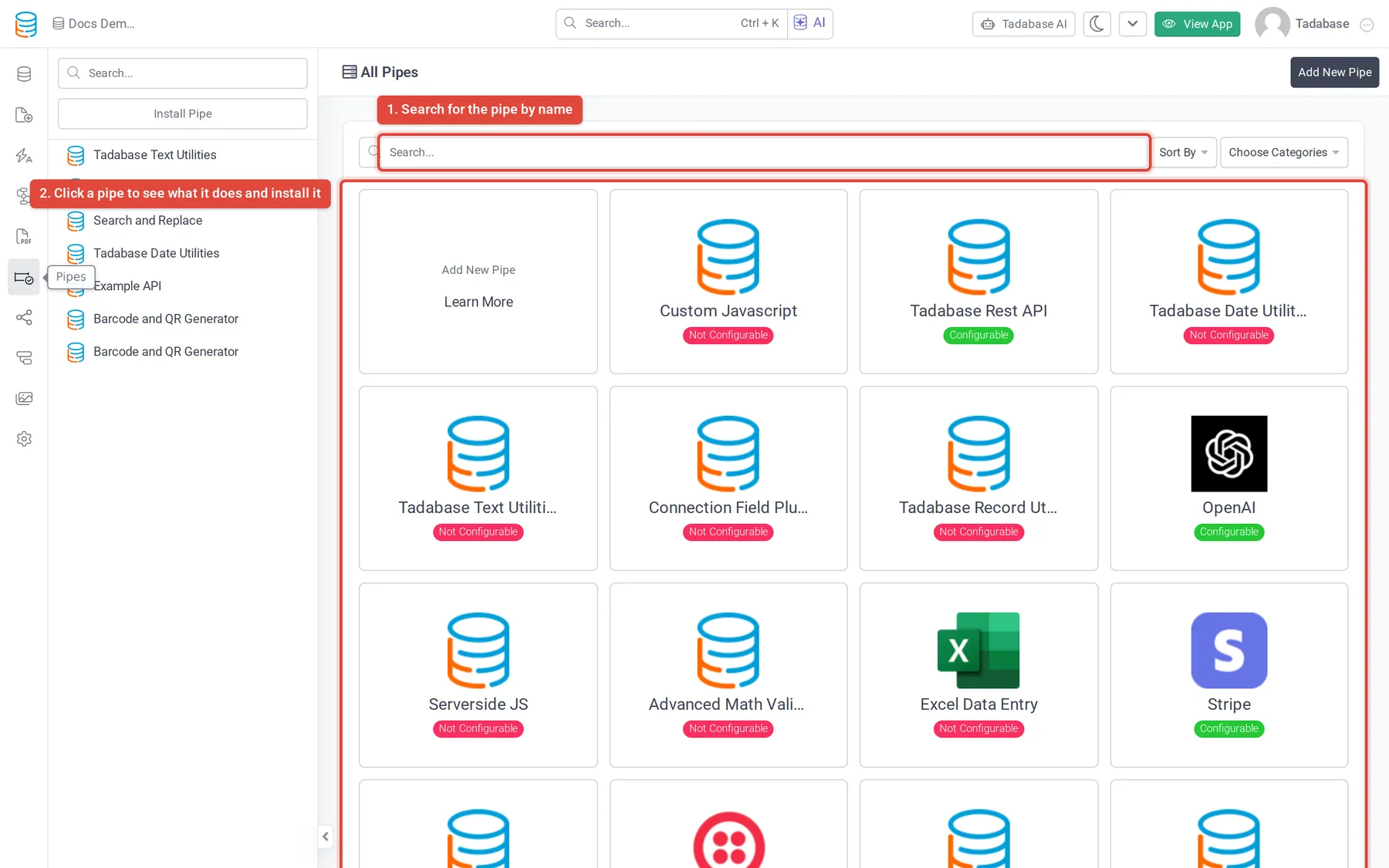
- Open the pipe catalog In the builder's left menu, click Pipes, then Install Pipe. The All Pipes list opens.
- Find the pipe Type
Vertical Lookupin the Search... box and click the pipe. A window shows what it does and its Available Actions. - Install it Click Install. If the pipe asks for values when it is installed, a second window lists them; fill every field marked (required), such as the API key, and click Install again. If your plan does not include pipes, an upgrade button shows instead of Install.
- Check the API key The installed pipe opens with the tabs General, API Calls, Global Parameters and Global Headers. On Global Parameters, make sure the API key parameter holds the key you created, then click Save.
What the lookup needs #
A lookup needs four things. Depending on how the pipe is set up, some are asked for when you install it and the rest are parameters of its call:
- The table to search.
- The field to search, for example Part Number.
- The value to look for, usually a field of the record the workflow runs on.
- The field to return from the matching record, for example Price.
Open the pipe's API Calls tab to see the exact name of its call and of each parameter, and which ones are required.
Run the lookup in a workflow #
- Add a Trigger Pipe step In a workflow, add the Trigger Pipe action.
- Choose the call Under Pipe Method, pick the Vertical Lookup pipe's call.
- Fill the parameters Under Parameters, set each one, for example the value to look for from a field of the workflow's record. Use Add Parameter for one that is not listed yet. Required parameters are marked with
*. - Use the result The step's response is available to the steps after it. Add an Update Record step and set the target field from that response under Step Data.
To start the workflow from a button, see Triggering workflows from pages and buttons.
If nothing comes back #
- Check that the pipe is Active: the switch is at the top of the installed pipe.
- Check the API key on Global Parameters, and that the key is active and has Allow Reads.
- Check that the value you pass matches the searched field exactly.
- Open the workflow's history to see the response the pipe returned. See Workflow history and logs.
Was this page helpful?
Something wrong or missing on this page? Tell us.