
Track time in Toggl Track with a pipe
Install the Toggl Track pipe with your API token, find your workspace ID, and move its time entry, project and client calls to Toggl's current API v9.
- Verified Nov 17, 2026
- Classic builder
On this page
The Toggl Track pipe creates and manages time entries, projects and clients in Toggl Track from your app, for example to start a timer when a job begins or to add a Toggl client for each new customer.
Install the pipe #
- Copy your API token In the Toggl Track web app, open your Profile Settings and scroll down to API Token. Reveal the token and copy it.
- Open the pipe In the builder, click Pipes in the icon bar on the left, then click the Toggl Track card in All Pipes.
- Install it Click Install. Paste the token into API Token and click Install again. The pipe opens on its General tab.
- Check the token If you left API Token empty, click the Global Parameters tab, paste the token as its Default Value and click Save.
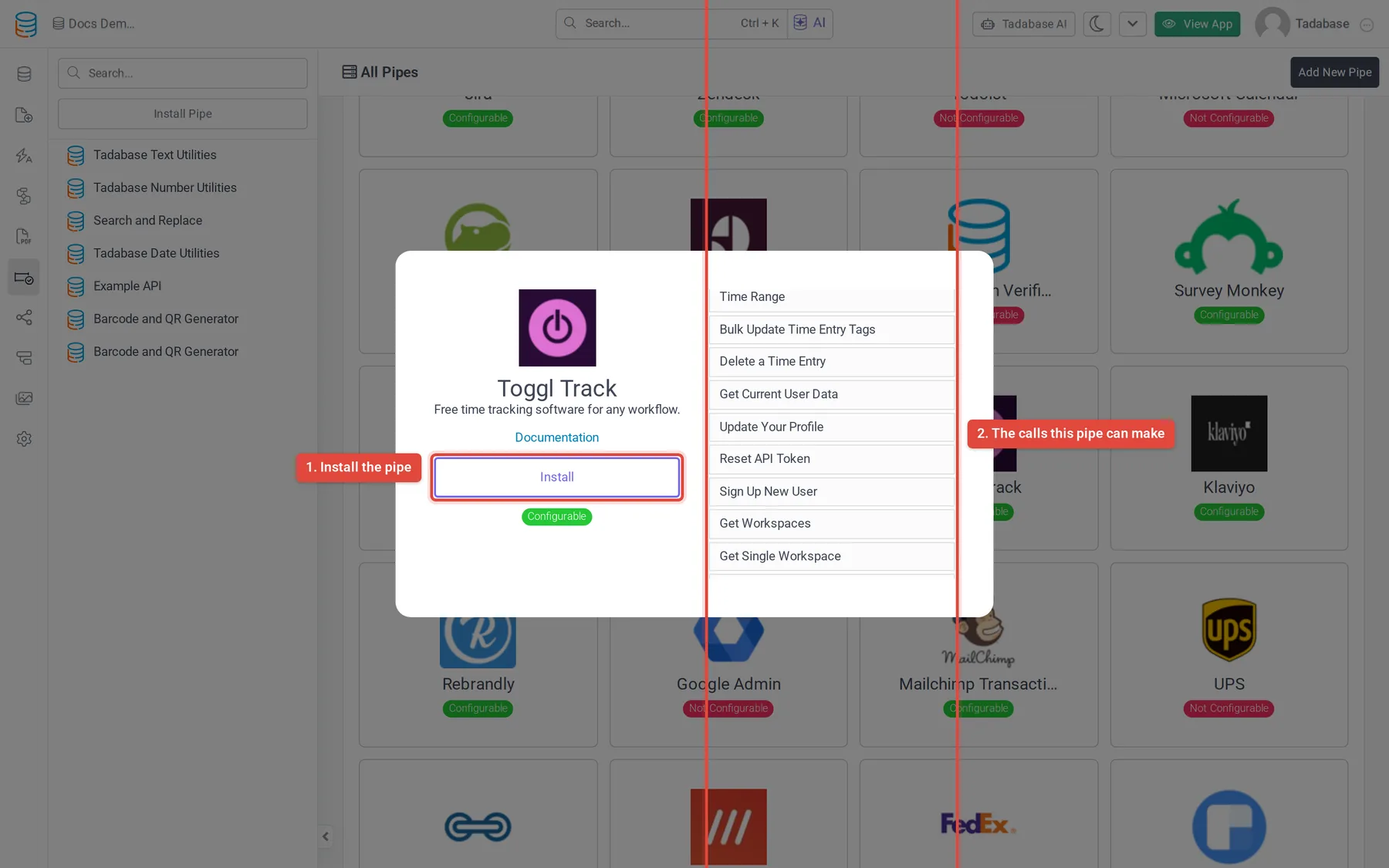
Toggl Track is a Configurable pipe: it is copied into your app, so you can change its calls. Each call signs in with basic authentication on its Authorization tab, with the token as the user name and api_token as the password.
Find your workspace ID #
Toggl Track keeps clients, projects and time entries inside a workspace, and most calls need its ID. In API v9, GET https://api.track.toggl.com/api/v9/me returns your default_workspace_id. Run it from a call's Test tab once you have updated the Get Workspaces or Get Current User Data call (see below), and copy the number.
If you always use the same workspace, enter its ID as the default value of the workspace ID parameter in each call, so you don't have to map it every time.
Calls #
| Area | Calls |
|---|---|
| Time entries | Create a Time Entry, Start a Time Entry, Stop a Time Entry, Get Running Time Entry, Get Time Entry Details, Update a Time Entry, Delete a Time Entry, Get Time Entries Started in a Specific Time Range, Bulk Update Time Entry Tags |
| Projects | Create a Project, Get Project Data, Update Project Data, Delete a Project, Delete Multiple Projects, Get Project Tasks, and calls for project users |
| Clients | Create a New Client, Get Specific Client, Update a Specific Client, Delete a Client, Get Clients Visible to User, Get Client Projects |
| Workspaces and account | Get Workspaces, Get Single Workspace, Get Workspace Projects, Get Workspace Clients, Get Workspace Users, Get Current User Data, and others |
| Other | Calls for tags, groups and tasks (tasks need a paid Toggl workspace) |
Open the API Calls tab to see every call with its parameters and response values.
Update a call to API v9 #
In API v9 most addresses sit under the workspace, and request bodies are flat instead of wrapped in an object such as time_entry. Update only the calls you use, following Toggl's API v9 documentation.
- Open the call Click Pipes, open Toggl Track, click the API Calls tab and pick the call, for example Start a Time Entry.
- Add a workspace parameter On the Parameters tab, add a parameter for the workspace ID if the call does not have one, and note its slug.
- Change the address On the Overview tab, replace the URL with the v9 address, using the slug in braces, for example
https://api.track.toggl.com/api/v9/workspaces/{workspaceID}/time_entries. - Change the body On the Request tab, rewrite the body in the v9 format. To start a running entry, v9 expects fields such as
created_with,workspace_id,project_id,description,startand a negativeduration. - Test and map the response On the Test tab, click Test. When it works, click Populate Responses, check the values on the Response tab and click Save.
Example: create a Toggl client for each new customer #
Once Create a New Client points at API v9, a workflow can keep Toggl in step with your Customers table. Add a Toggl Client ID text field to the table first.
- Start the workflow Create a workflow on the Customers table with the Record Created trigger.
- Create the client Add a Trigger Pipe step with Toggl Track > Create a New Client. Map the client name to the customer's name field and set the workspace ID.
- Save the ID Add an Update Record step and set Toggl Client ID from Step Data > the Trigger Pipe step > the client ID value.
See Run a pipe from a workflow for how pipe steps and their response values work.
Common problems #
- A call fails or returns an error page. Check its URL on the Overview tab. If it contains
/api/v8/, update it to v9 as above. - The call is refused as unauthorized. Check API Token on the Global Parameters tab. Resetting the token in Toggl makes the old one stop working.
- Task calls fail. Toggl only offers tasks in paid workspaces.
Was this page helpful?
Something wrong or missing on this page? Tell us.