
Copy a record with its connected records
Duplicate a record together with its child records using the Duplicate Record workflow action, or the Duplicate Parent and Children pipe.
- Verified Nov 17, 2026
- Classic builder
Copy a record and the records connected to it, for example a quote and its line items, in one go. The Duplicate Record workflow action does this with its Copy Child Records section, and is the way to start with. The Duplicate Parent and Children pipe does the same through your app's REST API.
Copy a record and its children with a workflow #
- Create the workflow Create a workflow on the parent table, for example Quotes. To start it from a button on a page, use the Manual trigger. See Triggering workflows from pages and buttons.
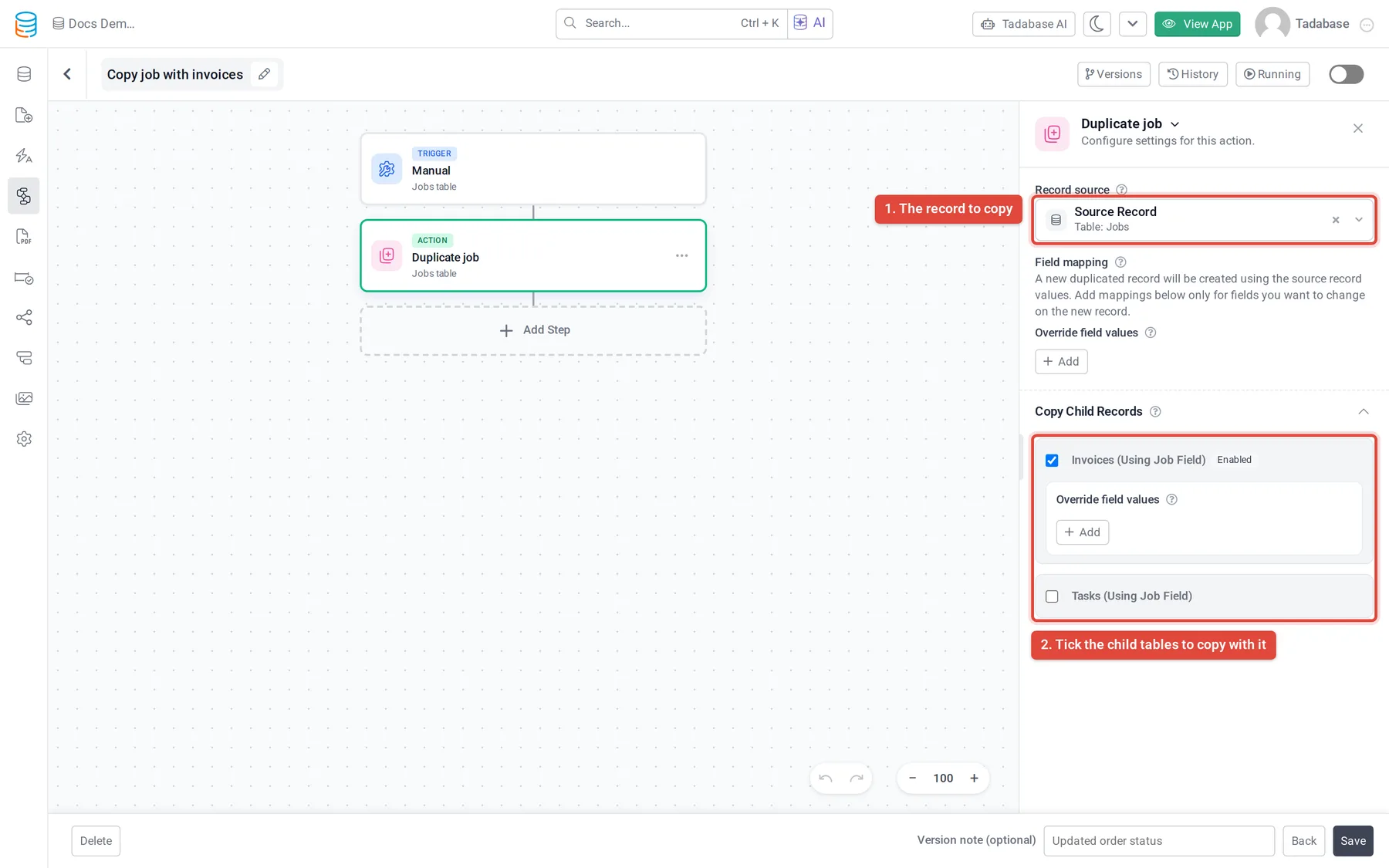
- Add Duplicate Record Add the Duplicate Record action. Under Record source, choose the workflow's own record.
- Change values on the copy (optional) Under Override field values, add a mapping only for each field that should differ on the copy, for example a status that starts as Draft. Fields you leave out keep the original values.
- Tick the child tables In Copy Child Records, tick each child table whose records should be copied with the parent, for example Line Items. Each ticked table shows Enabled and has its own Override field values.
- Save and run Save the workflow and run it on a record. The copy and its child records appear in the tables, and the copied child records are connected to the new parent.
Use the pipe instead #
Apps that already use the Duplicate Parent and Children pipe can keep it. It calls the Tadabase REST API, so it needs an API key.
- Create an API key Open Settings > API Keys, click Generate New Key, turn on Allow Reads and Allow Updates, and click Save. See Create and manage API keys.
- Install the pipe In the builder's left menu, click Pipes > Install Pipe, search for the pipe, click it and click Install. Fill any field marked (required) in the install window.
- Add the API credentials In the installed pipe, open Global Parameters, enter your API key details and click Save.
- Check the call Open API Calls to see the call's name and its parameters. They identify the parent table and record, and the child table and the connection field that links the children to the parent.
- Run it from a workflow In a workflow on the parent table, add Trigger Pipe, choose the call under Pipe Method, and set each item under Parameters, for example the record ID from the workflow's record.
Check it worked #
- The parent table has a new record with the values you expected.
- Each ticked child table has new records connected to the new parent, not to the original.
- If something is missing, open the workflow's history to see each step's result. See Workflow history and logs.
Was this page helpful?
Something wrong or missing on this page? Tell us.