
Calculate sales tax with the TaxJar pipe
Install the TaxJar pipe with your API token, work out the sales tax on an order from its ship-to address, amount and shipping, and save the tax to a field.
- Verified Nov 17, 2026
- Classic builder
On this page
The TaxJar pipe asks TaxJar how much sales tax to collect on an order. Use it when you invoice or sell from your app and want the tax worked out from the ship-to address instead of a fixed rate.
Before you start #
- You need a TaxJar account. You can sign up at app.taxjar.com.
- TaxJar only charges tax where your business has nexus, the states and countries you set up in your TaxJar account. Register to collect sales tax there before you charge it.
- TaxJar is a Configurable pipe: it is copied into your app, so you can edit its calls, parameters and request bodies later.
Install the pipe #
- Copy your API token Sign in to TaxJar and go to Account > TaxJar API. Copy your API token.
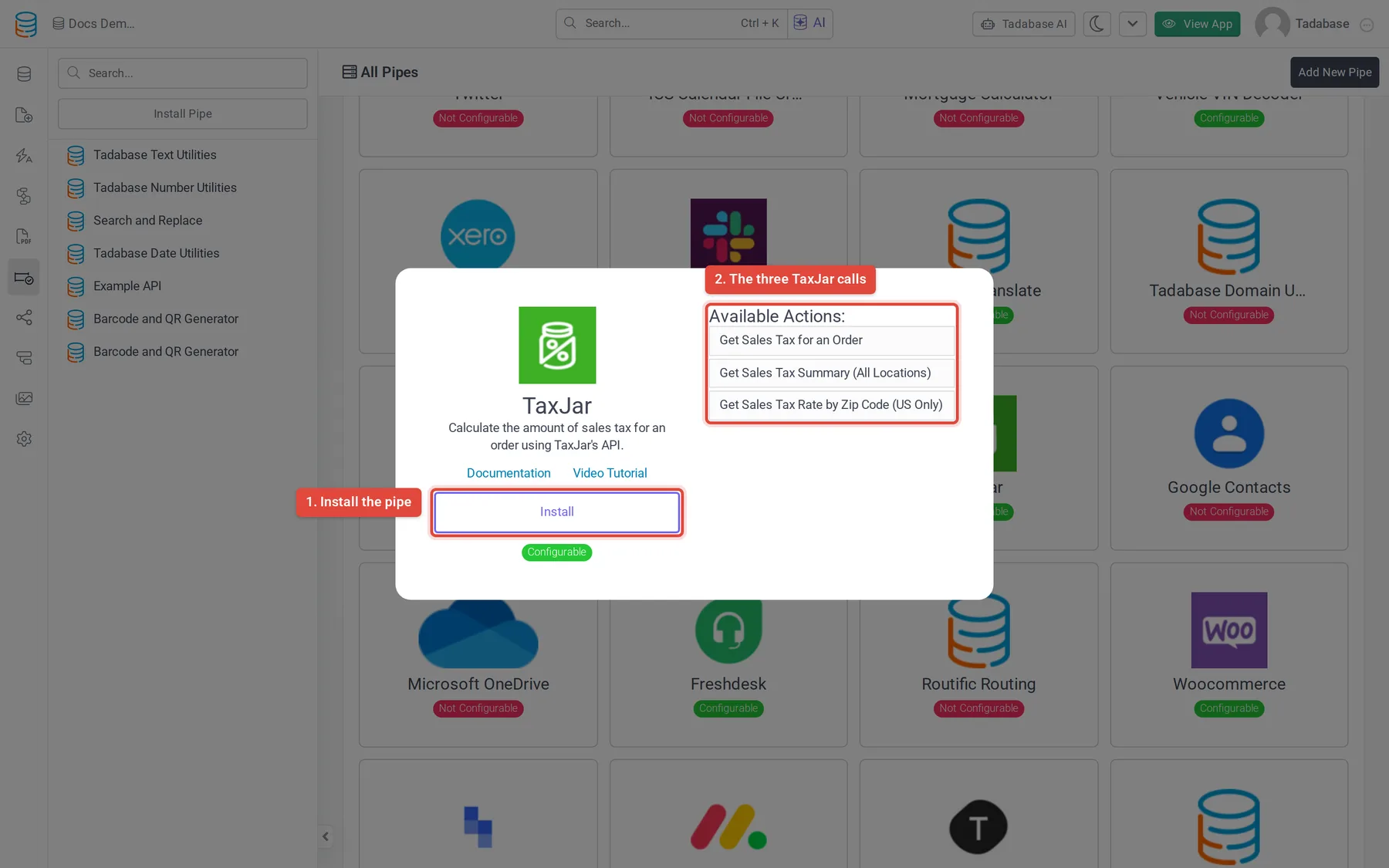
- Open the pipe In the builder, click Pipes in the icon bar on the left, then click the TaxJar card in All Pipes.
- Install it Click Install. Paste the token into TaxJar API Token (required) and click Install again. The pipe opens on its General tab.
To change the token later, open the pipe, click the Global Parameters tab, enter the new token as the Default Value of TaxJar API Token, and click Save. The pipe sends it to TaxJar as a bearer token in the Authorization header.
Calls #
| Call | What it returns | Parameters |
|---|---|---|
| Get Sales Tax for an Order | The tax to collect on one order, the rate, the taxable amount and whether you have nexus there. | Ship-to address, Order Cost, Shipping Cost, Tax Exempt (see below) |
| Get Sales Tax Summary (All Locations) | Summary Rates (array): average rates for every region TaxJar covers. | None |
| Get Sales Tax Rate by Zip Code (US Only) | The city, county, state and combined rates for one US zip code. | Zip Code (required), for example 90036 |
All three calls use TaxJar's current v2 API. For the full field list of each, see the TaxJar API reference.
Inputs of Get Sales Tax for an Order #
| Parameter | Required | What to enter |
|---|---|---|
| Shipping Address - Street | No | Street of the ship-to address. |
| Shipping Address - Zip Code | No | Needed for US addresses. |
| Shipping Address - State/ | No | Needed for the US and Canada. The two-letter code, such as FL. |
| Shipping Address - City | Yes | City of the ship-to address. |
| Shipping Address - Country | Yes | Two-letter ISO country code. The default is US. |
| Order Cost | Yes | The order amount, without shipping. A number, such as 100. |
| Shipping Cost | Yes | The shipping charged on the order. A number, such as 10. |
| Tax Exempt | Yes | non_exempt (the default), or the exemption type: wholesale, government, marketplace or other. |
The call sends only the ship-to address and the totals. It sends no ship-from address and no line items, so TaxJar works from the business addresses saved in your TaxJar account. Because the pipe is Configurable, you can add parameters and edit the call's Request tab to send more of the fields TaxJar accepts, such as line_items.
The call returns these values: Tax Amount To Collect, Tax Rate, Tax Order Total Amount, Tax Taxable Amount, Tax Shipping, Tax Has Nexus, Tax Freight Taxable, Tax Tax Source, Tax Exemption Type, and Tax Jurisdictions Country, State, County and City.
Example: add sales tax to new invoices #
Say your Invoices table has a Subtotal and a Shipping currency field, ship-to City, State, Zip and Country fields, and a Sales Tax currency field to fill in. A workflow can ask TaxJar for the tax each time an invoice is created.
- Start the workflow Create a workflow on the Invoices table with the Record Created trigger.
- Call TaxJar Add a Trigger Pipe step. Under Pipe Method, choose TaxJar > Get Sales Tax for an Order. Map Shipping Address - City, Shipping Address - State/Province, Shipping Address - Zip Code and Shipping Address - Country to the address fields, Order Cost to Subtotal and Shipping Cost to Shipping. Set Tax Exempt to the static value
non_exempt. - Save the tax Add an Update Record step on the source record. Set Sales Tax from Step Data > the Trigger Pipe step > Tax Amount To Collect.
- Test it Save the workflow, add an invoice and check that Sales Tax is filled. If it stays at 0, check the step in the workflow's run history.
The same call works from a form or a record button; see Run a pipe from a form, field, component or workflow. For more on the workflow step, see Run a pipe from a workflow.
Common problems #
- The tax is 0. Check Tax Has Nexus in the response. If it is false, TaxJar does not think you collect tax in that state; add it in your TaxJar account if you are registered there.
- The call fails right away. Open the pipe's Global Parameters tab and check the token. Then open API Calls, pick the call, open its Test tab and click Test to see TaxJar's answer and status code.
- A US order gets the wrong rate. Send the zip code and the two-letter state code; both are optional in the pipe but TaxJar needs them for US addresses.
Was this page helpful?
Something wrong or missing on this page? Tell us.