
Ship with FedEx using the FedEx pipe
Connect the FedEx pipe to your FedEx developer project, pick sandbox or production, then validate addresses, quote rates, create shipments and track packages.
- Verified Nov 17, 2026
- Classic builder
On this page
The FedEx pipe validates addresses, finds FedEx locations, schedules pickups, quotes rates, creates shipments and labels, and tracks packages from your app. It uses FedEx's REST APIs and signs in with your FedEx project's API key and secret.
Before you start #
- You need a FedEx business account and a project in the FedEx Developer Portal. A new project gets test (sandbox) keys and a test account number right away; production keys come after you add your FedEx account to the project.
- Some calls need FedEx certification before they work in production: pickup requests need Basic Certification, and shipment and tag calls need Shipping Label Certification. See FedEx certification.
- FedEx is a Not Configurable pipe: you cannot add or edit its calls. You can change its Global Parameters, and each call shows its Parameters, Request, Test and Response tabs.
Install the pipe #
- Copy your keys In the FedEx Developer Portal, open your project and copy its API key and secret key: the test keys for sandbox, or the production keys.
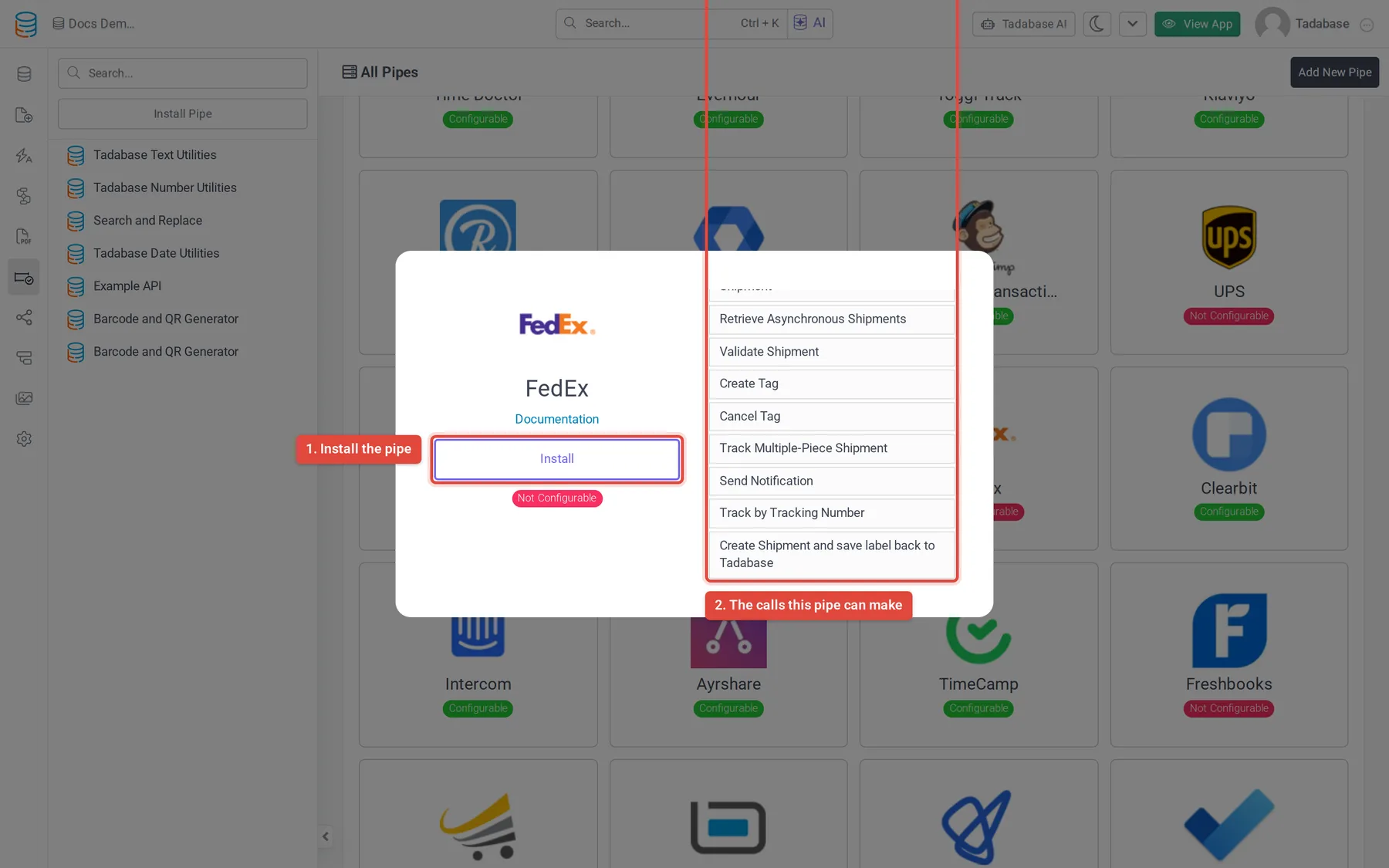
- Open the pipe In the builder, click Pipes in the icon bar on the left, then click the FedEx card in All Pipes.
- Install it Click Install. Fill in FedEx API Key, FedEx Client Secret, Environment (
sandboxorproduction) and FedEx Account Number, then click Install again. The pipe opens on its General tab.
Sandbox or production #
The Environment global parameter decides which FedEx system the calls go to. Its keys and account number must come from the same side of your FedEx project.
| Environment | Keys and account number | Use it for |
|---|---|---|
sandbox | The project's test API key and secret, and the test account number shown with them. | Building and testing. No real shipments are created. To test tracking, use FedEx's mock tracking number 449044304137821. |
production | The project's production API key and secret, and your own FedEx account number. | Real shipments, labels, pickups and tracking. |
- Open Global Parameters Click Pipes, open FedEx and click the Global Parameters tab.
- Change the values Set Environment to
production(or back tosandbox) and enter the matching FedEx API Key, FedEx Client Secret and FedEx Account Number in the Value column. - Save Click Save. Then run a call from its Test tab to check the new keys.
Calls #
| Call | What it does | FedEx requirement |
|---|---|---|
| Validate Address (US), Validate Address (Global) | Checks an address and returns the corrected address FedEx knows. | Not available in every country |
| Search Locations by Postal Code | Finds FedEx locations near a postal code. | None |
| Check Pickup Availability | Checks whether a pickup can be booked for an address and time. | None |
| Create a Pickup Request, Cancel Pickup | Books or cancels a courier pickup. | Basic Certification |
| Get Rates and Transit Times | Quotes rates and transit times for a package by weight between two postal codes. | None |
| Create Shipment, Validate Shipment, Cancel Shipment | Creates a shipment and its label, checks a shipment before creating it, or cancels one by tracking number. | Shipping Label Certification |
| Create Asynchronous-Multipiece Shipment, Retrieve Asynchronous Shipments | Creates a large multi-piece shipment in the background, then fetches the result by job ID. | Shipping Label Certification |
| Create Tag, Cancel Tag | Creates or cancels a return tag. | Shipping Label Certification |
| Create Shipment and save label back to Tadabase | Creates a shipment and adds a new record with the label as an attachment. | See below |
| Track by Tracking Number, Send Notification | Returns a package's latest status and estimated delivery window, or emails tracking updates. | Production; in sandbox use the mock tracking number |
| Track Multiple-Piece Shipment | Tracks the pieces of a multi-piece shipment. | Production only, with a tracking number from your account |
Each call's Parameters tab lists what it needs; required parameters are marked with *. Codes such as the pickup type, service type and packaging type are FedEx values, for example FEDEX_GROUND or YOUR_PACKAGING; see the FedEx API catalog for the full lists and request details. The Response tab lists the values each call returns.
Example: update a delivery estimate #
Say your Jobs table has a Tracking Number text field and a Delivery Window text field.
- Start the workflow Create a workflow on the Jobs table that runs when a record is updated, or on a schedule.
- Track the package Add a Trigger Pipe step, choose FedEx > Track by Tracking Number and map Tracking Number to the record's Tracking Number field.
- Save the estimate Add an Update Record step and set Delivery Window from Step Data > the Trigger Pipe step > Estimated Delivery Time Window.
See Run a pipe from a workflow for how pipe steps and their response values work.
Common problems #
- Every call fails with an authorization error. The keys and the Environment do not match: test keys only work with
sandbox, production keys only withproduction. - Shipment or pickup calls fail in production. Your FedEx project may not be certified for them yet. Contact FedEx about certification.
- Tracking returns nothing in sandbox. Use the mock tracking number
449044304137821. Real tracking numbers only work inproduction.
Was this page helpful?
Something wrong or missing on this page? Tell us.