
Read and write an external MySQL database with a pipe
Connect the MySQL pipe to your own database server with a limited user, then read, create, update and delete rows from forms, records and workflows.
- Verified Nov 17, 2026
- Classic builder
On this page
The MySQL pipe reads and writes rows in a database you run yourself. Use it to look up or save single records in another system's database from a form, a record or a workflow.
How it connects #
Each call goes to Tadabase's pipe server (custompipes.tadabase.io), which opens a connection to your database with the details in the pipe's Global Parameters and runs the request. Your database therefore has to be reachable from the internet and has to accept connections from that server.
| Global parameter | What to enter |
|---|---|
| Driver | mysql (the default). The pipe's help text also lists pgsql, sqlsrv and sqlite. |
| Address | The host name of your database server. |
| Username | The database user the pipe signs in as. |
| Password | That user's password. |
| Database | The name of the database. |
Secure the connection #
- Create a user just for Tadabase. Give it only the privileges your calls need, on only the database or tables they use:
SELECTif you only read, plusINSERT,UPDATEorDELETEfor the calls that write. - Never use root or an admin account. Anyone who can edit the app in the builder can open the pipe's Global Parameters tab and see these values.
- Only allow the connections you need. If your server or firewall only accepts listed addresses, allow the addresses of Tadabase's pipe server. Ask Tadabase support for the current list.
- Change the password if it leaks. Update it in the database and on the Global Parameters tab, then click Save.
Install the pipe #
- Open the pipe In the builder, click Pipes in the icon bar on the left, then click the MySQL card in All Pipes.
- Install it Click Install. Enter Address, Username, Password and Database, then click Install again. The pipe opens on its General tab.
- Check the driver Click the Global Parameters tab. Check that Driver is
mysqland the other values are right, then click Save. - Test the connection Click the API Calls tab, pick Ping, open its Test tab and click Test. A working connection answers with how long it took to reach the database.
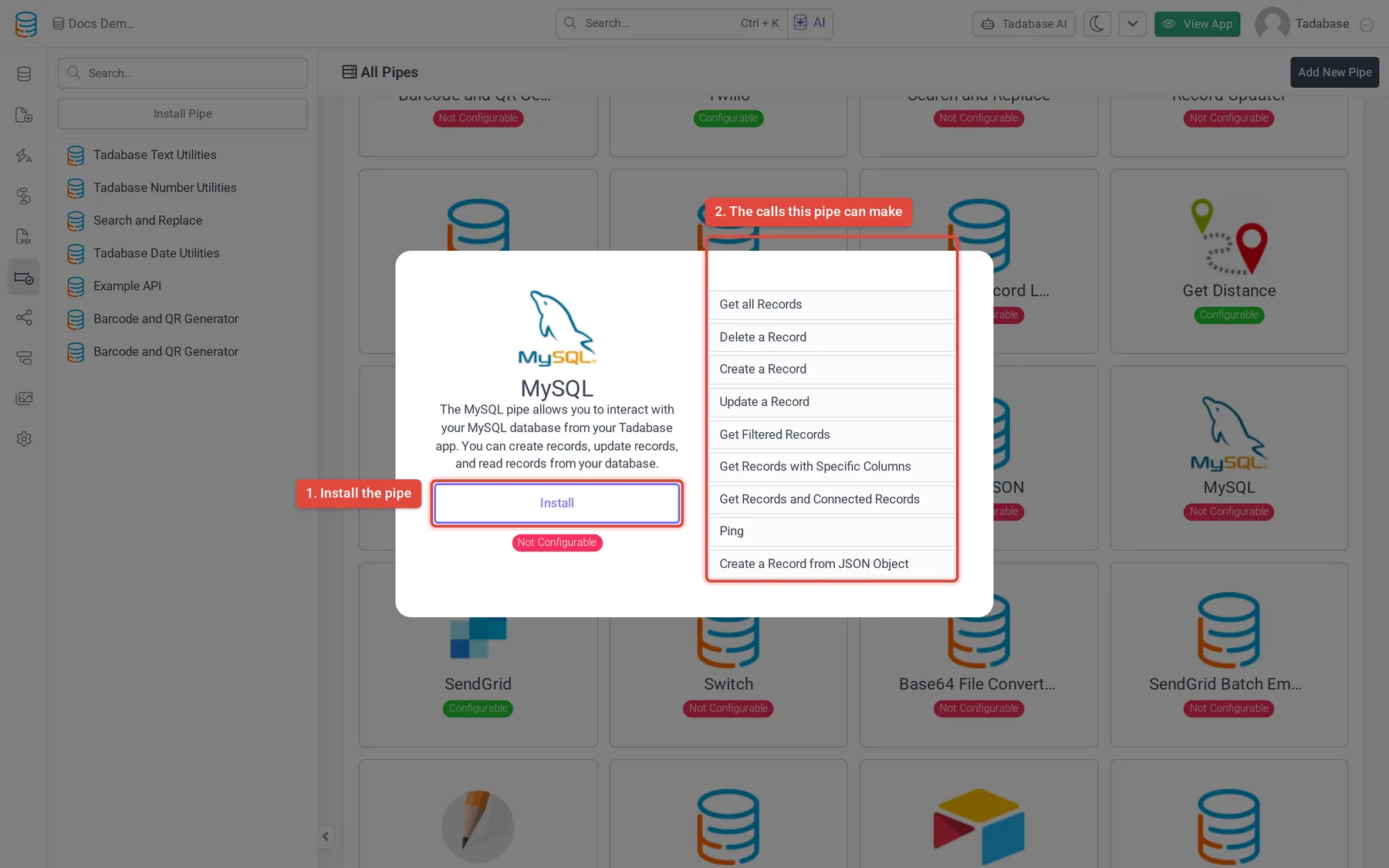
MySQL is a Not Configurable pipe: you cannot add calls. Its tabs are General, API Calls and Global Parameters, and each call shows its Parameters, Request, Test and Response tabs.
Calls #
| Call | What it does | Parameters |
|---|---|---|
| Get a Single Record | Returns one row by its primary key. Several keys separated by commas return an array. | Table Name, Record Primary Key |
| Get all Records | Returns every row of a table, as an array. | Table Name |
| Get Filtered Records | Returns the rows that match a filter, as an array. | Table Name, Filter |
| Get Records with Specific Columns | Returns only the listed columns of the listed rows. | Table Name, Primary Keys, Columns (comma-separated) |
| Get Records and Connected Records | Returns rows together with the rows they link to. | Table Name, Primary Keys, Join |
| Create a Record | Adds a row. Record Data is a JSON object of column names and values. | Table Name, Record Data |
| Create a Record from JSON Object | Adds a row from a JSON object you pass in whole. | Table Name, Record Data |
| Update a Record | Changes the columns given in Record Data on one row. | Table Name, Record Primary Key, Record Data |
| Delete a Record | Deletes one row by its primary key. | Table Name, Record Primary Key |
| Ping | Checks that the database can be reached. | None |
An example of Record Data for a customers table:
{"customerNumber": 103, "customerName": "Larry Johnson"}A Filter is a column, an operator and a value separated by commas, such as customerNumber,gt,110. Common operators are eq (equals), cs (contains), sw (starts with), ew (ends with), lt, le, ge and gt (lower than, lower or equal, greater or equal, greater than) and bt (between). Put n in front of an operator to negate it, such as neq.
Map the response to your columns #
The pipe does not know your table's columns, so set up the response values of each call you use before you rely on them in your app.
- Run the call once On the call's Test tab, enter a real table name and key and click Test.
- Add the values Click Populate Responses to add the returned columns, or add them yourself on the Response tab: Key is the column in the result, Field Name is the name you will pick in your app.
- Save Click Save. The values now appear when you map this call's response in a form, a record or a workflow.
Calls that return an array hand back the whole list as one value. Show it in a Custom Component or go through it with a workflow loop.
Common problems #
- Ping fails or times out. The server cannot be reached from the internet, or it does not accept connections from Tadabase's pipe server. Check the host name, the firewall and the user's allowed hosts.
- Access denied. Check Username and Password, and that the user has the privileges the call needs on that database.
- Response values are empty. Map them to your columns first; see above.
Was this page helpful?
Something wrong or missing on this page? Tell us.