
Sync contacts with Klaviyo using the Klaviyo pipe
Set up the Klaviyo pipe with your API keys, see its list, segment, profile and campaign calls, and update calls that still use Klaviyo's retired API.
- Verified Nov 17, 2026
- Classic builder
On this page
The Klaviyo pipe calls Klaviyo's API to manage lists, segments, profiles and campaigns from your app. Most of its calls were written for Klaviyo API versions that Klaviyo has since retired, so update and test a call before you build on it.
Before you start #
- You need a Klaviyo account. To create or view API keys you need the Owner, Admin or Manager role in it.
- You need your Klaviyo Private API Key and Public API Key. Both are in your Klaviyo account under Settings > API Keys.
- Klaviyo is a Configurable pipe: it is copied into your app, so you can edit its calls, headers and request bodies.
Install the pipe #
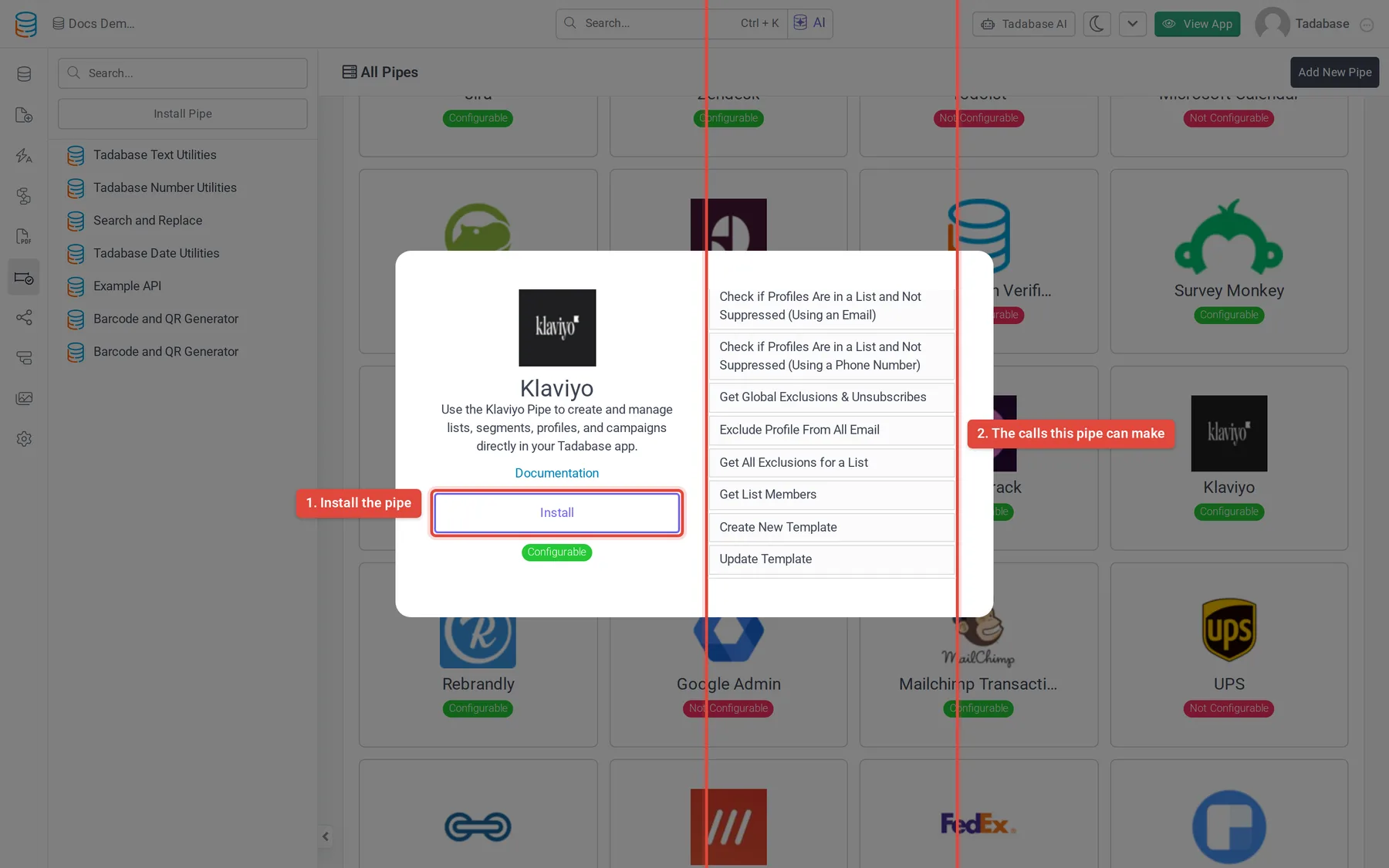
- Open the pipe In the builder, click Pipes in the icon bar on the left, then click the Klaviyo card in All Pipes.
- Install it Click Install. Enter your Private API Key and Public API Key (both required) and click Install again. The pipe opens on its General tab.
To change a key later, open the pipe, click Global Parameters, change the Default Value of the key and click Save. Calls refer to the private key as {PRIVATE_API_KEY}.
Calls #
| Area | Calls | Klaviyo API it calls |
|---|---|---|
| Profiles | Identify Profile with an Email Address, Identify Profile with a Phone Number, Track Profile Activity | Old Track and Identify API (retired) |
| Profiles | Get Profile ID with an Email Address, Exclude Profile From All Email, Get Global Exclusions & Unsubscribes | v1 and v2 (retired) |
| Lists | Create a List, Get Lists, Get a Specific List's Info, Update List Name, Delete List, Get List Members, Get All Exclusions for a List | v2 (retired) |
| List members | Add Profiles to a List, Subscribe Profiles to a List, Unsubscribe and Remove Profile From List Using an Email Address, Unsubscribe and Remove Profile From List Using a Phone Number, Check if Profiles Are in a List Using an Email, Check if Profiles Are in a List Using a Phone Number, Check if Profiles Are in a List and Not Suppressed (Using an Email), Check if Profiles Are in a List and Not Suppressed (Using a Phone Number) | v2 (retired) |
| Segments | Get Segments, Get a Specific Segment, Update a Segment, Get Segment Profiles | Current /api/ endpoints, old revision 2022-10-17 |
| Segments | Get Segment Members, Check if Profiles Are in a Segment Using an Email, Check if Profiles Are in a Segment Using a Phone Number | v2 (retired) |
| Campaigns | Create New Campaign, Get Campaigns, Get a Specific Campaign's Info, Update Campaign, Send a Campaign Immediately, Schedule a Campaign, Cancel a Campaign, Clone a Campaign, Get Campaign Recipients | v1 (retired) |
The pipe also has metric and email template calls (such as Get Metrics Info and Create New Template), all on the retired v1 API. Calls that return a list, such as Get Lists and Get Campaigns, return it as one array value, which you can show in a Custom Component or go through with a workflow loop.
Update a call #
Klaviyo's current API uses different addresses, a different sign-in header and a JSON:API request format. To move a call over, rebuild it from Klaviyo's API reference:
- Open the call Click Pipes, open Klaviyo, click the API Calls tab and pick the call.
- Change the address On the Overview tab, set the method and replace the URL with the current endpoint, for example
https://a.klaviyo.com/api/lists/. Remove anyapi_key=part from the URL. - Set the headers On the Headers tab, set
AuthorizationtoKlaviyo-API-Key {PRIVATE_API_KEY}and add arevisionheader with a current revision date from Klaviyo's documentation. Remove the oldapi_keyheader if the call has one. - Rewrite the body On the Request tab, change the body to the format the endpoint expects. Use parameter slugs in braces where values come from your app.
- Test and map the response On the Test tab, click Test. When it works, click Populate Responses to add the returned values, then check them on the Response tab and click Save.
For a call the pipe does not have, click Add New Call on the API Calls tab and build it the same way. See Create a custom pipe for how each tab works.
Common problems #
- A call fails with an error from Klaviyo. Check its URL on the Overview tab. If it contains
/api/v1/,/api/v2/,/api/trackor/api/identify, it uses an API Klaviyo has retired; update it as above. - A segment call is refused. Its
revisionheader is2022-10-17. Change it to a current revision on the Headers tab. - A key stopped working. Keys can be revoked in Klaviyo. Create a new private key there and enter it on the Global Parameters tab.
Was this page helpful?
Something wrong or missing on this page? Tell us.