
Call OpenAI with the OpenAI pipe
Send record data and a prompt to OpenAI with your own API key. Most calls in this pipe use a retired model; use the OpenAI Plugin call or AI Prompts.
- Verified Nov 17, 2026
- Classic builder
On this page
The OpenAI pipe sends text from your app to the OpenAI API with your own OpenAI API key and returns the answer.
Get an OpenAI API key #
- Sign in to OpenAI Sign in to the OpenAI platform and open the API keys page.
- Create a key Create a secret key and copy it. OpenAI shows it only once. Usage is billed to your OpenAI account.
Install the pipe #
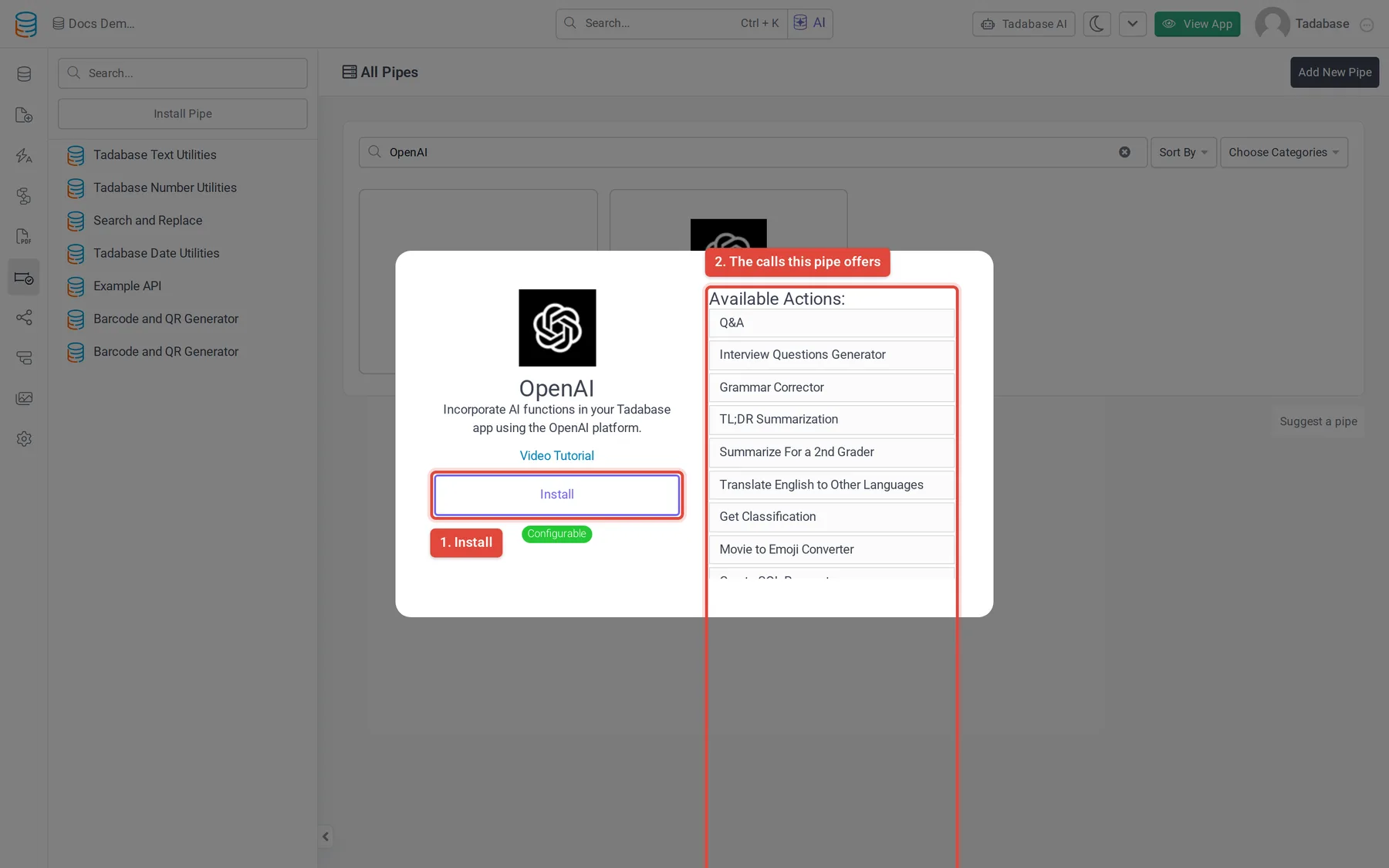
- Open Pipes In the builder, click the Pipes icon in the left menu. The All Pipes page lists every pipe you can install.
- Find the pipe Type
OpenAIin the Search... box and click the OpenAI card. The window shows what the pipe does and its Available Actions: the calls it offers. - Click Install Click Install. If your plan does not include pipes, an upgrade button shows instead.
- Enter the key Paste your key into API Key (required) and click Install.
Which calls work #
Use the OpenAI Plugin call. It sends a system instruction, your prompt and the record content to OpenAI's chat completions endpoint with the gpt-4o model.
| Call | Parameters | Returns |
|---|---|---|
| OpenAI Plugin | Record Content (required): the field values to answer from. Custom Prompt: your question or instruction. | Response: the model's answer |
The OpenAI pipe is Configurable. To use a different model or allow longer answers, open the OpenAI Plugin call, click Request and change model or max_tokens (it starts at 256). Check OpenAI's models page for current model names.
Use it in a workflow #
You can run any call of an installed pipe from a workflow with the Trigger Pipe action, and use what it returns in later steps. Pipes can also run in other parts of your app, as described in Using pipes.
Example: summarize a job's notes into a Summary field.
- Start a workflow Create a workflow that runs when a job record is updated.
- Add a Trigger Pipe step Add the Trigger Pipe action and choose the OpenAI pipe's OpenAI Plugin call in Pipe Method. Set Record Content to the Notes field and Custom Prompt to
Summarize these notes in two sentences. - Save the answer Add an Update Record step and set the Summary field to the pipe's Response.
More from OpenAI #
See the OpenAI API reference for every option of the chat completions endpoint.
Was this page helpful?
Something wrong or missing on this page? Tell us.