
Connect Pipedrive with the Pipedrive pipe
Install the Pipedrive pipe with your Pipedrive API token and work with users, files, leads and notes from your app.
- Verified Nov 17, 2026
- Classic builder
On this page
The Pipedrive pipe calls version 1 of the Pipedrive API with your personal API token. Use it to read users and files and to create, change and delete leads from your app.
Get your Pipedrive API token #
- Sign in to Pipedrive Sign in to the Pipedrive company account you want to connect.
- Open your API token Go to Settings > Personal preferences > API.
- Copy it Copy your personal API token. Calls made with it act as you, with your Pipedrive permissions.
Install the pipe #
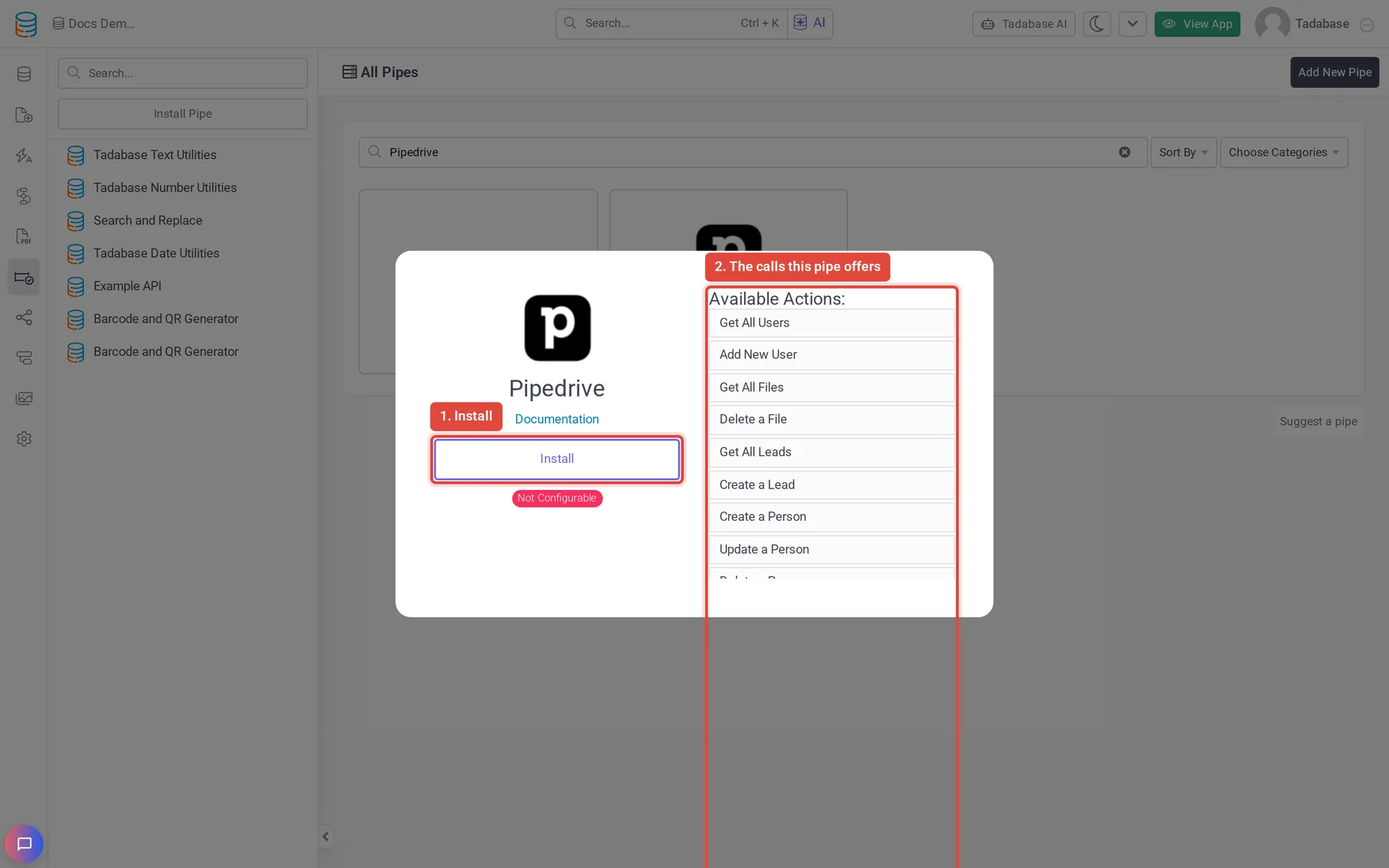
- Open Pipes In the builder, click the Pipes icon in the left menu. The All Pipes page lists every pipe you can install.
- Find the pipe Type
Pipedrivein the Search... box and click the Pipedrive card. The window shows what the pipe does and its Available Actions: the calls it offers. - Click Install Click Install. If your plan does not include pipes, an upgrade button shows instead.
- Enter the token Paste the token into Pipedrive API Token (required) and click Install.
To change the token later, open the installed pipe, click Global Parameters, change the value and click Save.
Calls you can use #
These calls use version 1 endpoints that Pipedrive has not deprecated.
| Resource | Call | Parameters |
|---|---|---|
| Users | Get All Users | None |
| Users | Add New User | Name, Email |
| Files | Get All Files | None |
| Files | Delete a File | File ID |
| Leads | Get All Leads | None |
| Leads | Create a Lead | Title, Person ID (the person must already exist in Pipedrive) |
| Leads | Update a Lead | Lead id, Person_id, Title, Owner id |
| Leads | Delete a Lead | Lead ID |
| Notes | Get All Notes | None |
| Notes | Delete a Note | Note ID |
Calls on deprecated endpoints #
The pipe also lists these calls. Each one uses a version 1 endpoint that Pipedrive has deprecated in favor of version 2, so a call can fail at any time once Pipedrive removes the endpoint.
| Resource | Calls |
|---|---|
| Persons | Create a Person, Update a Person, Delete a Person |
| Deals | Get All Deals, Get a Deal, Add a Deal, Update a Deal, Delete a Deal |
| Pipelines | Get All Pipelines, Add a New Pipeline, Update a Pipeline Name, Delete a Pipeline |
| Stages | Get All Stages, Add a New Stage, Update a Stage, Delete a Stage |
| Activities | Get All Activities, Add an Activity, Update an Activity, Delete an Activity |
| Organizations | Get All Organizations, Add an Organization, Update an Organization, Delete an Organization |
| Products | Get All Products, Create a Product, Update a Product, Delete a Product |
To reach these resources, build your own pipe against Pipedrive's version 2 endpoints (see Adding pipes), or use the Trigger Webhook action in a workflow.
Use it in a workflow #
You can run any call of an installed pipe from a workflow with the Trigger Pipe action, and use what it returns in later steps. Pipes can also run in other parts of your app, as described in Using pipes.
Example: when a person in your app becomes a sales lead, create the lead in Pipedrive and keep its ID.
- Store the Pipedrive person ID Keep the Pipedrive person ID on the record, in a field such as Pipedrive Person ID, and add a text field named Pipedrive Lead ID.
- Start a workflow Create a workflow that runs when the record is created or updated.
- Add a Trigger Pipe step Add the Trigger Pipe action and choose the Pipedrive pipe's Create a Lead call in Pipe Method. Under Parameters, set Title and Person ID from the record.
- Save the lead ID Add an Update Record step and set Pipedrive Lead ID to the pipe's Lead ID response.
More from Pipedrive #
For every field these calls accept and return, see the Pipedrive API reference.
Was this page helpful?
Something wrong or missing on this page? Tell us.