
Find and replace text with a pipe
Use the Search and Replace pipe to swap placeholder words in a text for values from your records, with as many search and replace pairs as you need.
- Verified Nov 17, 2026
- Classic builder
On this page
The Search and Replace pipe finds every instance of the words you choose in a text and replaces them with new values. Use it to fill a template sentence, such as hi firstname, how is city?, with values from the record you are working with.
How it works #
The pipe has one call, also named Search and Replace. It takes:
- Original Text: the text to change. Keep this parameter; the call needs it.
- One parameter for each replacement value. The pipe comes with three as an example: First Name, Last Name and City.
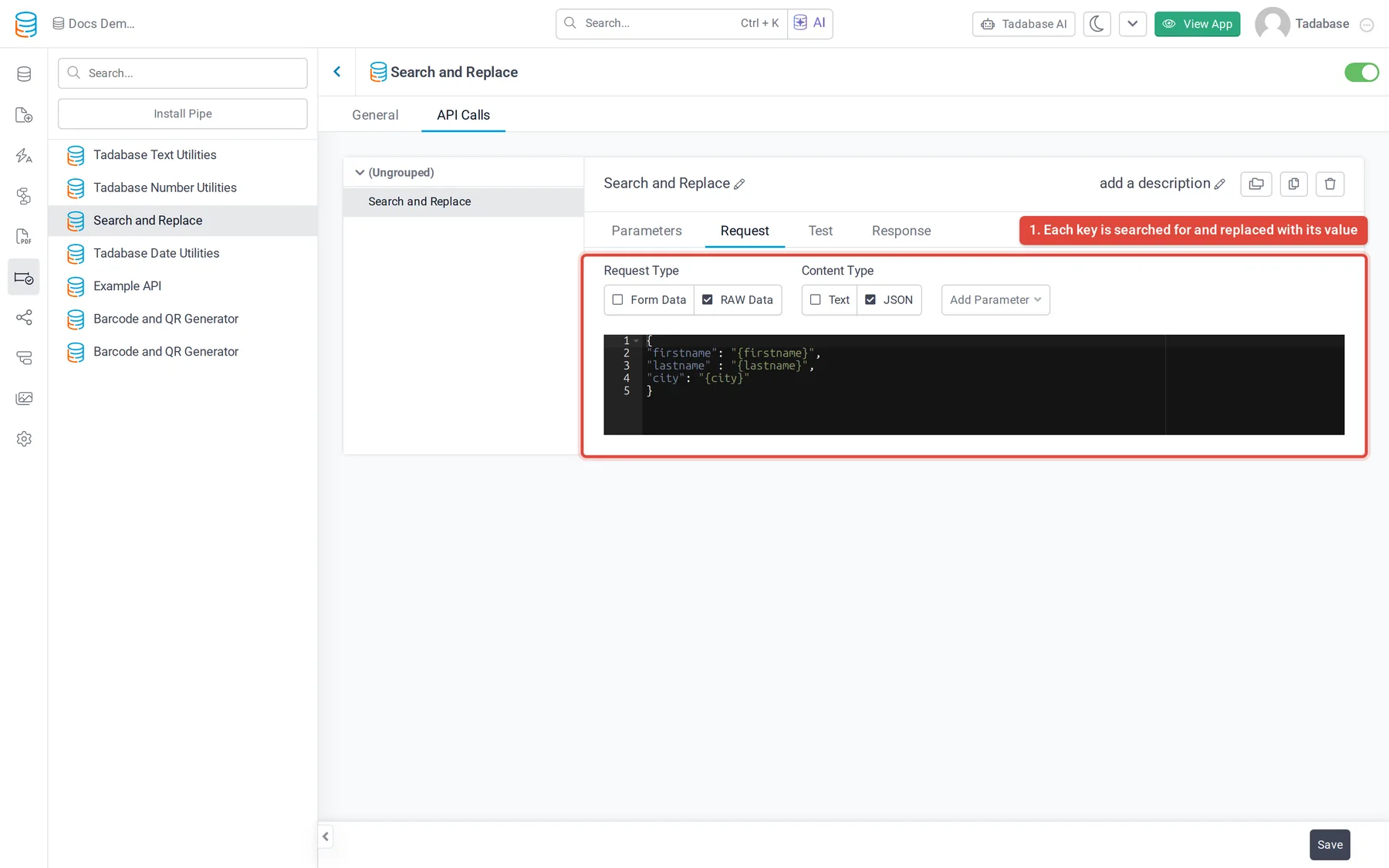
- A request body that pairs each word to find with the parameter that replaces it.
The request body is JSON. Each key is the text to search for; each value is what replaces it. A value in curly braces is a parameter, by its slug. This is the body the pipe comes with:
{
  "firstname": "{firstname}",
  "lastname": "{lastname}",
  "city": "{city}"
}
With Original Text set to hi firstname, how is city?, First Name set to esther and City set to phoenix, the call returns hi esther, how is phoenix? in New Text.
Install the pipe #
- Open Pipes In the builder, click Pipes in the left menu, then click Install Pipe.
- Find the pipe Type
Search and Replacein the Search... box and click the Search and Replace card. - Install it Click Install. The installed pipe opens on its General tab.
Set your own search and replace pairs #
Change the example parameters and body to match your own placeholders. For each word you want to replace:
- Open the call Open the API Calls tab and click Search and Replace.
- Add a parameter On the Parameters tab, click Add New Parameter. Enter a Name (shown when you map the pipe) and a Slug (used in the request body, no spaces or special characters). Delete the example parameters you do not need, but keep Original Text.
- Add the pair to the body On the Request tab, add a line to the JSON body: the word to find as the key, and the parameter's slug in curly braces as the value, for example
"company_name": "{company}". Remove the lines for parameters you deleted. Separate pairs with commas. - Test it On the Test tab, enter an Original Text and a value for each parameter, then click Test. The response shows the new text.
- Save Click Save.
Run it and use the result #
Add the pipe where you need it; Use pipes in your app covers each place. In a workflow, add a Trigger Pipe action, choose Search and Replace in Pipe Method, and set Original Text and each of your parameters to a field or a typed value under Parameters. Then use New Text, for example to update a field on the record.
| Returned value | What it holds |
|---|---|
| New Text | The text after the replacements. |
| Original Text | The text you passed in. |
| Searches as JSON | The searches, as JSON. |
| Search as String | The searches, as text. |
| Result Status | The status of the call. |
The result is saved as a value: if you store New Text in a field, it does not change later when the source fields change. Run the pipe again to refresh it.
Was this page helpful?
Something wrong or missing on this page? Tell us.