
Manage OneDrive files with the OneDrive pipe
Install the Microsoft OneDrive pipe by signing in with Microsoft, then create folders, upload files, share items and manage permissions from your app.
- Verified Nov 17, 2026
- Classic builder
On this page
The Microsoft OneDrive pipe works with the files in a OneDrive account through Microsoft Graph. Use it to put files from your app into OneDrive folders, share them, and keep track of who has access.
Before you start #
- You need a Microsoft account with OneDrive. The pipe works on the drive of the account you sign in with when you install it.
- There is no API key to copy. The pipe signs in with Microsoft (OAuth) when you install it.
- Microsoft OneDrive is a Not Configurable pipe: you cannot add or edit its calls. Each call shows its Parameters, Test and Response tabs.
Install the pipe #
- Open the pipe In the builder, click Pipes in the icon bar on the left, then click the Microsoft OneDrive card in All Pipes.
- Sign in to Microsoft Click Authorize & Install. A Microsoft sign-in window opens. Sign in with the account whose OneDrive the app should use and allow access.
- Check the install When access is allowed, the pipe installs and opens on its General tab. If the sign-in window is closed or access is refused, you see Authorization Error and nothing is installed.
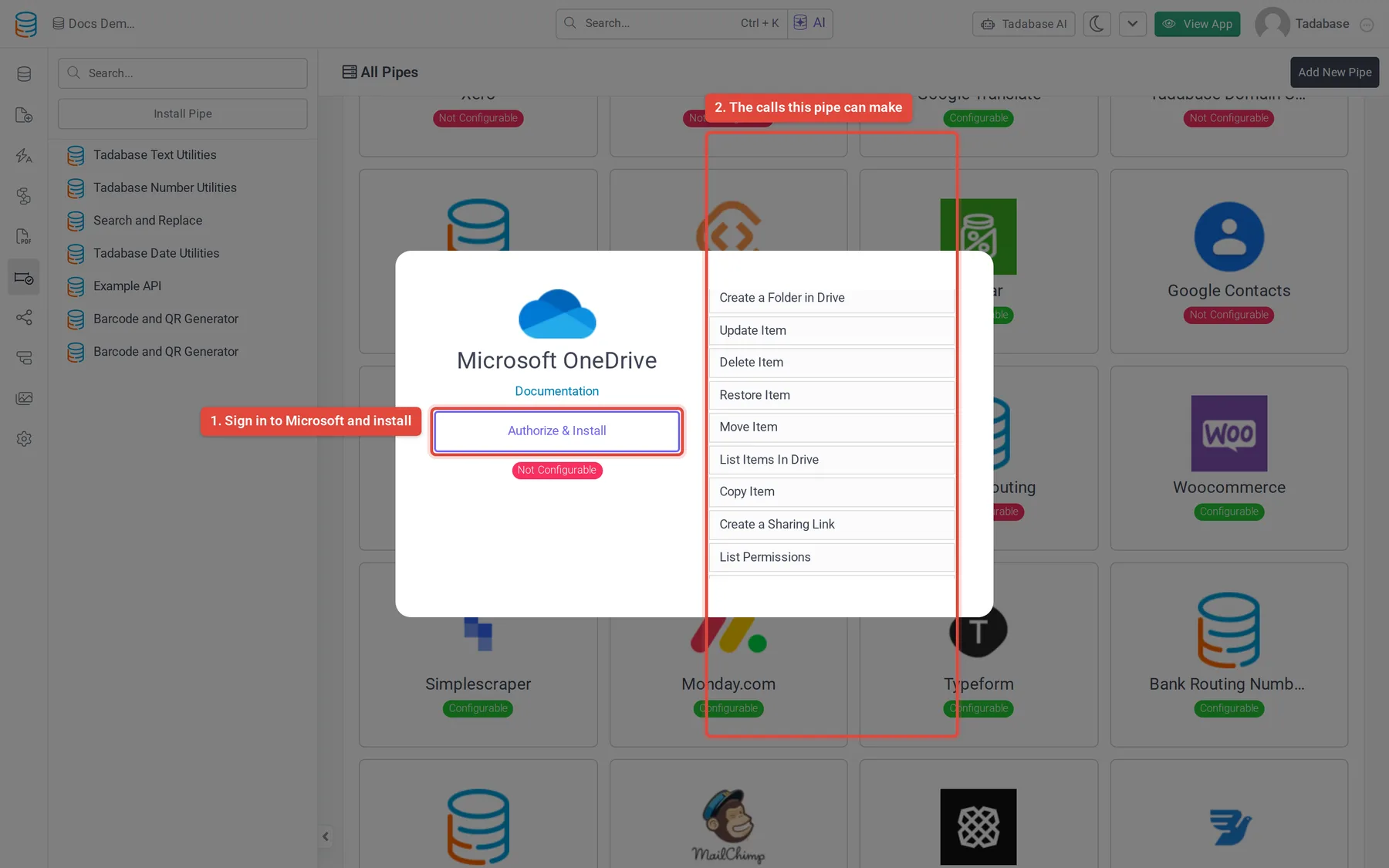
Each call goes through Tadabase's pipe sign-in service to Microsoft Graph's /me/drive endpoints, so it always acts on the signed-in account's own drive.
Calls #
| Call | What it does | Parameters |
|---|---|---|
| Get Drives | Returns the drive's ID, type, owner and storage quota. | None |
| List Items In Drive | Lists the files and folders at the top level of the drive, as an array. | None |
| Get Item | Returns an item's name, size, web URL, dates, creator and parent folder. | Item ID |
| Create a Folder in Drive | Creates a folder and returns its Folder ID. A path such as Clients/ creates the missing folders on the way. | Folder Name |
| Upload a File | Uploads a file into a folder (missing folders are created) and returns File Id, File Web URL, Download Url and more. | File (the file's web address, from a File or Link field; Attachments fields are not supported), Folder Name |
| Update Item | Renames an item. | Item ID, Updated File Name |
| Move Item | Moves an item into another folder. | Item ID, New Parent Folder ID |
| Copy Item | Copies an item under a new name. | Item ID, New File Name |
| Delete Item | Deletes an item. | Item ID |
| Restore Item | Restores a deleted item. | Item ID |
| Create a Sharing Link | Creates a link to an item and returns Web URL Link and Share ID. | Item ID, Type (view, edit or embed), Scope (optional: anonymous or organization) |
| Send a Sharing Invitation | Shares an item with someone by email. | Item ID, Recipient Email, Require Sign In and Send Invitation (true or false), Permission Roles (read or write), Message (optional, up to 2,000 characters) |
| List Permissions | Lists who has access to an item, as an array. | Item ID |
| Update Permission | Changes the roles of one permission. | Item ID, Permission ID, Updated Permission Roles |
| Remove Permissions | Removes one permission from an item. | Item ID, Permission ID |
| Get Shared Item | Returns a shared item's ID, name and owner. | Share ID |
Most calls need an Item ID. Save the ID when you create something: Upload a File returns File Id and Create a Folder in Drive returns Folder ID. Store it in a text field on the record so later calls can use it. Calls that return an array, such as List Items In Drive and List Permissions, hand back the whole list as one value; show it in a Custom Component or go through it with a workflow loop.
For what each call accepts and returns in detail, see Microsoft's OneDrive API documentation.
Example: file a job report in OneDrive and share it #
Say your Jobs table has a Report File field, and text fields OneDrive File ID and Report Link. This workflow copies each new report to OneDrive and saves a view link.
- Start the workflow Create a workflow on the Jobs table with the Record Created trigger.
- Upload the file Add a Trigger Pipe step and choose Microsoft OneDrive > Upload a File. Map File to the Report field and set Folder Name to a static value such as
Jobs/Reports. - Create a link Add a second Trigger Pipe step with Create a Sharing Link. Set Item ID from Step Data > the upload step > File Id, Type to
viewand Scope toorganization. - Save the results Add an Update Record step on the source record. Set OneDrive File ID from the upload step's File Id and Report Link from the link step's Web URL Link.
See Run a pipe from a workflow for how pipe steps and their response values work, and Run a pipe from a form, field, component or workflow for the other places a pipe can run.
Common problems #
- Authorization Error when installing. The Microsoft window was closed or access was refused. Click Authorize & Install again and finish the sign-in.
- The file lands in the wrong drive. The pipe uses the drive of the account that signed in during the install. To use another account, install the pipe again and sign in with that account.
- Upload a File fails. File must be the web address of a file, from a File or Link field. Attachments fields are not supported.
- A call says the item was not found. Check the Item ID you passed. Open the call's Test tab, enter the ID and click Test to see Microsoft's answer.
Was this page helpful?
Something wrong or missing on this page? Tell us.