
View and update QuickBooks Online with a pipe
Install the Quickbooks pipe by signing in to QuickBooks Online with your Company ID, then work with customers, invoices, payments and items from your app.
- Verified Nov 17, 2026
- Classic builder
On this page
The Quickbooks pipe connects your app to a QuickBooks Online company. Use it to look up and create customers, create and send invoices, record payments and read your products and chart of accounts.
Before you start #
- You need a QuickBooks Online company and a login that can connect apps to it.
- You need the company's Company ID. Sign in to QuickBooks Online and go to Settings > Account Settings > Billing; the Company ID is shown at the top. Enter it without spaces.
- Quickbooks is a Not Configurable pipe: you cannot add or edit its calls. You can change the Company ID on its Global Parameters tab, and each call shows its Parameters, Request, Test and Response tabs.
Install the pipe #
- Open the pipe In the builder, click Pipes in the icon bar on the left, then click the Quickbooks card in All Pipes.
- Enter your Company ID Click Authorize & Install. The window asks for Company ID (required). Enter it and click Authorize & Install again.
- Sign in to QuickBooks An Intuit sign-in window opens. Sign in, choose the same company and allow access. The pipe installs and opens on its General tab.
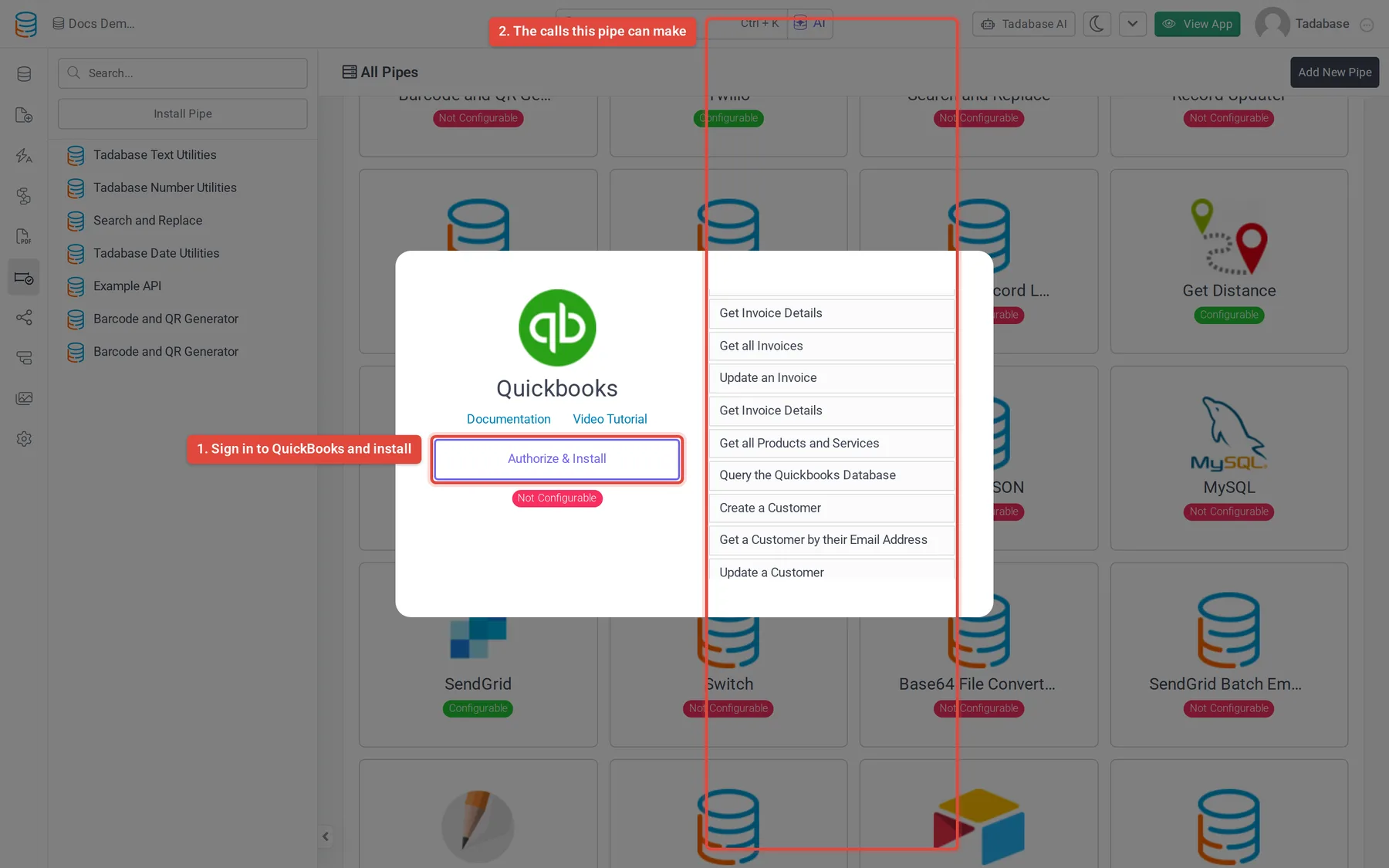
If the sign-in window is closed or access is refused, you see Authorization Error and nothing is installed. The Company ID you enter must belong to the company you allow access to.
Calls #
| Area | Calls |
|---|---|
| Customers | Create a Customer, Get Customer Details, Get a Customer by their Email Address, Get all Customers, Update a Customer |
| Invoices | Create an Invoice, Get Invoice Details, Get all Invoices, Update an Invoice, Send an Invoice, Send an Invoice to a Custom Email, Void an Invoice, Delete an Invoice |
| Payments | Create a Payment, Update a Payment, Delete a Payment |
| Products and accounts | Get all Products and Services, Create an Item, View Chart of Accounts |
| Other | Get Company Info, Get Employee Details, Create an Estimate, Create a Purchase, Query the Quickbooks Database |
- Create an Invoice needs Amount, Customer ID and Item ID. Get the customer's ID from Create a Customer, Get a Customer by their Email Address or Get all Customers, and the item's ID from Get all Products and Services. It returns the new invoice's Invoice ID, Invoice Number, Invoice Link, Total Amount, Balance and Due Date, among others.
- Send an Invoice emails the invoice to the address on the invoice. Send an Invoice to a Custom Email sends it to the address you pass in Send to Email.
- Void an Invoice sets every amount on the invoice to zero and marks it as voided.
- Query the Quickbooks Database runs a query in QuickBooks' own query language, such as
select * from Customer. The calls that start with Get all return an array.
For what each QuickBooks object holds, see Intuit's QuickBooks Online API reference.
Example: bill a customer from an invoice record #
Say your Invoices table has an Amount field, a connection to Customers whose records hold a QuickBooks Customer ID, and text fields QuickBooks Invoice ID and Invoice Link.
- Create the invoice In a workflow on the Invoices table, add a Trigger Pipe step with Quickbooks > Create an Invoice. Map Amount to the Amount field and Customer ID to the customer's QuickBooks Customer ID, and set Item ID to the ID of the product or service you bill for.
- Save the result Add an Update Record step and set QuickBooks Invoice ID and Invoice Link from Step Data > the Trigger Pipe step > Invoice ID and Invoice Link.
- Send it Add another Trigger Pipe step with Send an Invoice and set Invoice ID from the first step's Invoice ID.
See Run a pipe from a workflow and Run a pipe from a form, field, component or workflow.
Common problems #
- Calls fail after installing. Check the Company ID on the Global Parameters tab: it must match the company you allowed access to, with no spaces.
- Create an Invoice is refused. Customer ID and Item ID must be IDs from the same QuickBooks company. Look them up with the Get calls first.
- You want a different QuickBooks company. Install the pipe again with that company's Company ID and sign in to that company.
Was this page helpful?
Something wrong or missing on this page? Tell us.