
Look up website and domain details from a URL
Use the Tadabase Domain Utilities pipe to fetch a website's title, description and images, or split a domain into its parts, and save them to a record.
- Verified Nov 17, 2026
- Classic builder
On this page
The Tadabase Domain Utilities pipe reads a website and returns its title, description, keywords and preview images, or takes a domain name and splits it into its parts.
Use it to fill in company details when someone adds a customer with a website, or to check what kind of domain an address uses.
Install the pipe #
- Open the pipe library In the builder, click Pipes in the icon bar on the left. The All Pipes list opens.
- Find the pipe Type
Domain Utilitiesin Search..., or use Choose Categories and pick Domain. - Install it Click the Tadabase Domain Utilities card and click Install.
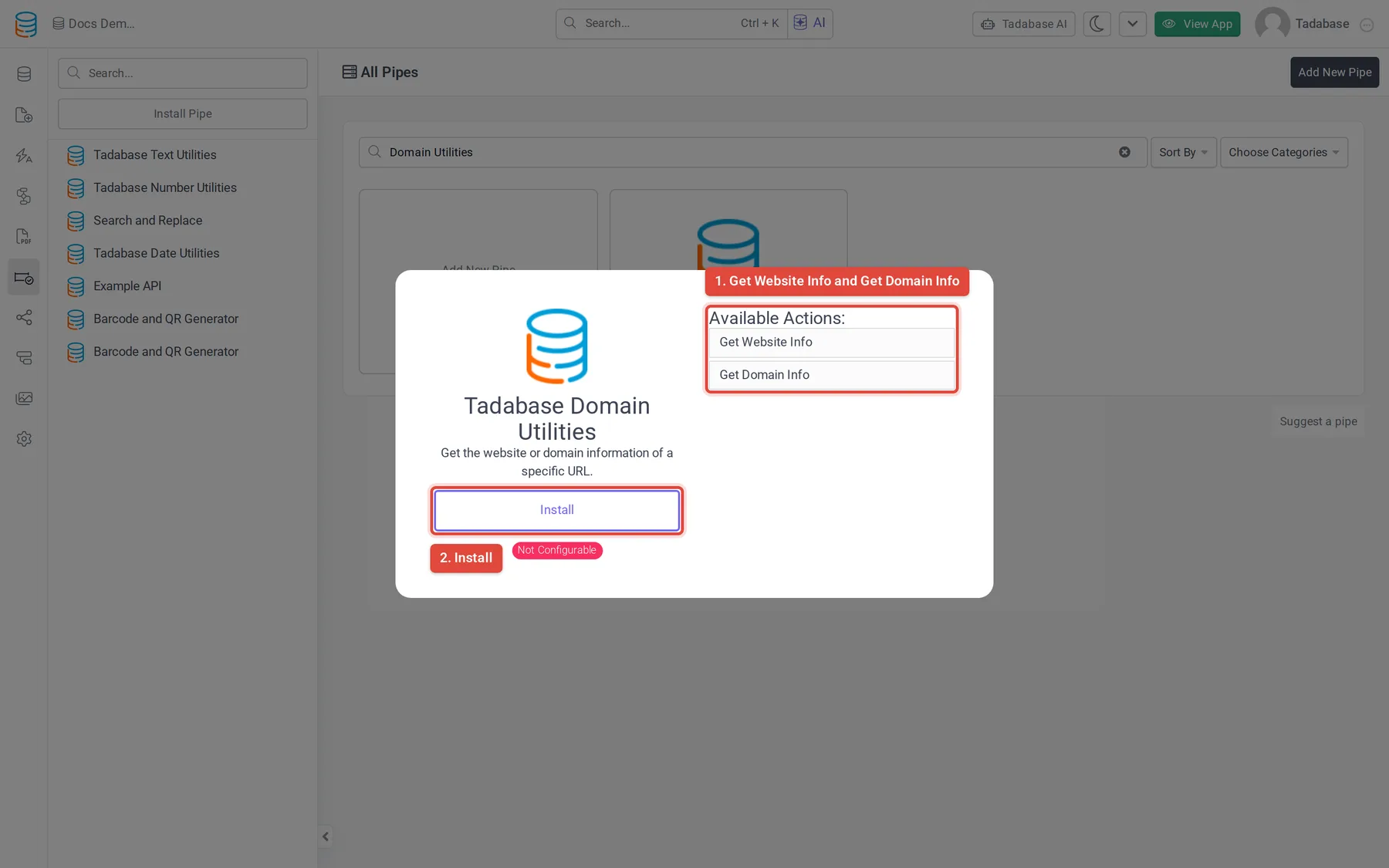
The pipe is Not Configurable and needs no settings or outside account. You can use it as soon as it is installed.
Get Website Info #
Takes one parameter, URL: the full address of the page, including https://. For example, send https://tadabase.io, not tadabase.io.
| Response value | What it holds |
|---|---|
| Site Title | The page's title. |
| Site Description | The page's meta description, usually a sentence or two about the company or page. |
| Keywords | The page's meta keywords, if it has any. |
| Canonical | The page's canonical URL. |
| Facebook Image | The image URL the site sets for sharing on Facebook (og:image). |
| Twitter Image | The image URL the site sets for sharing on X (twitter:image). |
The values come from the site's own page tags. A site that leaves a tag out returns that value blank.
Get Domain Info #
Takes one parameter, Domain: a domain name without https://, for example tadabase.io or app.example.co.uk.
| Response value | What it holds |
|---|---|
| Domain Name | The full domain you sent. |
| Registerable | The part of the domain someone registers, for example example.co.uk. |
| Subdomain | The part before the registerable domain, for example app. |
| Top Level Domain | The last label, for example uk. |
| Domain Suffix | The public suffix, for example co.uk. |
| Is Known, Is ICann, Is Private, Is Test | Whether the suffix is a known public suffix, an ICANN suffix, a private suffix, or a test domain. |
Example: fill in a customer's company details #
In a Customers table that has a Website field, save the site's description whenever a customer is added.
- Add the fields In the Customers table, add a Long Text field called Company Description. Add a Link or Text field for the logo or title too if you want them.
- Start a workflow Create a workflow on the Customers table that starts when a record is created.
- Call the pipe Add a Trigger Pipe step. Under Pipe Method, choose Get Website Info from Tadabase Domain Utilities, and set URL to the customer's Website field.
- Save the response Add an Update Record step for the same customer and set Company Description to the Trigger Pipe step's Site Description value.
See Run a pipe from a workflow for how to pick a step's response values. To show the details on a page without saving them, add the pipe to a Table component's data source instead; see Using pipes.
Common problems #
- Get Website Info returns nothing. The URL must be a full address that starts with
https://. If people type bare domains into the Website field, use Get Domain Info instead, or add the prefix before you send it. - Some values are blank. The site does not set those tags. Nothing can be read that the page does not publish.
- Get Domain Info returns odd parts. Send only the domain, without
https://, a path or a trailing slash.
Was this page helpful?
Something wrong or missing on this page? Tell us.